 Ask Chatgpt to summarize How To Audit A Website: 2026 Step-by-step Guide
 Ask Grok to summarize How To Audit A Website: 2026 Step-by-step Guide
 Ask Claude to summarize How To Audit A Website: 2026 Step-by-step Guide
 Ask Perplexity to summarize How To Audit A Website: 2026 Step-by-step Guide
 Ask Gemini to summarize How To Audit A Website: 2026 Step-by-step Guide

Most advice on how to audit a website starts in the wrong place. It starts with tools.
That’s how teams end up with a spreadsheet full of warnings, a Lighthouse score screenshot, and no agreement on what matters. A crawler can tell you that a page has a missing meta description. It can’t tell you whether that page is supposed to generate leads, support existing customers, rank for a strategic query, or drive assisted revenue in a WooCommerce funnel.
On large WordPress builds, that gap gets expensive fast. Multisite structures hide orphan pages. Plugins create overlapping functionality. Translation layers introduce content drift. Checkout flows break in ways a generic site audit won’t catch. The audit has to do more than find issues. It has to tell you what to fix first, what can wait, and what changes business performance.
A useful audit is part forensic review, part prioritization exercise. It looks at crawlability, performance, content, UX, security, accessibility, and platform-specific risks. Then it turns those findings into a remediation roadmap tied to revenue, lead quality, editorial efficiency, and operational stability.
Table of Contents
Define Your Audit Scope and Business Goals
A website audit that starts with crawlers and scorecards usually produces busywork. On a complex WordPress or WooCommerce build, the expensive mistakes happen earlier, at the scoping stage. If nobody agrees on which journeys make money, which templates carry operational risk, and which systems are in scope, the audit will surface issues without giving the team a defensible order of action.
That matters even more on multisite. One network can contain brochure pages, localized content, support resources, gated assets, and multiple checkout paths with different owners and different failure costs. The audit needs a frame before it needs a tool.

Define the business case first
Start by writing down the decisions this audit must support. That step changes the quality of every finding that follows.
For example, a B2B lead generation site may care most about demo request quality, form completion rate, CRM handoff, and high-intent landing pages. A WooCommerce store may care more about category page performance, add-to-cart rate, checkout completion, payment reliability, and mobile speed on product templates. A publisher or multi-brand multisite network may be trying to protect organic visibility while reducing editorial overhead across regions and teams.
Those are different audits.
I usually push clients to name one primary outcome and two secondary outcomes. Without that limit, every stakeholder brings a valid request and the audit turns into a catalogue of problems. With that limit, the team can separate what affects revenue, lead flow, or service cost from what is merely untidy.
Tie scope to ownership
An audit without named owners stalls after delivery. Each major area needs a business owner and a technical owner.
Use a simple ownership model:
Business owner
- Marketing for acquisition quality and campaign landing pages
- Ecommerce for product discovery, cart, checkout, and merchandising
- Customer support or customer success for self-service paths and ticket deflection
- Editorial or regional teams for publishing workflows and content governance
Technical owner
- Engineering for theme logic, plugin conflicts, integrations, and release risk
- DevOps or hosting partner for CDN, caching, server configuration, and uptime dependencies
- Analytics owner for GA4, tag management, event quality, and attribution gaps
Large WordPress estates often break down. The product grid may belong to ecommerce, filters may be controlled by a plugin vendor, page speed may depend on theme architecture, and tracking may be managed in GTM by an external agency. If those dependencies are not clear at the start, remediation gets delayed by handoffs instead of technical effort.
Audit the parts that carry business risk
Do not spread the same level of effort across every URL. Audit by criticality.
A practical order looks like this:
- Revenue-critical templates: product, category, cart, checkout, pricing, service, quote request
- Acquisition entry points: top organic landing pages, paid campaign destinations, location pages, comparison pages
- Core user journeys: search, navigation, account access, form completion, store locator, multilingual switching
- Operational dependencies: CRM forms, payment gateways, ERP sync points, shipping logic, consent tools, search plugins
This approach is more useful than a flat site-wide checklist because WordPress problems tend to repeat by template and integration. If one product template is slow because of how related products are queried, the issue is rarely limited to one URL. If one multilingual selector breaks canonicals or hreflang handling, the problem often spans an entire section. A scoped audit should expose those patterns early.
If you need a stronger process for defining technical boundaries before the crawl starts, this guide to technical website audits is a useful reference point.
Run stakeholder interviews with fixed questions
Keep interviews short and consistent. Thirty minutes is enough if the questions are structured.
Ask every team the same core set:
- Which pages or user journeys matter most this quarter
- Which pages must not break during remediation
- Where users or editors get blocked today
- Which systems or plugins feel fragile
- What changed in the last six to twelve months
- Which KPI would make this audit worth the cost
Patterns show up fast. Marketing may want faster page creation across campaign pages. Engineering may need to reduce plugin overlap before that can happen safely. Ecommerce may be focused on checkout abandonment, while support is seeing an increase in order-status tickets caused by weak post-purchase UX. Those are not competing opinions. They are inputs for prioritization.
Write a scope statement before you audit
A scope statement prevents drift and makes trade-offs explicit.
| Scope question | Example answer |
|---|---|
| Platform | WordPress multisite with WooCommerce, custom theme, multilingual content |
| Priority journeys | Organic landing, product discovery, cart, checkout, lead form submission |
| Included systems | Theme, plugins, CDN and cache behavior, analytics tags, payment flow, search, ERP and CRM touchpoints |
| Excluded items | Full redesign, brand messaging rewrite, new feature discovery |
| Primary KPIs | Qualified organic sessions, conversion rate, revenue by landing page, page experience on key templates |
Use KPIs that map to outcomes the business already tracks. Google’s Search Console Performance reporting documentation is a reliable reference for monitoring clicks, impressions, click-through rate, and average position on important landing pages. Pair that with conversion data, revenue or lead quality metrics, and template-level performance data. That combination shows where visibility, user experience, and commercial performance break down.
A good scope does one job well. It turns the audit from a generic health check into a revenue-tied remediation plan for the parts of the WordPress stack that affect growth, conversion, and operational stability.
Mastering the Technical and Performance Audit
A lot of audits spend too much time counting defects and not enough time proving which defects block revenue. On a complex WordPress or WooCommerce build, that mistake gets expensive fast. A clean Lighthouse score on one template does not mean category pages render well, faceted navigation is crawlable, or checkout performs under load.
Technical auditing works best when it answers three business questions. Can search engines reach the pages that matter. Can users complete high-value journeys without delay or friction. Can the platform support growth without recurring breakage.
Check crawlability and indexability first
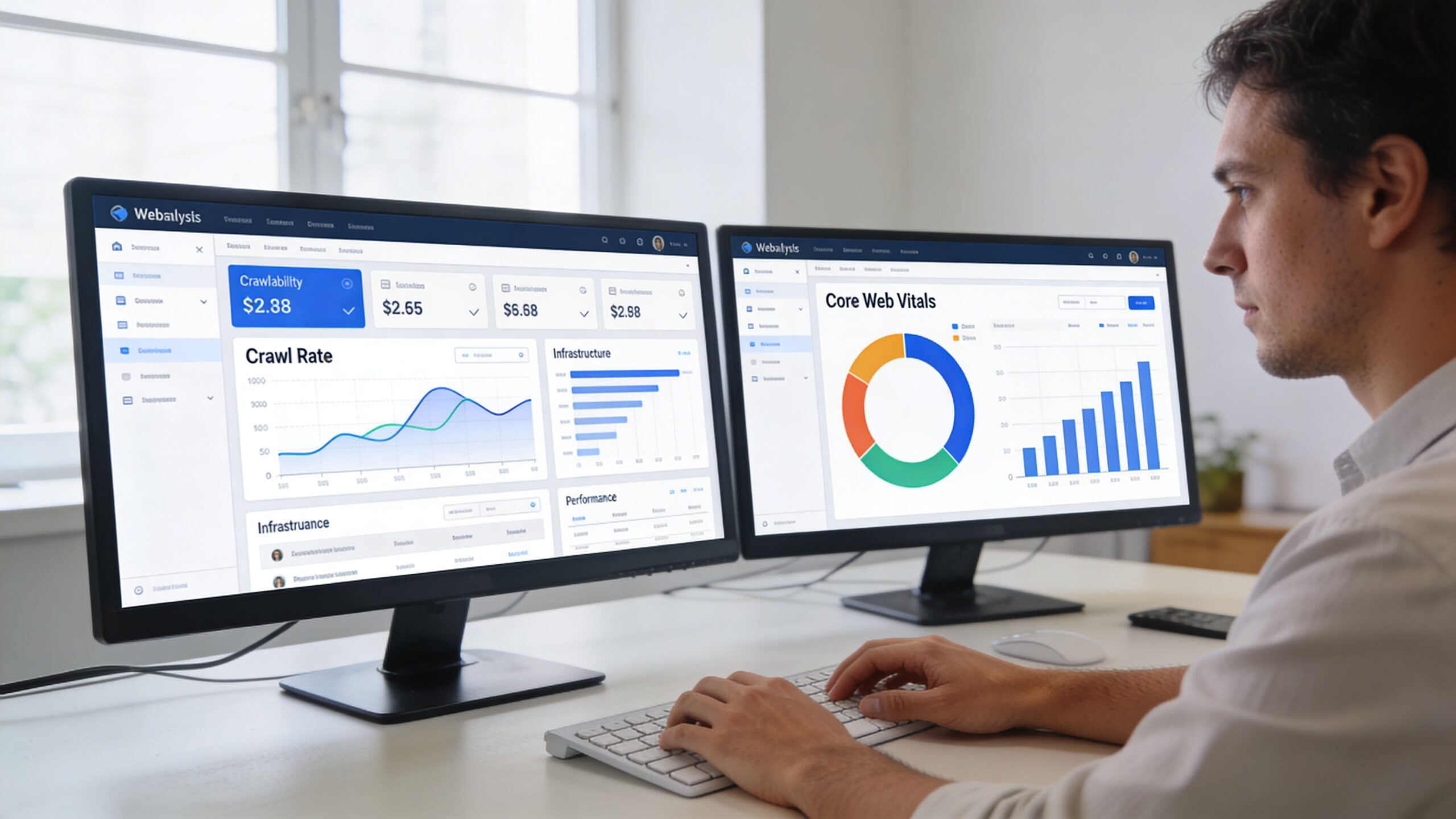
Start with a full crawl in Screaming Frog or Sitebulb, then compare those URLs against Google Search Console coverage reports and XML sitemaps. On WordPress, especially multisite, the gaps between those sources usually expose the actual problems. I regularly see retired landing pages left indexable, taxonomy archives competing with commercial pages, and template changes stripping internal links from pages that used to rank.
Review these fault lines first:
- Broken internal links: They interrupt key journeys and waste crawl activity on dead ends.
- Redirect chains and loops: They add latency, dilute internal linking efficiency, and create avoidable failures during migrations or plugin changes. Ahrefs notes in its guide to common technical SEO issues that redirect problems are among the recurring faults found during technical reviews.
- Canonical errors: These show up often on paginated archives, filtered product sets, language variants, and parameter-driven URLs.
- Orphan pages: These pages may exist in the CMS but have little chance of ranking or converting if the site barely references them.
- Index bloat: Search results pages, tag archives, thin product variations, and duplicate parameter URLs can crowd index coverage and weaken reporting.
For WordPress, crawl depth is not a minor detail. If product, service, or location pages sit several clicks down because of brittle menus or overbuilt taxonomy structures, discovery and conversion both suffer. This is one reason generic website audit checklists fall short on enterprise WordPress. They rarely account for how theme logic, plugin output, and CMS governance create technical debt across hundreds or thousands of URLs.
A more detailed process for this kind of review is covered in IMADO’s guide to technical website audits, especially when template logic and CMS structure are contributing to search visibility problems.
Audit performance with real business weight
Performance affects search visibility, conversion rate, and support cost at the same time. It also behaves differently across template families, which is where many audits lose credibility.
Google’s Core Web Vitals report documentation is the right reference for understanding how field data is evaluated in Search Console. Use that with PageSpeed Insights, CrUX where you have enough real-user data, and WebPageTest for repeatable testing. Then test the templates that drive revenue, not just the homepage.
Look for patterns such as:
- Heavy hero assets: Oversized images, sliders, and autoplay video can slow LCP on landing, category, and product templates.
- Third-party script bloat: Chat tools, review widgets, A/B testing scripts, personalization layers, and tag managers often hurt responsiveness.
- Layout shifts: Consent banners, promo bars, late-loading fonts, and injected app elements commonly trigger CLS.
- Server response delays: Slow uncached queries, fragment-heavy WooCommerce pages, remote API calls, and weak hosting configuration affect every visit.
A fast brochure page can hide a slow commerce stack. Test homepage, archive, product, cart, checkout, and content templates separately.
On larger WordPress builds, I also check the trade-off between caching and functionality. Full-page cache can improve perceived speed, but cart fragments, personalized pricing, store locators, and multilingual switching can bypass or break those gains. The goal is not to chase a perfect score. The goal is to identify where performance loss hits revenue-producing journeys and where engineering effort will pay back.
Later in the process, it helps to watch a practical walkthrough before assigning fixes across teams.
If the audit also includes journey friction and conversion issues, pair this work with a review of UX audit services so technical findings are not isolated from what users experience on key paths.
Review technical health beyond the obvious
Technical health includes the operating conditions that make a WordPress platform stable or fragile over time. Therefore, audits need engineering judgment, not just tool exports.
Check these areas:
| Area | What to inspect | Why it matters |
|---|---|---|
| Sitemaps | Coverage, freshness, inclusion rules | Prevents index confusion and stale URL submission |
| Robots directives | Noindex tags, disallow rules, staging leftovers | Stops accidental deindexing or blocked assets |
| HTTPS | Mixed content, certificate consistency, forced redirects | Protects trust and avoids browser and crawl issues |
| Structured template output | Titles, headings, metadata consistency | Reduces repeated defects across templates |
| Logging and monitoring | 404 trends, server errors, failed requests, cron issues | Exposes hidden operational failures |
Plugin overlap is another common source of instability. Multiple SEO plugins, duplicated schema output, stacked performance plugins, or inconsistent redirect handling can create conflicts that only appear under crawl, render, or checkout conditions. On multisite, those issues are harder to spot because one network-level decision can affect dozens of properties at once.
The point of this stage is not to produce a longer defect list. It is to separate cosmetic issues from the faults that suppress rankings, slow high-intent journeys, create operational risk, or inflate maintenance cost. That distinction is what turns a technical audit into a remediation roadmap the business can practically use.
Evaluating Content Effectiveness and User Experience
A fast site with clean templates can still underperform. Revenue drops when pages answer the wrong question, bury the next step, or ask for trust before they have earned it. That happens often on WordPress and WooCommerce builds because teams audit pages one by one while users move through journeys, compare options, and hesitate at specific moments.
Start with the money paths. For a lead generation site, that is usually homepage to service page to form submission or booked call. For ecommerce, it is landing page to category, product, cart, and checkout. On multisite or location-based builds, it can include a locator, regional landing page, and a location-specific conversion action. The audit should trace those paths from entry to outcome and document where intent weakens.
Use three lenses for each step:
- Relevance: Does the page match the intent that brought the visitor there?
- Clarity: Can someone understand the offer, proof, and next action without effort?
- Friction: What slows the decision or creates doubt?
Design matters because trust is formed before users read much copy. Stanford research on web credibility found that people often judge a business by how its site looks and feels, not just by what it says. Pair that with your own analytics, recordings, and form-drop data, and the pattern becomes obvious. Visual hierarchy, mobile readability, and consistency in buttons or form behavior have a direct effect on whether visitors continue or leave.
Review content by function, not by URL inventory
A stronger content audit assigns a job to every key page. The question is not whether the page exists. The question is whether it helps the user make progress and supports a business goal.
I usually map content like this:
| Page type | Primary job | Common failure |
|---|---|---|
| Service page | Explain the offer and create sales intent | Generic copy, weak proof, unclear CTA |
| Product page | Support evaluation and purchase | Thin descriptions, weak media, missing reassurance |
| Category page | Help users compare and narrow options | Poor filtering, clutter, weak product grouping |
| Blog or resource page | Capture intent and route readers to a commercial next step | Strong traffic, no conversion path |
| Location page | Convert local demand | Near-duplicate copy and weak local trust signals |
This approach matters even more on WordPress ecommerce stores, where template consistency can hide weak merchandising. A category page may rank and still lose money if filters are confusing, stock status is unclear, or shipping and returns are hard to find.
Heatmaps, session recordings, on-site search logs, and form analytics help confirm what users are doing instead of relying on opinion. They show where visitors stop scrolling, miss a CTA, reopen the same FAQ, or abandon a form field that asks for too much too soon. Teams that want a broader review model can use this reference on UX audit services to structure the work beyond surface-level usability checks.
If a high-intent page gets traffic and still fails to convert, the cause is usually one of three things. The message does not answer the buying question, the page does not establish enough trust, or the next step carries too much friction.
Test navigation and mobile UX under production conditions
Navigation audits fail when they stay at the menu level. Users move through headers, breadcrumbs, internal links, search, filters, comparison tools, related content, and footer paths as one system. Large WordPress sites tend to drift here because content, campaigns, and plugin-driven modules are added over time without anyone reworking the underlying information architecture.
Check the experience the way a customer would:
- Menu labels: Use the terms customers expect, not internal team language.
- Content depth: Important pages should be reachable without unnecessary drilling.
- Mobile behavior: Tap targets, sticky elements, filters, accordions, and banners must work together on small screens.
- Internal pathways: High-traffic pages should route visitors toward quotation requests, product evaluation, or purchase, depending on the page’s role.
- On-site search: Search refinements, zero-result queries, and popular searches often expose content gaps faster than a spreadsheet review.
Mobile deserves extra scrutiny because that is where many WordPress builds break down in practice. A tidy desktop header can become a tall mobile stack with a consent banner, promo bar, and sticky navigation competing for the same space. The result is simple. The content that should build trust or answer objections gets pushed down, and visitors leave before they see it.
The goal is not a prettier page. It is a clearer path to action. A good content and UX audit ties message quality, page structure, and interaction friction back to lead quality, checkout completion, and support load so the remediation plan can be prioritized by business impact instead of opinion.
Auditing Complex WordPress and WooCommerce Setups
Generic audit advice usually assumes a standard marketing site. That falls apart on WordPress multisite, multilingual builds, and WooCommerce stores with custom integrations.
The architecture is more layered. Problems don’t stay local. A slow plugin update, a faulty shared mu-plugin, or a bad template override can affect dozens of sites, multiple languages, or an entire checkout flow. The audit has to look at WordPress as a system, not just a collection of pages.
Start at the platform layer
A senior engineer’s audit of a WordPress site uses crawlers to map URLs and identify orphan pages, which is especially important on multisite. The same audit benchmarks against Core Web Vitals targets like LCP under 2.5s and INP under 200ms, and notes that 70% of e-commerce sites initially fail these metrics, based on the methodology summarized by Ryan Tronier.
That baseline matters because WordPress issues often come from shared platform decisions:
- Theme architecture: Monolithic themes can load assets everywhere, even where they aren’t needed.
- Plugin bloat: Multiple builders, duplicate SEO utilities, and overlapping performance plugins add weight and conflict.
- Block rendering: Gutenberg and FSE setups can introduce template inconsistency, excessive DOM output, or unstable rendering across languages.
- Database pressure: Slow queries, large autoloaded options, and unindexed custom tables can drag backend performance down.
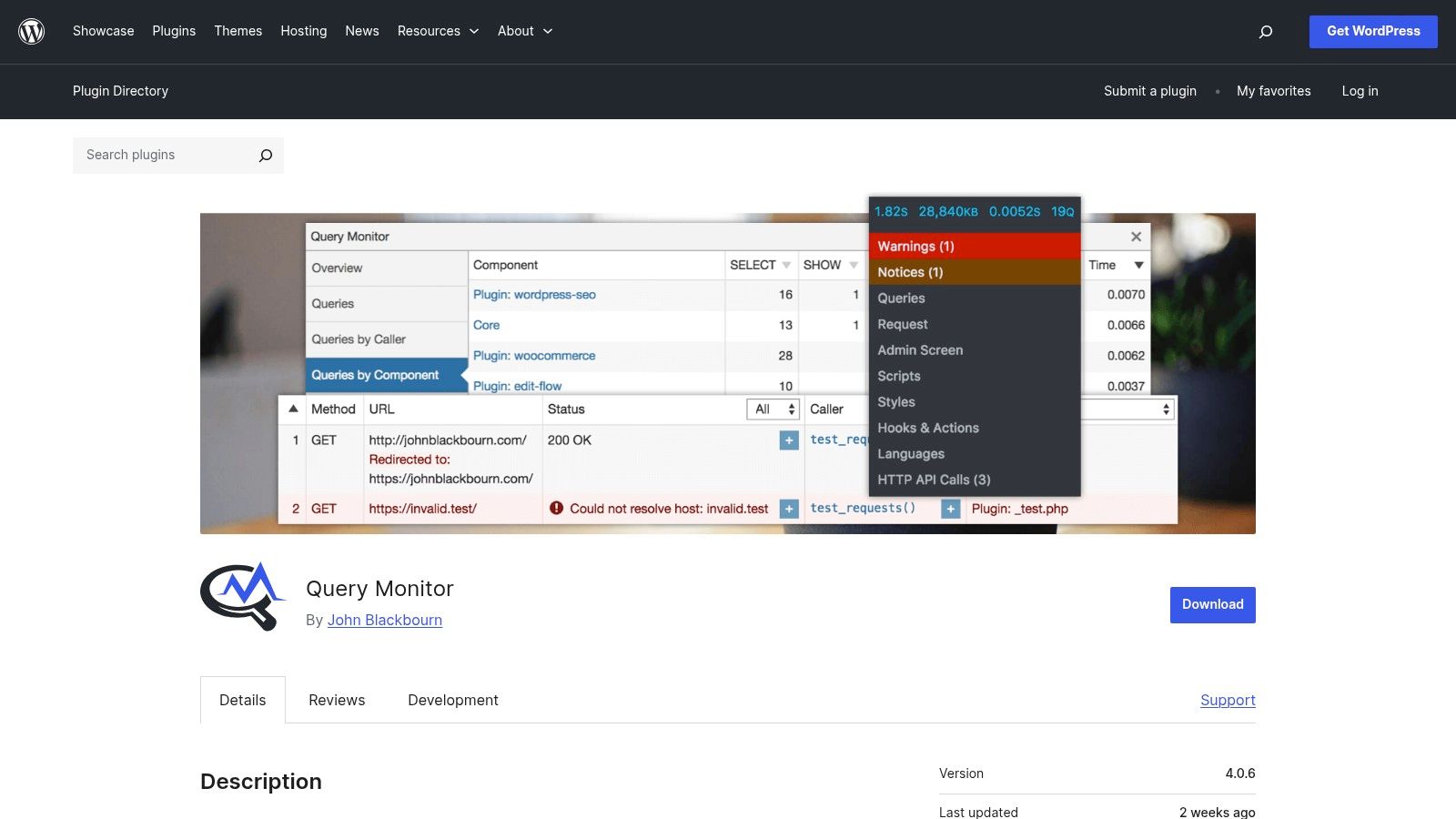
Query Monitor is one of the fastest ways to see what’s really happening inside a WordPress request. Use it to inspect slow database queries, hooked actions, HTTP API calls, object cache behavior, and plugin-level overhead. On large sites, this often reveals the “slow website” to be one or two expensive components firing on every request.
Audit multisite and multilingual behavior as separate concerns
Multisite complexity is structural. Multilingual complexity is semantic and rendering-based. They overlap, but they fail differently.
On multisite, inspect:
- Shared code dependencies: A network-activated plugin can create widespread regressions.
- Template consistency: Critical templates may diverge across sites over time.
- Cross-site asset loading: Shared libraries can be outdated or overly heavy.
- Permissions and editorial workflows: Publishing mistakes often come from role confusion, not user error.
On multilingual builds, inspect:
- Translated block rendering: Layouts can break when translated content expands.
- Canonical and hreflang logic: Misalignment causes search confusion.
- Localized slugs and internal links: Broken relationships often appear after migrations.
- Dynamic content gaps: Components populated via custom fields or APIs are easy to miss in translation workflows.
At this point, automated scans cease to be enough. They’ll catch status codes and headings. They won’t catch a translated CTA block rendering incorrectly on one locale, or a store finder API returning incomplete results on only certain regional sites.
For teams working through page-level refinements after the technical review, Webby’s ultimate 10-point on-page SEO checklist for WordPress is a helpful supplement for validating individual templates and content elements.
Audit WooCommerce like a transaction system
WooCommerce is not just content plus a cart. It’s a transaction stack.
You need to review product pages, category filters, cart behavior, checkout states, payment methods, tax and shipping logic, transactional emails, and any ERP or CRM sync that touches stock, orders, or customer data. If you only test product page speed, you miss the places where revenue breaks.
Focus on these friction zones:
| WooCommerce area | What often goes wrong | What to verify |
|---|---|---|
| Product templates | Heavy galleries, variation logic, upsell clutter | Load order, asset weight, variant handling |
| Filtering and search | JS-heavy faceting, stale indexes | Responsiveness and result accuracy |
| Cart | Fragment refresh overhead, coupon glitches | State persistence and update speed |
| Checkout | Payment conflicts, validation friction | Field logic, retry paths, gateway stability |
| Integrations | ERP or CRM sync lag | Order flow reliability and failure handling |
On stores with custom integrations, test failure scenarios, not just happy paths. What happens if inventory data is delayed. What happens if a shipping callback slows down. What happens if a payment attempt fails and the cart state changes unexpectedly.
For complex store builds, WordPress ecommerce stores often need this deeper platform audit because revenue issues usually sit at the intersection of frontend performance, plugin behavior, and integration reliability.
Analyzing Security and Accessibility Compliance
Security and accessibility audits tend to be treated as side checks. That’s a mistake. If the site is vulnerable or unusable for part of your audience, the rest of the audit loses value.
These reviews also have a different standard than SEO or content work. “Mostly fine” isn’t enough. You’re looking for exposure, failure points, and avoidable risk.
Run a practical security review
Start with the obvious checks, then move into application-level concerns. On WordPress, most security weaknesses come from maintenance gaps, weak plugin hygiene, or configuration drift.
Review this checklist:
- HTTPS and mixed content: Verify the secure version is consistent across templates and resources.
- Core, plugin, and theme updates: Outdated components increase exposure.
- User roles and access: Check whether editors, shop managers, and admins have only the permissions they need.
- Backup and recovery process: Confirm that recovery exists and that someone is able to use it.
- Security headers and surface reduction: Limit unnecessary exposure and test key response behavior.
- Known vulnerability review: Pay special attention to abandoned plugins and custom code that bypasses common patterns.
For a broader reference while auditing application-level issues, Pratt Solutions provides a useful comprehensive web application security checklist that helps teams verify they’re not overlooking common review points.
A WordPress security audit also needs operational context. A plugin may be technically up to date and still be a risk if no one owns it, monitors it, or understands what breaks when it changes.
Security auditing is partly technical and partly governance. If ownership is unclear, risk stays in production longer.
Combine automation with manual accessibility testing
Automated tools are good at catching obvious issues. They are not good at judging the lived experience of using the site.
Use Lighthouse, WAVE, or axe to flag missing alt text, contrast problems, empty links, label issues, and structure errors. Then test manually with keyboard navigation, focus order checks, form interaction, modal behavior, and screen reader spot checks on key templates.
Look at:
- Keyboard access: Can users reach menus, filters, forms, and dialogs without a mouse?
- Focus visibility: Is it always obvious where the user is?
- Heading structure: Does the page make sense when traversed by headings?
- Forms: Are labels clear, errors understandable, and success states accessible?
- Dynamic UI: Accordions, tabs, filters, and popups often fail here.
Accessibility is especially important on custom block-based WordPress sites. A visually polished block can still output poor semantics, trap keyboard focus, or create confusing reading order on mobile.
For organizations that need a dedicated review path, accessibility audit services are one way to validate both automated findings and manual WCAG-focused testing on real templates and interactions.
A good accessibility audit doesn’t stop at a score. It identifies where real users would struggle, and it gives engineering clear remediation targets inside the components they maintain.
Translating Audit Data into a Prioritized Roadmap
Most audits lose value at the finish line. The team finds everything, documents everything, and fixes almost nothing in the right order.
That happens because findings are rarely translated into business terms. A report full of technical observations doesn’t help stakeholders decide what gets resourced this quarter, what belongs in backlog, and what must be fixed before the next campaign, migration, or product launch.
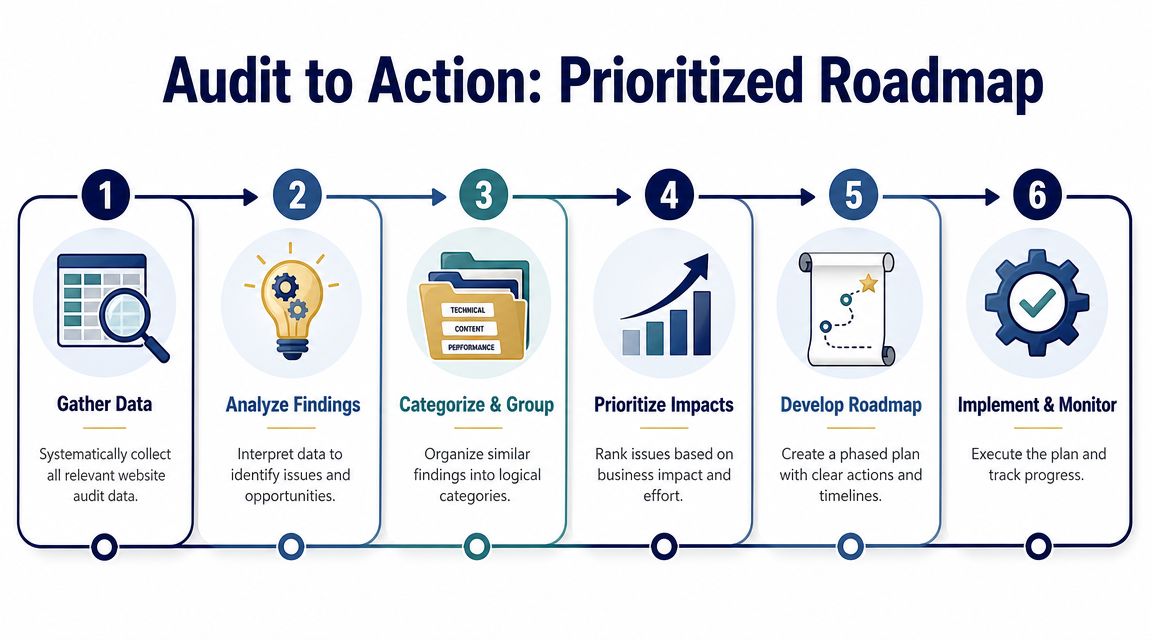
Group findings before you score them
Start by clustering issues into a small number of categories:
- Revenue blockers: Checkout failures, broken lead forms, payment issues, key CTA friction.
- Visibility constraints: Indexing errors, orphan pages, canonical problems, severe template duplication.
- Performance bottlenecks: Slow key templates, script bloat, uncached dynamic sections.
- Operational risks: Fragile plugin stack, undocumented integrations, inconsistent multisite governance.
- Compliance gaps: Accessibility failures, security exposure, poor form handling.
Once grouped, score each finding by impact and effort. Impact should reflect business effect, not technical neatness. Effort should reflect real delivery cost, including QA, stakeholder review, and regression risk.
Use a simple prioritization matrix
A matrix keeps teams from spending weeks on low-value cleanup while critical journeys stay broken.
| Finding | Area | Impact | Effort | Priority Score |
|---|---|---|---|---|
| Checkout validation failure on mobile | Revenue | High | Medium | High |
| Redirect chain on retired campaign pages | Technical SEO | Low | Low | Low |
| Slow product template caused by third-party scripts | Performance | High | Medium | High |
| Missing alt text on decorative images | Accessibility | Medium | Low | Medium |
| Duplicate archive indexing across multilingual subsites | Visibility | High | High | Medium |
This table is deliberately simple. The point is consistency. Teams don’t need a complex scoring model. They need a shared way to decide.
Field note: A clean backlog is not a roadmap. A roadmap says what happens now, next, and later, with owners and expected outcomes.
Tie recommendations to outcomes stakeholders care about
The contrarian truth is that automated findings alone rarely reveal the full commercial picture. According to TBH Creative’s audit analysis, strategic, team-based audits can uncover 2-3 times more conversion friction than automated tools alone. The same source notes that tying UX fixes to GA4 cohort tracking can link changes to a 15-25% revenue uplift.
That’s why the final review should include marketing, engineering, ecommerce, and whoever owns customer feedback. Sales often knows where messaging is failing. Support often knows where flows are confusing. Engineering knows which “quick fixes” are risky.
A strong final report should answer five questions:
- What is broken or underperforming
- Why it matters
- What caused it
- What to do next
- How success will be measured
Build phases, not a single task dump
Most audit roadmaps work better in phases:
Phase one
- Protect revenue: Fix broken forms, checkout bugs, payment issues, severe mobile friction.
- Stop visibility loss: Resolve indexing conflicts, redirect problems, critical crawl blockers.
Phase two
- Improve performance: Reduce script weight, optimize heavy templates, tighten caching behavior.
- Stabilize platform risks: Remove overlapping plugins, document fragile integrations, standardize templates.
Phase three
- Lift conversion and editorial efficiency: Refine content structure, improve internal linking, clean up publishing workflows.
Each phase should have owners, dependencies, QA requirements, and a success check. That’s where an audit becomes operational instead of theoretical.
The practical finish to how to audit a website is not the report. It’s the sequence of decisions the report makes easier.
If your team needs a senior-engineer view of a WordPress audit, IMADO works on performance, scalability, accessibility, WooCommerce, multisite, and integration-heavy setups. The useful part isn’t just the findings. It’s getting a remediation path your developers, marketers, and stakeholders can execute.
Let’s build something exceptional
Tell us about your project – we’ll help you launch a fast, scalable, SEO-optimized WordPress platform built for growth.