 Ask Chatgpt to summarize Your Guide to WordPress Malware Removal
 Ask Grok to summarize Your Guide to WordPress Malware Removal
 Ask Claude to summarize Your Guide to WordPress Malware Removal
 Ask Perplexity to summarize Your Guide to WordPress Malware Removal
 Ask Gemini to summarize Your Guide to WordPress Malware Removal

The first, and most critical, step in any WordPress malware removal is knowing what you’re looking for. The signs are often far more subtle than a completely crashed site. A successful cleanup starts with spotting these early warnings before the infection spirals out of control.
Table of Contents
Recognizing the Subtle Signs of a Hacked Site
Your site feels… off. But you can’t quite put your finger on why. Is it just a minor bug, or is something more sinister going on? Trusting that gut feeling is often the right move. Most malware infections start with small, easy-to-dismiss symptoms before they cause catastrophic damage. Moving fast on these initial clues is the key to a quick and complete cleanup.
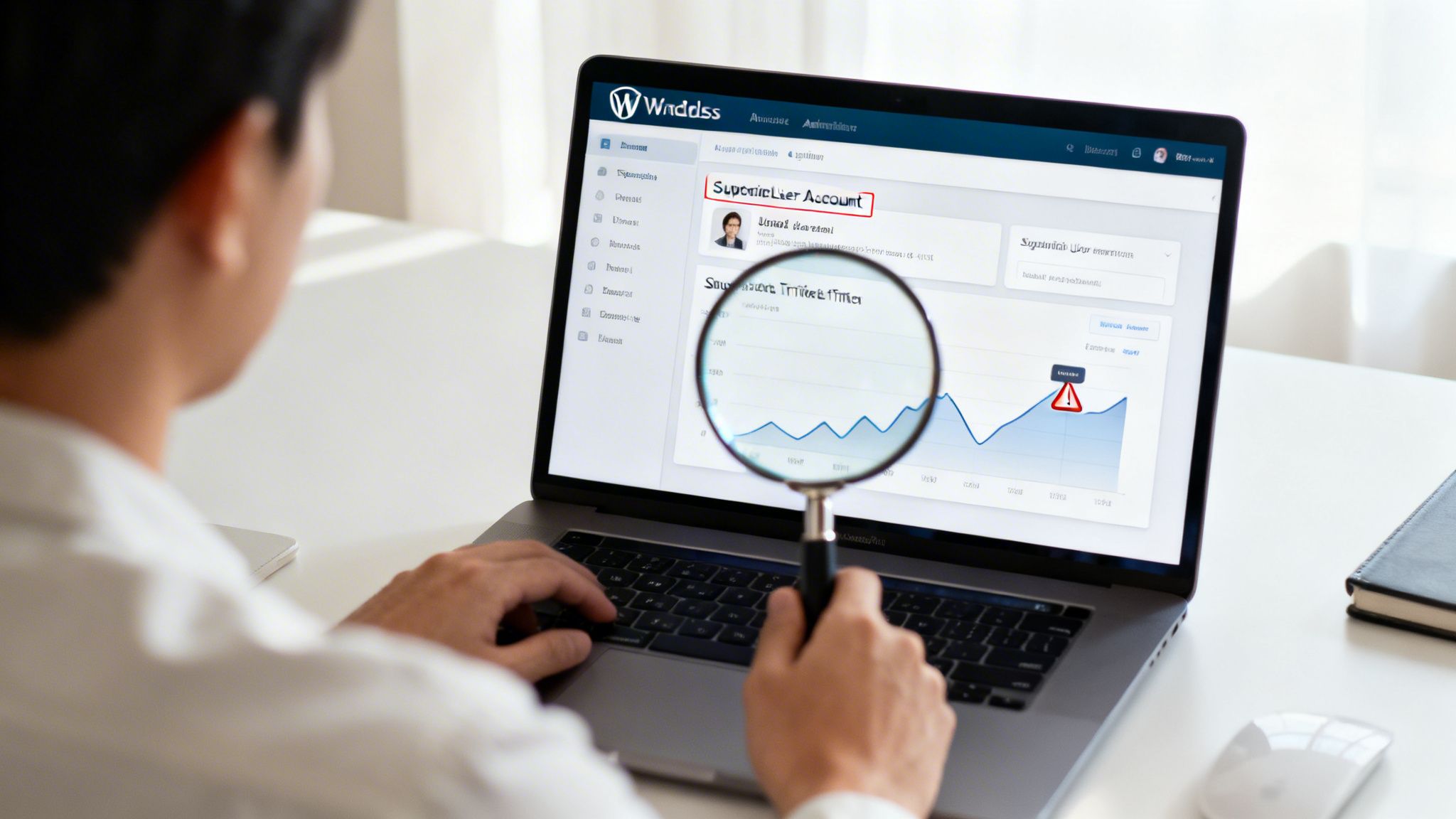
Most people assume a hack will be obvious—a defaced homepage or the “white screen of death.” The reality is that attackers want to stay hidden. Their goal is usually to exploit your server’s resources for their own benefit, whether that’s for SEO spam, sending out phishing emails, or hijacking your hard-earned traffic.
To help you connect symptoms to potential causes, here’s a quick reference table. Use it to figure out where to start your investigation.
Quick-Check Table for Common Malware Symptoms
| Symptom | Potential Cause | Where to Check First |
|---|---|---|
| Unexplained slow-downs | Malicious scripts consuming server resources. | wp-content for suspicious PHP/JS files, server logs. |
| Traffic sent to spam sites | Malicious redirect script. | .htaccess file, index.php, theme JavaScript files. |
| New, unknown admin users | Attacker created a backdoor account. | Users > All Users in your WordPress admin. |
| Spammy pop-ups or ads | Injected JavaScript. | Theme header.php or footer.php, plugin files. |
| Gibberish content/links appear | SEO spam injection. | Posts and Pages in admin, your database wp_posts table. |
| Google flags the site | Google’s crawlers detected malware. | Google Search Console security issues report. |
This table isn’t exhaustive, but it covers the most common indicators we see in the field. It gives you a solid starting point for digging deeper.
Look for Unexpected Changes in Your WordPress Admin
One of the first places a breach shows up is right inside your WordPress dashboard. Attackers love creating their own admin-level accounts to give themselves persistent access, even if you reset your own password.
Keep an eye out for these red flags:
- Phantom Admin Accounts: Go to the Users section of your dashboard. Do you see any administrator accounts that you or your team didn’t create? This is a dead giveaway.
- Unexplained Content: Have new posts or pages suddenly appeared, filled with spammy links or bizarre text? This is a classic sign of an automated script injecting content.
- Modified Files: If you’re comfortable looking at code, check the Theme File Editor or Plugin File Editor. Look for strange code snippets added to your theme’s
functions.php,header.php, orfooter.phpfiles.
These back-end changes are clear indicators that someone has gained unauthorized access to your website.
Key Takeaway: A new, unrecognized administrator account is one of the most reliable signs your WordPress site has been compromised. It’s a backdoor left open by an attacker, and its presence confirms a security breach that requires immediate WordPress malware removal.
Monitor Front-End and Performance Issues
Sometimes, the clues are visible to your visitors before they are to you. Pay close attention to your site’s performance and how it appears in search results.
A sudden drop in speed, for instance, could mean malicious scripts are hogging your server’s resources. An unexpected redirect is another massive warning sign. If visitors complain they’re being sent to sketchy, irrelevant websites when clicking a link to your site, a malicious redirect has likely been injected into your .htaccess file or a JavaScript file.
Google Search Console is an indispensable tool here. It will warn you directly if its crawlers detect malware, if your site gets flagged for security issues, or if it finds suspicious links. A sudden spike in your bounce rate could also mean users are being redirected away or are hitting a broken page and leaving immediately. Catching these signs early helps you act before your SEO rankings and brand reputation take a permanent hit.
You’ve found malware. Your first instinct is probably to start frantically deleting files, but hold on. That’s one of the worst things you can do right now. The first real step in a professional WordPress malware removal process isn’t cleaning—it’s containment.
If you act too fast, you risk breaking your site for good. You might even tip off the attacker, who could dig in deeper, cause more damage, or simply cover their tracks, making a real cleanup impossible.
Think of it as setting up a sterile field for surgery. Before you can remove the problem, you have to isolate it. This means protecting your visitors, your server, and your brand while you get ready to operate.
Create a Forensic Snapshot First
Before you touch a single file, take a complete backup of the infected site. I know, it sounds wrong. Why would you want a copy of a hacked site? This isn’t a backup for restoring your site—it’s a forensic snapshot. It freezes the crime scene in time.
This snapshot is non-negotiable for a few reasons:
- Analysis: It gives you an offline copy of the hack. You can dig through the code to figure out how they got in without putting your live server at risk. This is the key to preventing it from happening again.
- Safety Net: If you accidentally delete a critical theme file or part of the database during the cleanup, you can pull the original from this copy.
- Professional Handover: If you end up calling in an expert, this infected backup is the first thing they’ll ask for. It makes their forensic work faster and more accurate.
Having a solid backup strategy is your best defense. A good Data Backup and Recovery Guide can help you build a reliable process before disaster strikes.
Activate Maintenance Mode Immediately
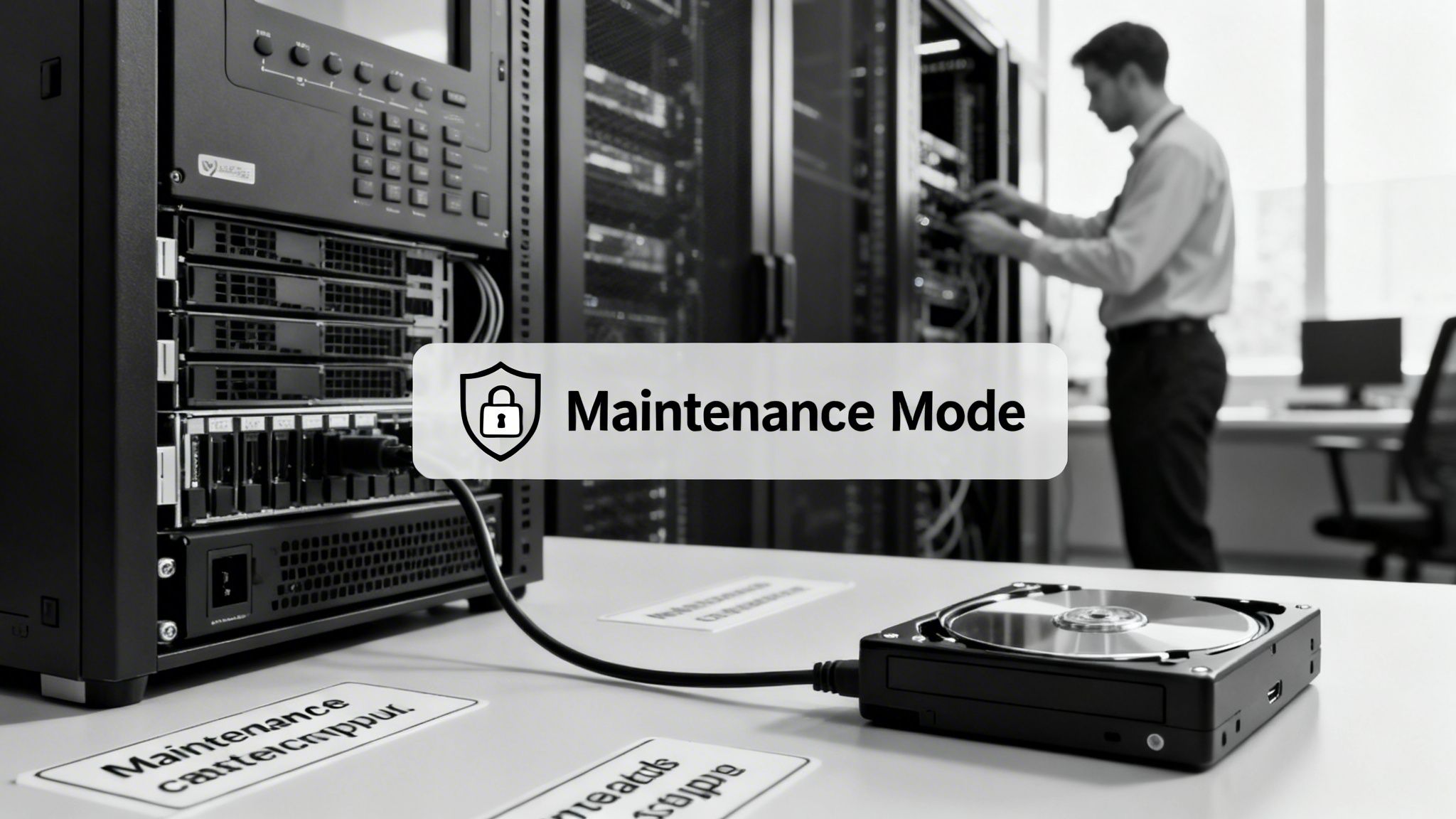
With your forensic backup saved, your next job is to take the site offline for the public. This stops visitors from landing on malicious pages, prevents search engines from indexing spam, and protects your SEO from being tanked by shady redirects.
The quickest way is to use a maintenance mode plugin. A good one will show a simple “Under Maintenance” page to visitors but let logged-in admins see the site. It also sends a 503 Service Unavailable status code, which tells search engines the site is down temporarily and they should come back later. This protects your search rankings.
Expert Tip: Don’t settle for the default maintenance page. Customize it with your logo and a short, professional note saying the site is down for scheduled work. It builds trust and lets people know you’re on top of it.
Isolate the Site on Your Server
If you host multiple sites on one shared server, an infection on one can quickly jump to the others. This is called cross-site contamination, and it’s a total nightmare. To stop the spread, you need to work on an isolated copy of the site.
The simplest way is to download your forensic backup to your local computer. This creates a sandbox environment, completely disconnected from your live server. Here, you can run scans, delete files, and test fixes without any risk of making things worse or infecting other sites.
For those with more technical chops, spinning up a dedicated staging environment is another great option.
Isolating the infected site is what separates a controlled, successful cleanup from a chaotic mess that takes down your entire hosting account. If dealing with server files and staging environments feels overwhelming, this is a good point to call for professional WordPress support to take over.
Hunting Down Malicious Code Like an Expert
Now that you have a safe, isolated copy of the site, the real work begins. This is the forensic part of the job—digging through files and the database to find every bit of malicious code. Attackers are good at hiding their tracks, so you need to be thorough.
The hunt starts with scanning. You have a couple of options here, but for a real cleanup, only one is going to get you all the way.
Your Malware Scanning Toolkit
Remote scanners crawl your site from the outside, the same way Google does. They’re useful for spotting public-facing issues like spam injections, malicious redirects, or checking if you’re on a public blacklist. The problem is, they have zero visibility into your server, which is where the real infection is hiding.
Server-side scanners, on the other hand, run directly inside your WordPress installation. These tools dig deep into your file system and database, finding the backdoors, web shells, and obfuscated code that remote scanners will always miss.
Key Takeaway: Remote scans are a nice first look, but a server-side scan is absolutely essential for a proper cleanup. It’s the only way to find malware that has burrowed into your site’s code.
Popular plugins like Wordfence and Sucuri Scanner are the go-to tools here. When you run a scan, don’t just fix the high-priority stuff. Pay close attention to any modified file, especially if it’s not part of a standard WordPress, plugin, or theme package.
Reading Scan Results and Finding False Positives
A scan report can be noisy. The tool flags anything suspicious, but it’s your job to confirm if it’s truly malware or just a false positive. A legitimate, customized file can sometimes trigger an alert because it no longer matches the original version.
When a file gets flagged, I ask a few key questions:
- Is this a core WordPress file? If something in
wp-adminorwp-includesis marked as modified, it’s almost 100% a sign of a hack. You should never, ever edit core files. - Can I read the code? Pop the file open. If you see huge, unreadable strings of text mixed with functions like
eval(base64_decode),gzinflate, orstr_rot13, you’re looking at malware. That’s classic obfuscation. - Where is the file located? Malware loves to hide where you aren’t looking. Be extremely suspicious of PHP files in your
/wp-content/uploads/directory. That folder is for media—images, PDFs, etc.—not executable code.
This manual verification step is critical. A professional WordPress website audit service always includes this kind of deep file analysis; it’s a non-negotiable part of the process.
Manual Hunting with Command-Line Fu
Automated scanners are great, but they can miss new or cleverly disguised malware. This is where having SSH access and some command-line skills pays off. The grep command is your best friend for hunting down specific malicious patterns across thousands of files instantly.
Here are a few grep commands I run on every cleanup:
grep -r "eval(base64_decode" /path/to/your/wordpress/
grep -r "gzinflate(base64_decode" /path/to/your/wordpress/
grep -r "eval(gzinflate" /path/to/your/wordpress/
These commands recursively search every file for dangerous function combinations that are hallmarks of backdoors and web shells. If you get a hit, you’ve found something that needs to go.
Your .htaccess file is another hot spot. Attackers love to add redirect rules here to send your visitors to spam or phishing sites. Look for odd RewriteRule or RewriteCond directives you don’t recognize. Often, they’ll hide them between hundreds of blank lines to push them off-screen.
Finally, check the database. SEO spam, rogue admin users, and redirect scripts are often injected straight into the wp_posts and wp_options tables. Most scanners check this, but a manual look is a good final step. Combining automated tools with these manual checks gives you the best shot at finding everything before you start the removal.
The Complete WordPress Malware Removal Process
Alright, you’ve found signs of malware. Now comes the delicate part: getting it out for good without breaking your entire site. If you rush this, you’re almost guaranteed to face a reinfection or a fatal error. A methodical approach is the only way forward.
We’re going to surgically replace compromised files, scrub the database, and sanitize key directories to make sure no malicious code is left behind.
The guiding principle here is simple but non-negotiable: never trust infected code. Trying to patch individual files is a losing game and prone to error. Instead, we’ll replace entire sets of files with known, clean versions.
This is the general workflow we follow for hunting down an infection before we start the cleanup.
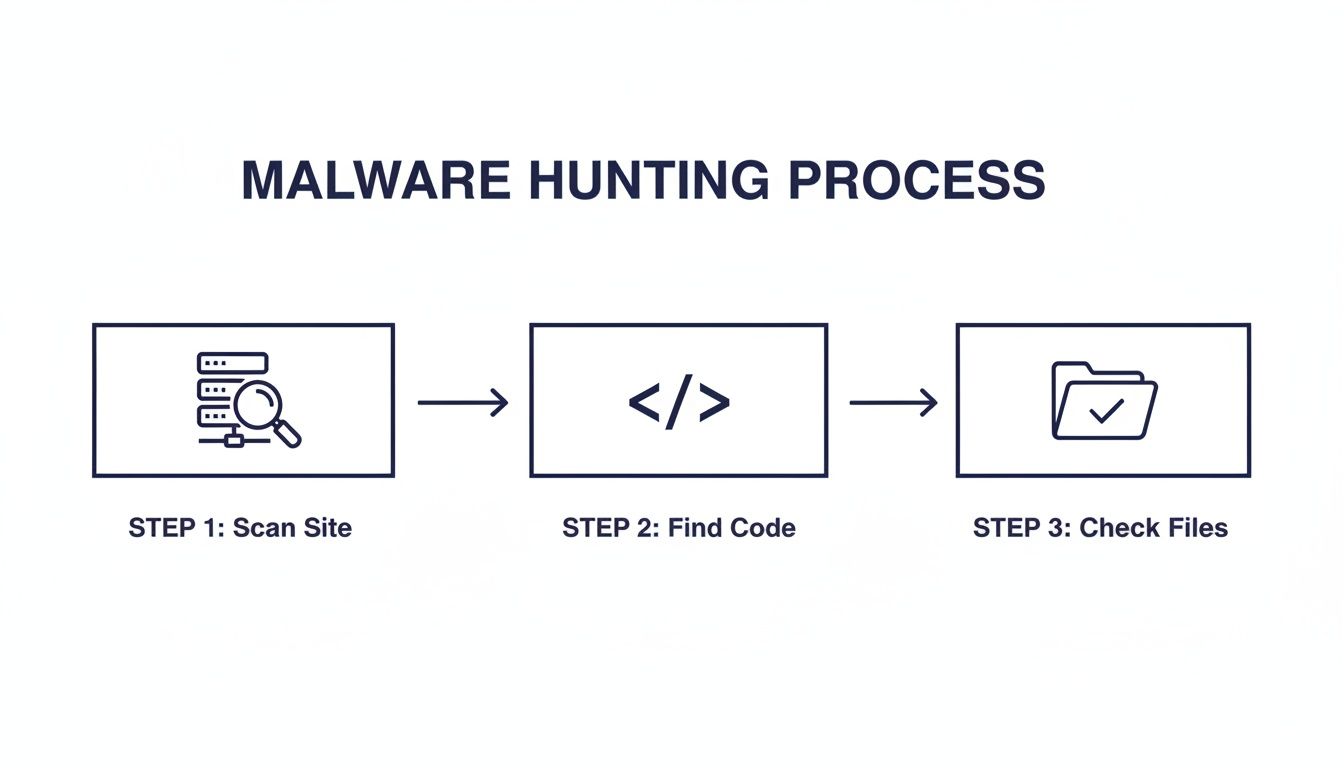
This process helps us scan the server, pinpoint suspicious code, and then verify what we’re seeing in the actual files. Now, with our findings in hand, we can start the removal.
Replace All WordPress Core Files
Your first move should always be to replace the WordPress core files. Attackers love modifying files in the wp-includes and wp-admin directories to hide backdoors. Scanners flag these all the time, but trying to repair them one by one is a waste of time.
We’re going to overwrite them completely.
- First, download a fresh copy of WordPress from the official WordPress.org repository. Make sure you grab the exact same version that your site is running.
- Unzip the package on your local machine.
- Using an SFTP client, log into your server and delete the
wp-adminandwp-includesdirectories. Do not touch thewp-contentfolder. - Now, upload the fresh
wp-adminandwp-includesfolders from the clean copy you just downloaded. - Finally, upload and overwrite the loose files in your site’s root directory (like
index.php,wp-login.php, etc.). The only file you should not overwrite is yourwp-config.phpfile.
This one action alone often gets rid of a huge chunk of a typical infection. Since you should never be editing core files anyway, replacing them is always safe and incredibly effective.
Reinstall Themes and Plugins from Trusted Sources
Next, turn your attention to your themes and plugins. Just like with the core files, the only safe bet is to replace them. Delete the existing plugin and theme folders from your wp-content directory and reinstall fresh copies from their official sources.
A common mistake is to restore these from an old backup, but that backup might already be compromised. Always download fresh copies directly from the WordPress repository or the commercial developer’s website. This is the only way to be certain you’re installing clean, untampered code.
Critical Note on Premium Plugins: For any paid plugins or themes, you have to download the clean versions directly from the developer’s site where you bought them. Never use a “nulled” or pirated version you find online—they are almost always packaged with malware from the start.
For a deeper dive into handling an infected site, this A Practical Guide to WordPress Malware Removal offers excellent context for the steps we’re taking here.
Scrub the Database for Malicious Injections
Malware isn’t just a file-based problem; it often hides in your database, too. Attackers inject spammy content, malicious JavaScript, or even create hidden admin users by manipulating your database tables. The two biggest targets are wp_posts and wp_options.
In the wp_posts table, hunt for spammy links or <script> tags injected into your post and page content. You can run SQL queries in a tool like phpMyAdmin to find them. A query like this is a good starting point:
SELECT * FROM wp_posts WHERE post_content LIKE '%<script>%';In the wp_options table, attackers will add entries to redirect your site or load malicious external scripts. Look for any option names you don’t recognize, especially if they have strange-looking URLs in the option_value field. Sort the table by option_name and carefully check any non-standard entries. Pay close attention to the siteurl and home options to ensure they haven’t been hijacked.
Sanitize the Uploads Directory and .htaccess
The wp-content/uploads directory is another favorite hiding spot for hackers. It’s meant for media files, but attackers exploit it to upload PHP backdoors and other scripts. Since this folder should only contain images, videos, and documents, any .php file you find in here is a massive red flag.
Go through your uploads folder carefully and delete any file that isn’t a legitimate media upload. Be ruthless—attackers often try to disguise malware with innocent names like hello.php or backup.php.
Finally, it’s time to rebuild your .htaccess file. Delete the current one from your server, as it could easily contain malicious redirects. To regenerate a clean one, just log into your WordPress admin dashboard, navigate to Settings > Permalinks, and click the Save Changes button. WordPress will automatically create a new, default .htaccess file for you.
Once all that is done, make sure you clear every layer of cache—your browser cache, caching plugins (like W3 Total Cache or WP Rocket), and any server-side or CDN caching (like Varnish or Cloudflare). This flushes out any old, infected versions of your site and completes the core of the cleanup process.
Securing Your Site to Prevent Future Attacks
Finishing a WordPress malware removal is a huge relief, but the work isn’t over. Think of the infection as a symptom. Now it’s time to cure the underlying disease and turn your site from an easy target into a hardened fortress.
This proactive defense phase is what separates a one-time fix from a long-term security posture. If you skip this, you’re practically guaranteeing you’ll be doing this all over again soon.
Implement a Full Credential Rotation
First things first: assume every single credential for your site has been stolen. An attacker with server access could have scraped every password, key, and secret they could find. You need to change everything. Immediately.
This goes way beyond your WordPress admin password. A complete rotation means hitting every potential access point.
- All WordPress User Passwords: Force a password reset for every user on the site, paying special attention to anyone with an Administrator role.
- Database Credentials: Generate a brand new database password and update your
wp-config.phpfile to match. - SFTP/FTP Passwords: Change the passwords for every FTP and SFTP account with access to your site’s file system.
- Hosting Panel Login: Your cPanel, Plesk, or other hosting control panel password must be changed.
- WordPress Salts and Keys: Use a generator to create a new set of security salts. Paste them into
wp-config.phpto immediately invalidate all existing login cookies.
Treat this as a non-negotiable, all-hands-on-deck reset. Missing even one of these leaves a door wide open for the attacker to walk right back in.
Build Your Proactive Defense Layers
With fresh credentials secured, you can start layering proactive security measures. Each step you take makes it exponentially harder for attackers to find another way in. The goal is to make your site more trouble to hack than it’s worth.
Your first line of defense should be a Web Application Firewall (WAF). It acts as a security checkpoint between the internet and your website, filtering out malicious requests before they even hit WordPress. A good WAF will automatically block common exploits, brute-force attacks, and bad bots.
Next, focus on hardening user access and practices.
- Strong Password Policies: Install a plugin that enforces complex passwords (a mix of length, cases, and characters) and requires periodic resets.
- Two-Factor Authentication (2FA): This is one of the single most effective security measures you can implement. It requires a second verification step, usually a code from a phone app, which makes a stolen password useless on its own.
- Limit Login Attempts: Lock out users after a handful of failed login attempts to shut down brute-force attacks.
Long-term security is all about ongoing maintenance and vigilance. Proper security isn’t a one-time setup; it’s a continuous process. You can check out our detailed checklist in the guide on how to maintain and secure a WordPress site.
Lock Down File Permissions and Stay Updated
Your server’s file permissions dictate who can read, write to, and execute files. If they’re too loose, an attacker can easily modify files or upload their own malicious scripts.
As a best practice, your directories should be set to 755 and your files to 644. Your wp-config.php file, which contains sensitive database credentials, should be locked down even further to 600.
Finally, and most importantly, you have to commit to regular updates. Outdated software is the number one vector for malware infections. The threat is constantly evolving, and the data proves it. A recent report documented an explosion in security flaws, with 11,334 new vulnerabilities discovered in a single year—a staggering 42% increase.
Plugins were responsible for over 90% of these issues. Even more alarming, half of the most critical vulnerabilities were actively exploited within just 24 hours of public disclosure. You can discover more about these alarming trends and the report’s findings.
This underscores a simple truth: keeping your WordPress core, themes, and plugins updated isn’t optional. It is the most critical part of your defense. After a major cleanup, this commitment is what turns a reactive crisis into a strong, proactive security posture.
WordPress Malware Removal FAQ
Finding out your WordPress site is hacked is incredibly stressful. When you’re in the middle of a cleanup, a lot of questions come up.
Here are some direct answers to the most common things we hear from marketing teams and site owners during a malware removal.
Can I Just Delete the Suspicious Files I See?
It’s tempting to just hit delete on a file that looks out of place, but this is a shortcut that often ends in a broken website. Don’t do it.
Malware is often designed to mimic legitimate files. Even worse, attackers will inject malicious code directly into core WordPress files that your site absolutely needs to run. Deleting one of those will bring the whole site down.
A much safer approach is to replace entire directories with factory-fresh versions. This means completely overwriting your wp-admin and wp-includes folders and reinstalling every theme and plugin from its original source. Always—and I mean always—take a full backup before you touch a single file.
How Did My WordPress Site Get Hacked in the First Place?
Most WordPress infections aren’t sophisticated, targeted attacks. They’re automated. Bots are constantly scanning the internet for a handful of common, easy-to-exploit weaknesses.
Figuring out the entry point is just as important as the cleanup itself. If you don’t plug the hole, they’ll just get right back in.
Here are the most frequent culprits:
- Outdated Plugins or Themes: This is, by far, the #1 entry point. Attackers have lists of known vulnerabilities and run bots 24/7 to find sites that haven’t patched them.
- Weak Passwords: Brute-force bots can guess simple passwords like “Password123!” in seconds. Compromised user accounts are a direct route in.
- Insecure Hosting: A poorly configured server can be a weak link. On cheap shared hosting, an infection on another customer’s site can sometimes spread to yours.
Expert Insight: It’s rarely a single, dramatic event. Most hacks are the quiet, inevitable result of deferred maintenance. A plugin that hasn’t been updated in a year is an open invitation for an automated attack. Your best defense is simply consistent, boring maintenance.
Will My SEO Rankings Recover After a Malware Attack?
Yes, your SEO rankings can almost always make a full recovery, but you have to be proactive about it. The clock is ticking.
Once you are 100% certain the site is clean, your first stop is Google Search Console. Go straight to the “Security Issues” report. If Google has flagged your site, you need to submit a review request immediately.
This tells Google you’ve fixed the problem. From there, your rankings will typically rebound as trust is re-established with both Google and your users. The key is acting fast to minimize how long those negative security signals are attached to your domain.
Is a Security Plugin Enough to Protect My Site?
A good security plugin is a critical piece of the puzzle, but it’s not a magic bullet. It’s just one layer of defense, and security is all about layers.
Think of it like home security. The lock on your front door (your security plugin) is essential, but it doesn’t do much good if you leave the windows open and the key under the doormat.
A proper security posture combines your plugin with other fundamentals:
- A Web Application Firewall (WAF) to block malicious traffic before it even hits your site.
- Timely, consistent updates for WordPress core, themes, and plugins.
- Strong, unique passwords for all users, with two-factor authentication enforced.
- Secure hosting with proper server configurations and file permissions.
Real security isn’t about buying one tool; it’s about building a disciplined process around multiple layers of protection.
Navigating a malware cleanup and securing your site for the future requires expertise. If you’re looking for senior-level engineering support to manage your WordPress platform, IMADO builds and maintains secure, high-performance sites for growing brands. Get in touch with our team.
Let’s build something exceptional
Tell us about your project – we’ll help you launch a fast, scalable, SEO-optimized WordPress platform built for growth.