 Ask Chatgpt to summarize WordPress Custom Template for Page: A Complete Guide (2026)
 Ask Grok to summarize WordPress Custom Template for Page: A Complete Guide (2026)
 Ask Claude to summarize WordPress Custom Template for Page: A Complete Guide (2026)
 Ask Perplexity to summarize WordPress Custom Template for Page: A Complete Guide (2026)
 Ask Gemini to summarize WordPress Custom Template for Page: A Complete Guide (2026)

You’re usually here for one of three reasons. A marketer wants a landing page that doesn’t look like the rest of the site. A client needs a custom report or gated internal page without dragging in a page builder. Or you’re migrating a theme and need to figure out whether this page belongs in PHP, the Site Editor, or somewhere in between.
A WordPress custom template for page solves that cleanly when you use it for the right job. It lets you change one page’s layout, logic, and editable fields without turning the entire theme into a special case. The trick is knowing which workflow fits the theme you’re running, and how to build it so the next developer doesn’t hate you.
Table of Contents
What Are Custom Page Templates and Why Use Them
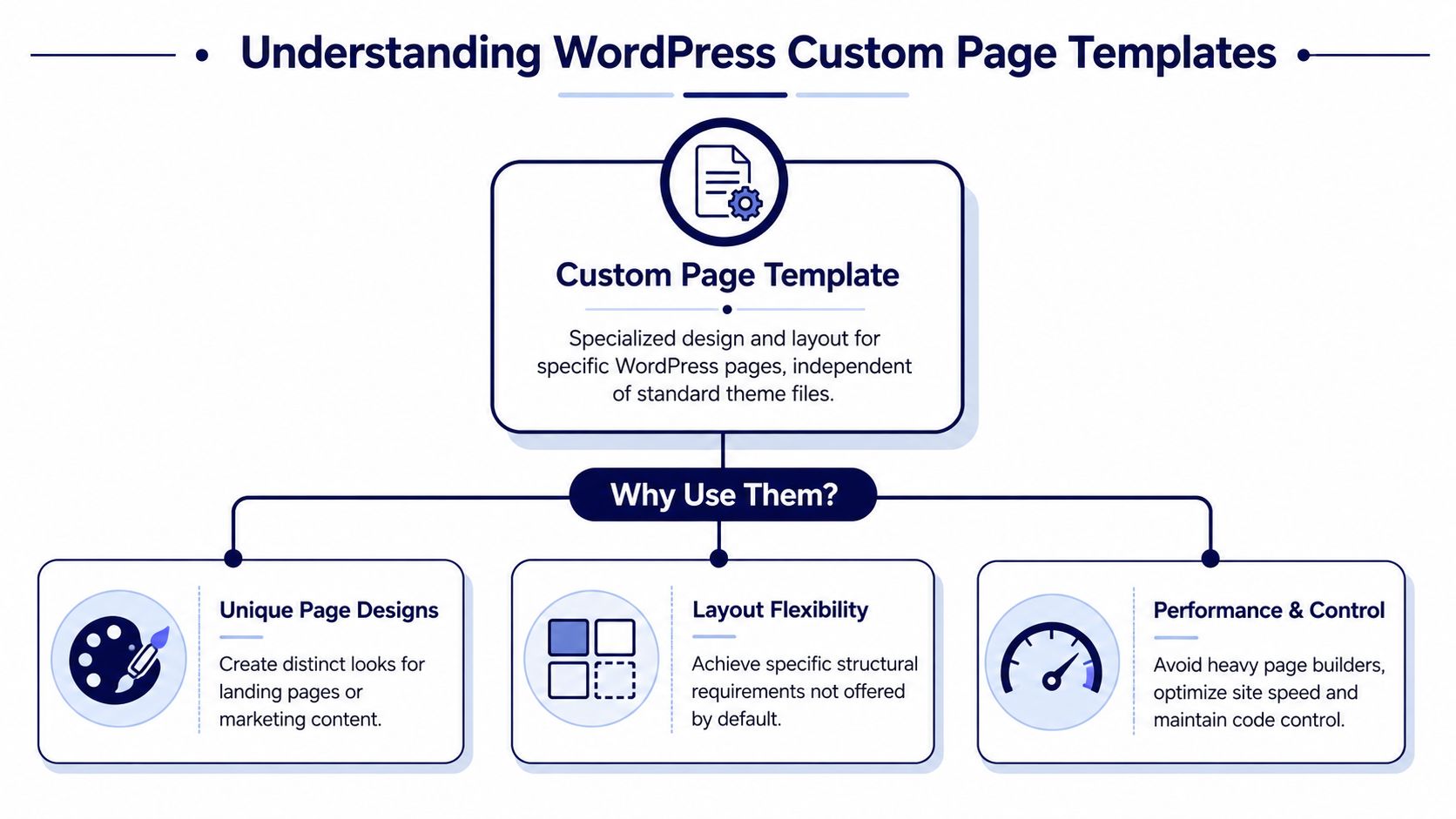
A custom page template is the right tool when one page needs special behavior but the rest of the site should stay normal. Typical examples include campaign landing pages, partner pages, comparison pages, custom lead-gen layouts, and internal reporting screens. You still use WordPress pages, the editor still works, and the theme still owns the overall system.
That matters because the alternative often gets messy fast. People reach for a page builder, hardcode a random page ID check into page.php, or create a custom post type for something that’s still just a page with a different layout. Those shortcuts work until they don’t. Then every small change spreads across unrelated templates.
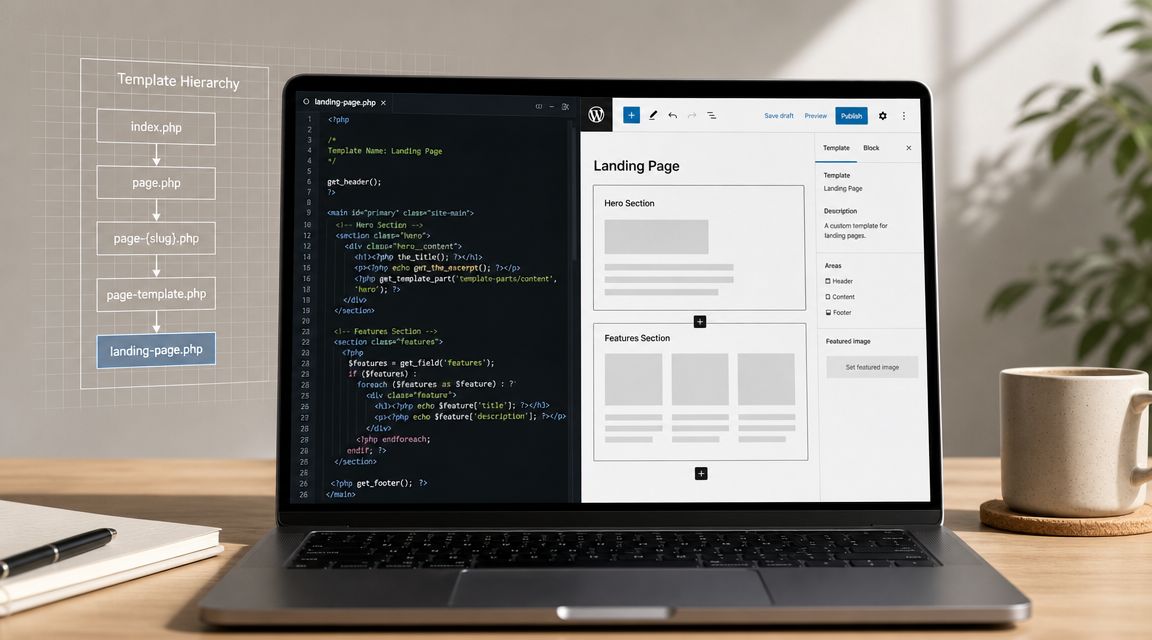
According to Smashing Magazine’s explanation of the WordPress template hierarchy, a directly assigned custom page template has higher priority than page-{slug}.php, page-{id}.php, page.php, and index.php. That’s why it’s such a reliable pattern for page-level control. You can isolate one page’s design and logic without disturbing the rest of the theme.
When a custom template is the right choice
Use a custom template when the content is still fundamentally a page, but the presentation or behavior is specific.
- Unique page layout: The page needs a hero, content flow, CTA structure, or sidebar behavior that doesn’t match standard pages.
- Page-specific logic: You need conditional rendering, custom queries, redirects, gated access, or a customized data view.
- Editor familiarity: Content teams should keep using the normal page editor instead of learning a separate content model.
When it’s the wrong tool
A custom page template isn’t a substitute for everything.
| Need | Better fit |
|---|---|
| Reusable content type with archives and structured records | Custom post type |
| Small global style variation | Theme settings or block styles |
| Reusable subsection used across many templates | Template part or block pattern |
| One-off campaign page made entirely by marketing | Sometimes a dedicated landing page builder, if governance allows it |
Practical rule: If the page is unique in layout but not unique in content model, start with a custom page template.
There’s also a strategic benefit. Custom templates let you keep WordPress’s core content model intact while adding control where it matters. That’s why they’ve been useful for landing pages, special reports, and other tightly managed layouts across publishing, SaaS, and e-commerce use cases, as noted in the Smashing Magazine reference above.
Creating a Custom Template in Classic PHP Themes
If the site uses a classic theme, the safest approach is still file-based. Don’t start from an empty PHP file unless the existing page.php is already broken. The WordPress Theme Handbook recommends copying page.php as a quick, safe method because it reduces the risk of breaking the default layout and gives you a familiar base in the active theme, as documented in the WordPress Theme Handbook page template guidance.

Start from page.php, not from scratch
That single decision prevents a lot of layout regressions. Your copied file already includes the theme’s wrappers, hooks, content area conventions, and partials. On production projects, that’s what keeps spacing, headers, footers, and content width aligned with the rest of the site.
Name the new file something obvious, such as:
template-landing-page.phptemplate-report.phptemplate-full-width.php
Then add the template header at the top:
<?php
/*
Template Name: Landing Page
*/

get_header();
?>

<main id="primary" class="site-main landing-page">
    <?php
    while ( have_posts() ) :
        the_post();
        ?>
        <article id="post-<?php the_ID(); ?>" <?php post_class(); ?>>
            <header class="landing-hero">
                <h1 class="entry-title"><?php the_title(); ?></h1>
            </header>

            <div class="landing-content">
                <?php the_content(); ?>
            </div>
        </article>
    <?php endwhile; ?>
</main>

<?php
get_footer();
What to change and what to leave alone
Keep the outer theme structure unless you have a strong reason to remove it. Most bugs in custom templates come from deleting wrappers the CSS depends on, not from the custom code itself.
A good first pass usually looks like this:
- Preserve header and footer calls:
get_header()andget_footer()keep the page inside the theme system. - Retain the loop: For a page template, the standard loop is still the cleanest way to output title and content.
- Swap internal markup only: Change hero sections, content wrappers, sidebar behavior, or custom components inside the main area.
- Add template-specific classes: Scope CSS with classes like
.landing-pageinstead of adding page-ID hacks.
If you’re building this for client work or a larger custom implementation, a custom WordPress theme development workflow usually keeps templates cleaner when layout, fields, and reusable components are planned together rather than bolted on later.
Don’t hide business logic in random conditionals inside
page.phpif only one page needs it. Give that page its own template and keep the default page template boring.
Assigning the template in the admin
Once the file is in the active theme, edit the target page in WordPress and choose the template in the page settings or Page Attributes area, depending on editor context. Save the page, view it on the front end, and inspect the rendered markup before adding CSS. That order matters. Debug structure first, styling second.
For production, I also recommend checking these items before you call it done:
- Template availability: Confirm the template appears in the editor only where you expect.
- Markup parity: Compare wrapper classes with the original
page.php. - Fallback behavior: Make sure removing the template from the page returns it to the normal layout cleanly.
Building Templates in Full Site Editing and Block Themes
Many tutorials fall behind on this. They explain page.php, Template Name, and theme files, then stop as if every site still runs a classic theme. That leaves developers confused when they open a block theme and don’t even see the same file structure.
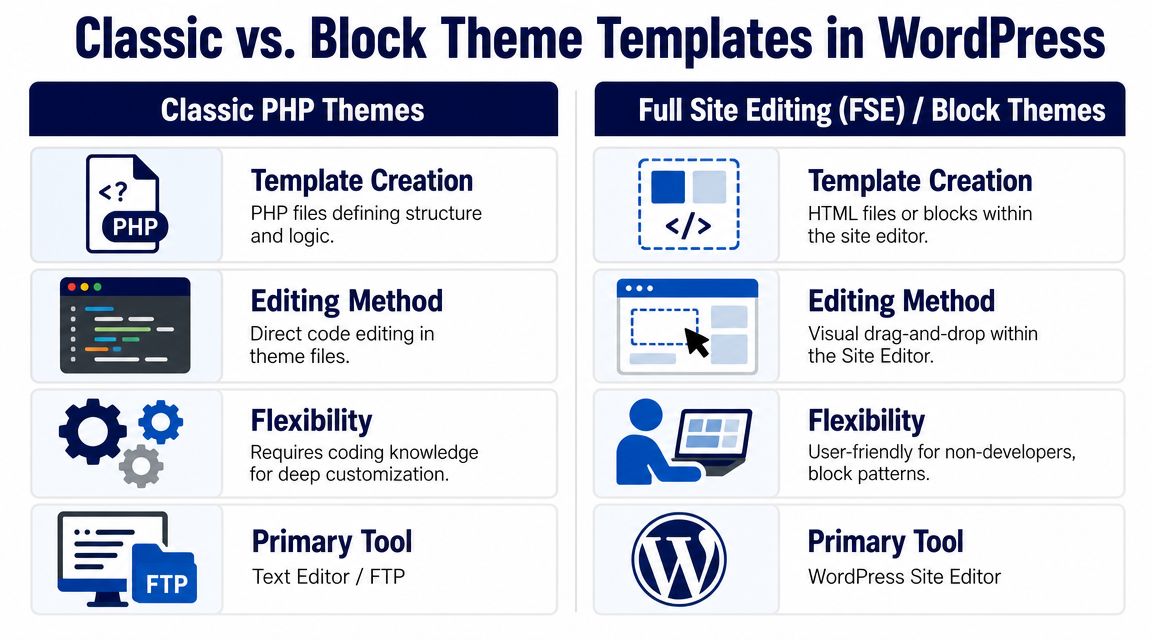
A block theme changes the workflow. Instead of creating a custom page template primarily in PHP, you build or edit it in the Site Editor. Liquid Web points out this exact gap in coverage and notes that with block themes, users can create and edit page templates directly in Appearance > Editor > Templates, which is a different workflow from the traditional file-based method in classic themes, as described in their block theme template overview.
How the block theme workflow actually works
In a block theme, go to the Site Editor and create or duplicate a template. From there, you assemble the page layout with blocks such as Post Title, Post Content, Featured Image, Group, Columns, Query Loop, and template parts like header or footer.
The process is visual, but the decisions are still architectural:
- Use template parts for shared chrome: Header, footer, and site-wide banners belong in reusable template parts.
- Keep page templates page-focused: Only put page-specific layout in the template itself.
- Use patterns for repeatable sections: Hero stacks, testimonial rows, and CTA bands should often be patterns, not baked directly into every template.
Classic PHP versus block templates
The difference isn’t just UI. It affects version control, deployment, and editorial safety.
| Topic | Classic theme | Block theme |
|---|---|---|
| Template editing | PHP files in theme | Site Editor templates |
| Logic-heavy layouts | Easier in PHP | Usually needs custom blocks or theme support |
| Version control | Strong and predictable | Requires care if edited in admin |
| Non-developer editing | Limited | Much easier |
| Migration complexity | Familiar for developers | Better for block-first teams |
A file-based template usually wins when the page includes custom queries, strict access rules, or heavy backend logic. A block template usually wins when marketers need layout freedom and the page is mostly presentational.
For teams moving toward Gutenberg-based systems, Full Site Editing workflows in WordPress are useful because they force a cleaner separation between reusable blocks, template parts, and page templates.
A block theme makes layout editing easier. It doesn’t remove the need for governance. Without patterns, naming rules, and review, teams can still create chaos faster.
What doesn’t work well
Two mistakes show up repeatedly during migrations.
First, developers try to reproduce every classic PHP behavior directly in the Site Editor, even when the layout depends on backend logic. That usually leads to brittle workarounds. Second, teams let editors create template variants freely in production with no naming standards. After a few months, nobody knows which template is canonical.
If the page needs logic first, use code-first patterns. If it needs composition first, use block-first patterns.
Adding Custom Fields and Dynamic Content
A page template becomes maintainable when structure and content are separated. Hardcoding text, links, or images into the template might feel fast, but it creates friction every time someone needs to update a headline, swap a CTA, or localize a section.
WPMU DEV outlines a practical production workflow: create the template, attach page-specific settings through tools like Advanced Custom Fields, and then select the template in the page editor so structure and content stay separate in day-to-day use, as described in their guide to custom page template workflow.
Dynamic fields in a classic PHP template
A common pattern is to give the page editor a few controlled fields. For example:
- hero subtitle
- primary CTA label
- primary CTA URL
- feature grid content
- trust badge text
Then your template reads that data instead of storing it in code.
<?php
/*
Template Name: Product Landing Page
*/

get_header();

$hero_subtitle = function_exists('get_field') ? get_field('hero_subtitle') : '';
$cta_label     = function_exists('get_field') ? get_field('cta_label') : '';
$cta_url       = function_exists('get_field') ? get_field('cta_url') : '';
?>

<main id="primary" class="site-main product-landing">
    <?php while ( have_posts() ) : the_post(); ?>
        <section class="hero">
            <h1><?php the_title(); ?></h1>

            <?php if ( $hero_subtitle ) : ?>
                <p class="hero-subtitle"><?php echo esc_html( $hero_subtitle ); ?></p>
            <?php endif; ?>

            <?php if ( $cta_label && $cta_url ) : ?>
                <a class="button" href="<?php echo esc_url( $cta_url ); ?>">
                    <?php echo esc_html( $cta_label ); ?>
                </a>
            <?php endif; ?>
        </section>

        <section class="content">
            <?php the_content(); ?>
        </section>
    <?php endwhile; ?>
</main>

<?php get_footer(); ?>
The important part isn’t the field API itself. It’s the boundary. The template controls layout. The editor controls content. That keeps changes cheap.
Dynamic content in block themes
In a block theme, you have two main options. You can rely on native block fields and template composition for simpler pages, or introduce custom blocks and field-driven blocks when the layout needs structured inputs.
That’s usually the better fit when content must remain tightly controlled. A custom block can expose the exact fields you want without allowing editors to dismantle the layout.
If you’re building field-driven editing experiences, WordPress plugin development services for custom blocks and integrations are one route teams use when native blocks or off-the-shelf plugins stop matching the content model.
Here’s a useful walkthrough before you wire everything into production:
ACF and block themes without overengineering
You don’t need to turn every piece of text into a custom field. That’s another common mistake.
Use fields for content that needs one or more of these traits:
- Consistent placement: The value should always appear in the same slot.
- Validation or constraints: Editors shouldn’t enter arbitrary markup or unexpected formats.
- Reuse in logic: The value controls rendering, conditions, or relationships.
- Safer editing: The page needs fixed structure with controlled input points.
If an editor needs freedom, use normal blocks. If the layout needs guardrails, use fields or custom blocks.
Advanced Best Practices for Deployment and Scale
The hard part isn’t creating one custom page template. The hard part is keeping twenty of them sane after multiple campaigns, regional variants, and content team requests.
That’s why template work needs operational rules. Whitelabel Coders highlights the scale problem clearly: managing regional or campaign-specific variants efficiently works better with master templates and modular blocks, so teams can standardize structure while allowing localized content across multi-market sites, as noted in their guidance on region-specific landing page systems.
Keep templates thin
A production template should be a shell, not a dumping ground.
That means:
- Move query logic out when possible: Use helper functions, dedicated classes, or block render callbacks instead of writing complex retrieval logic directly in the template.
- Limit conditional branching: If one template has too many
ifblocks, you probably need a second template or a reusable component. - Avoid duplicated markup: Shared sections belong in partials, template parts, or blocks.
There’s also a maintainability angle. The thinner the template, the easier it is to test after theme updates or content model changes.
Escape output and respect semantics
Custom fields make templates flexible, but they also create output risks. Escape everything based on context.
Use esc_html() for plain text, esc_url() for links, esc_attr() for attributes, and only allow limited HTML when you have a clear reason. Don’t trust content just because it came from the admin.
Accessibility is the other place templates often regress. A custom page still needs proper heading order, meaningful landmarks, keyboard-reachable controls, and buttons or links that say what they do. Semantic HTML does more for accessibility and maintainability than most ARIA patches added later.
The fastest way to create technical debt is to ship a beautiful landing page with anonymous
divsoup and unescaped field output.
Govern template variants before they multiply
The scalable pattern is usually a master template plus modular sections. Then each market, campaign, or location swaps content and approved modules instead of cloning full templates repeatedly.
A practical governance model looks like this:
| Problem | Better approach |
|---|---|
| Each region gets its own copied template file | One master template with localized fields |
| Campaigns duplicate the same layout with minor edits | Reusable blocks or patterns with controlled variations |
| Editors choose from confusing template names | Strict naming rules and limited template availability |
| Theme changes break several variants | Shared components and version-controlled releases |
For larger teams, WordPress version control practices matter more than the template itself. Templates, custom blocks, field groups, and pattern definitions should move through the same review and deployment process as the rest of the codebase.
What works well in practice
The most stable setups usually share these traits:
- Design system alignment: Templates use existing spacing, typography, and component tokens.
- Field discipline: Only structured, high-value data becomes a field.
- Clear ownership: Developers own template architecture. Editors own approved content zones.
- Limited template sprawl: Teams retire old variants instead of keeping every campaign artifact alive forever.
What doesn’t scale is a folder full of nearly identical template files with market names appended to each one. That’s not a system. That’s a backlog.
Frequently Asked Questions About Custom Page Templates
Can I restrict a template to a specific post type
Yes. WordPress supports limiting a page template to certain post types through the supported-post-types declaration in the template header. That’s useful when you have an editorial workflow where a template should only appear for a specific content type and not for standard pages.
A typical example looks like this:
<?php
/*
Template Name: Landing Template
Template Post Type: page, landing_page
*/
Use this when the admin UI needs guardrails. It prevents editors from assigning specialized templates in the wrong place.
What’s the difference between a page template and a template part
A page template defines the layout for the whole page. A template part is a reusable piece inside that layout, such as a header, footer, newsletter strip, or hero wrapper.
If multiple templates share the same section, make it a template part or a reusable block pattern. If only one page layout needs unique structure, use a page template.
Can I assign a template programmatically
Yes. You can set a page’s assigned template by updating the page template meta value during provisioning, migrations, or scripted content setup. That’s useful when deployments create pages automatically and you don’t want editors doing manual setup after release.
Be careful with this in mixed environments. If the assigned template doesn’t exist in the active theme, WordPress will fall back, and your layout may not match expectations.
Should I use a custom page template or a custom post type for landing pages
If the content is just a page with a unique layout, use a custom page template. If you need a repeatable content model with many entries, custom fields, archives, or taxonomies, use a custom post type.
The deciding question is simple. Are you modeling a new kind of content, or are you styling a specific page differently?
Why doesn’t my new template appear in the editor
Check the basics first:
- File location: The file must be inside the active theme or child theme.
- Header syntax: The template comment must be valid and near the top of the file.
- Theme type: If you’re in a block theme, the expected workflow may be in the Site Editor instead of the classic template dropdown.
- Caching and environment: Persistent caching or deployment lag can hide newly added files temporarily.
Should business logic live inside the template file
Only the minimum needed to render the page. Simple conditionals are fine. Heavy query logic, access rules, or external integrations should move into reusable functions, classes, or blocks. Templates should remain readable enough that another developer can understand the page structure quickly.
If your team is juggling classic themes, block themes, ACF-driven layouts, and scale concerns across multiple brands or markets, IMADO is one option for handling the engineering side. They work on custom themes, FSE blocks, plugin development, multilingual and multisite builds, and the deployment process that keeps template systems maintainable after launch.
Let’s build something exceptional
Tell us about your project – we’ll help you launch a fast, scalable, SEO-optimized WordPress platform built for growth.