 Ask Chatgpt to summarize Convert HTML to WP A Senior Engineer’s Guide for 2026
 Ask Grok to summarize Convert HTML to WP A Senior Engineer’s Guide for 2026
 Ask Claude to summarize Convert HTML to WP A Senior Engineer’s Guide for 2026
 Ask Perplexity to summarize Convert HTML to WP A Senior Engineer’s Guide for 2026
 Ask Gemini to summarize Convert HTML to WP A Senior Engineer’s Guide for 2026
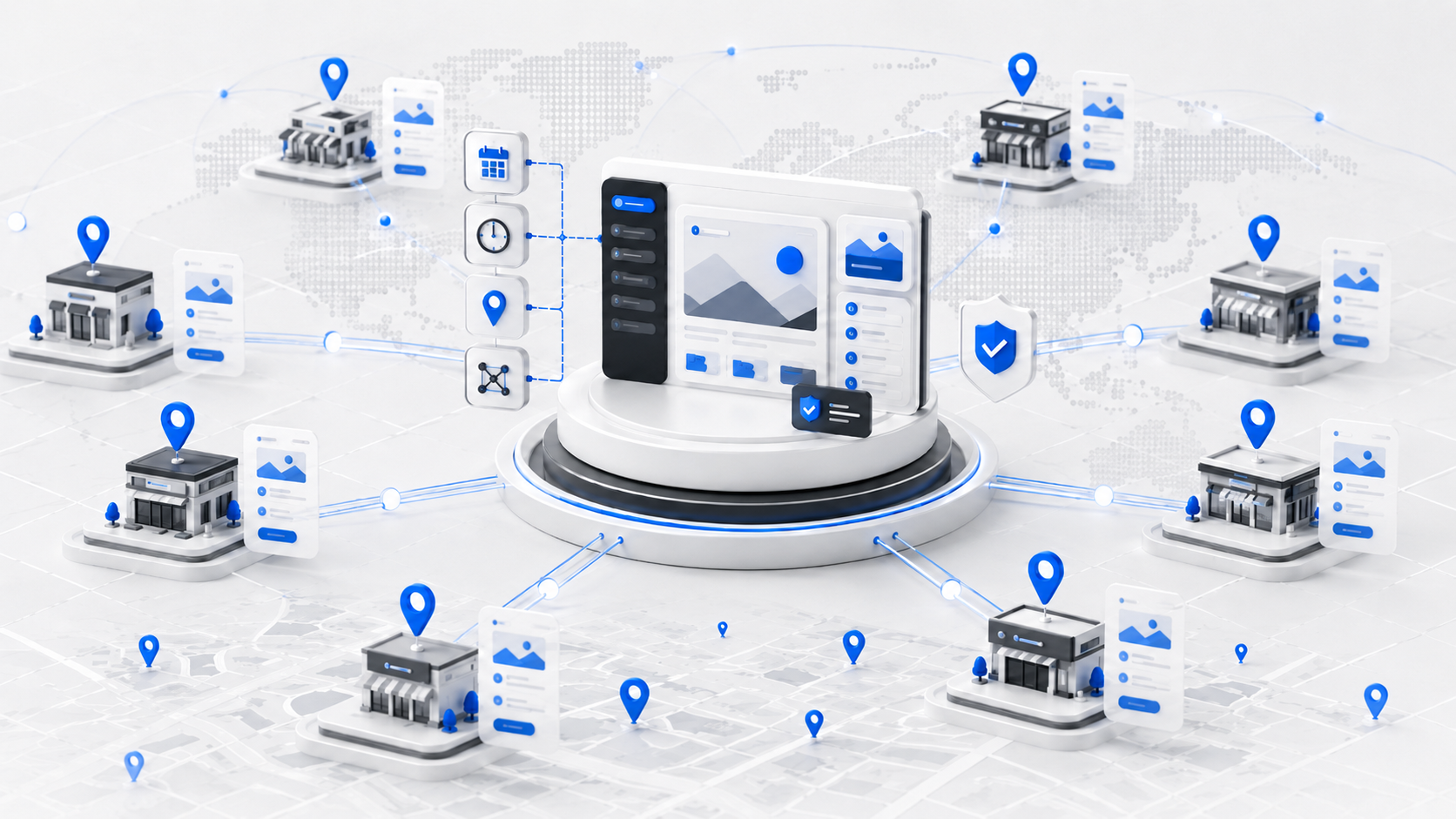
Sooner or later, most businesses outgrow their static HTML website. It’s a great starting point, but it can quickly become a bottleneck, turning every small update into a task for a developer. Moving to WordPress is more than just a technical switch—it’s a strategic decision to make your site a flexible, powerful asset that your marketing team can actually use.
Table of Contents
Why Convert from Static HTML to WordPress
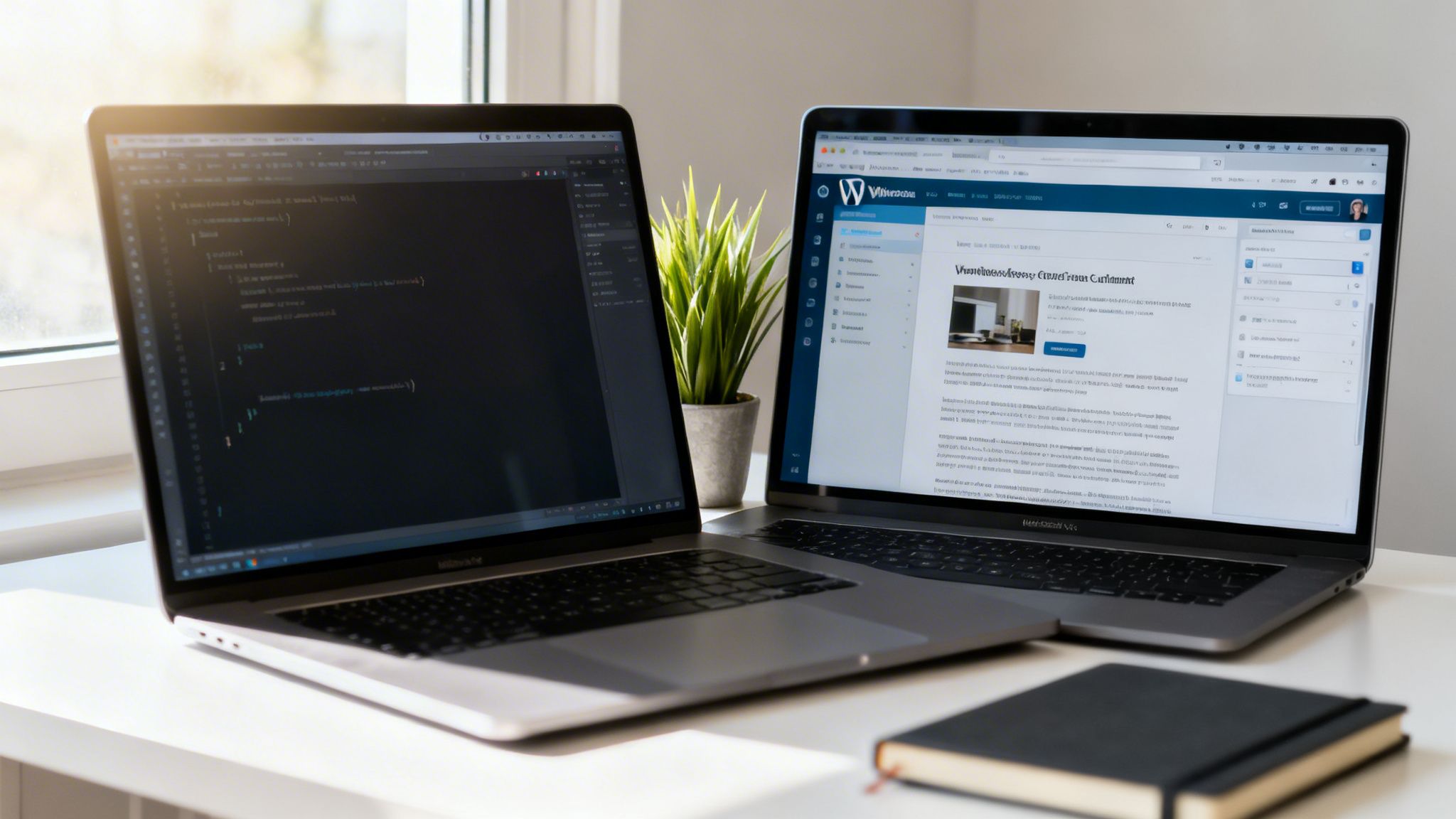
If your static HTML site feels like a car with the hood welded shut, think of WordPress as being handed the keys and a full mechanic’s toolkit. The biggest immediate win is breaking free from the “developer dependency” cycle. On a static site, even a simple text change requires someone to edit code, upload files via FTP, and have the right technical skills. It slows everything down.
WordPress, as a content management system (CMS), completely changes that dynamic. It gives your team an intuitive editor to create, edit, and publish content on their own. This freedom is a massive reason to convert html to wp; it directly puts control back in the hands of the people driving your business forward.
To get a clearer picture, this table breaks down the core differences at a high level.
HTML vs WordPress At a Glance
| Feature | Static HTML | WordPress |
|---|---|---|
| Content Updates | Requires code editing (HTML/CSS) | Easy-to-use visual editor (no code needed) |
| Scalability | Manual and time-consuming | Highly scalable with themes and plugins |
| Functionality | Limited to hard-coded features | Nearly limitless via 60,000+ plugins |
| SEO | Manual optimization required | Powerful built-in and plugin-based SEO tools |
| User Roles | No built-in user management | Granular user roles and permissions |
| Cost to Maintain | Dependent on developer availability | Lower long-term cost for content changes |
This comparison really highlights the shift from a rigid, code-first approach to a flexible, content-first platform.
Empower Your Team and Reduce Technical Debt
The move to WordPress is fundamentally about taking back control. Your marketing manager can launch a new promotion in minutes instead of waiting days for a developer to free up. That kind of operational agility is a game-changer.
It also helps you tackle long-term technical debt. Static sites often become a messy patchwork of outdated code, inconsistent styling, and forgotten scripts. A well-planned WordPress migration organizes your entire digital footprint into a clean, maintainable, and structured system. It’s a key reason a custom WordPress site can boost small business growth.
The real value is simple: WordPress centralizes control, streamlines content workflows, and puts the power of your website back into the hands of your marketers and content creators.
You’re also tapping into a massive, well-supported ecosystem. As of April 2025, WordPress powers an incredible 43.4% of all websites. Among sites that use a known CMS, its market share is a staggering 61.4%. That dominance means you’re adopting a platform with unmatched community support and a future-proof foundation.
Unlock Functionality and SEO Potential
The true power of WordPress comes from its extensibility. Need to add a complex contact form, an event calendar, or even a full eCommerce storefront? There’s a plugin for that. This ability to add sophisticated features without heavy custom development can save you thousands of dollars and weeks of work.
The SEO benefits are just as compelling. WordPress is built with search engines in mind from the ground up.
- Clean URL Structures: You can easily create user-friendly permalinks that include your target keywords.
- Powerful SEO Plugins: Tools like Yoast SEO or Rank Math give you fine-grained control over page titles, meta descriptions, sitemaps, and structured data.
- Optimized Performance: Modern themes and caching plugins help you nail Core Web Vitals and deliver a faster user experience.
While WordPress is often the right choice, it’s always smart to understand the landscape. This guide on choosing the best content management system for SEO offers a good comparative look. Ultimately, converting from HTML to WordPress isn’t just a technical task—it’s a strategic investment in a more powerful, scalable, and search-friendly digital future.
Planning Your HTML to WordPress Migration
The quickest way to make a mess of an HTML to WordPress conversion is to jump straight into the code. Every successful project we’ve ever run started with a solid plan, not a text editor. This discovery and planning work is what keeps a project predictable and stops the dreaded scope creep that kills budgets and timelines.
Think of it as your project’s blueprint. Getting this right is the single biggest factor in a smooth transition when you convert html to wp.
Audit Your Existing HTML Site
Before you can build the new site, you need a complete inventory of the old one. This means a full audit of every page, script, and image on your current static site. Don’t eyeball it; you’ll miss something critical.
We use a simple spreadsheet or a project management tool to track every single asset. You’re building a catalog of more than just pages—you need to map out every piece that makes the site work.
Your audit needs to document:
- All HTML Pages: List every
.htmlfile and its live URL. - CSS and JavaScript: Note every single stylesheet and script, and which pages use them.
- Media Assets: Track all images, videos, PDFs, or any other files users can download.
- Third-Party Scripts: Find all external services like Google Analytics, chat widgets, or marketing pixels.
This inventory isn’t busywork. It’s the foundation for your migration plan and makes every other step manageable by defining the true scope of the project.
Define Your Migration Scope
With your asset list complete, you can now make some hard decisions about what actually needs to move to WordPress. A common mistake is assuming everything has to come over. Old, low-traffic content is often better off archived or deleted.
This is where you ask the important questions:
- What content is non-negotiable? Pinpoint the core pages, posts, and media files that are essential to the business.
- What can we leave behind? Are there old blog posts or expired promo pages that don’t serve a purpose anymore?
- What new features do we need? Moving to WordPress is a chance to add real functionality. Do you need a blog, a portfolio, better contact forms, or an events calendar?
The “lift and shift” migration, where everything is copied without question, is a trap. Use this as a chance to clean house. Migrating only the content and features that support your current goals will dramatically reduce the project’s complexity and cost.
Set Up Your Development Environment
Never, ever build or migrate a website directly on a live server. A local development environment is a private sandbox on your computer where you can build, test, and break things without affecting your live audience. This is standard professional practice.
Two of the most popular tools for a local WordPress setup are:
- Local: A fantastic, user-friendly app built specifically for WordPress development. It lets you create new sites in a couple of clicks and comes with great tools like a database manager and one-click admin login.
- XAMPP/MAMP: These are classic toolsets that bundle Apache, MySQL, and PHP so you can run a real web server on your Windows (XAMPP) or Mac (MAMP) computer. They’re more general-purpose but rock-solid.
Once your local environment is running, install a fresh copy of WordPress. This becomes the clean slate for your new theme and content. The final setup step is to initialize a Git repository. Using version control from the start is non-negotiable for a serious project; it tracks every change, lets you roll back mistakes, and makes team collaboration possible. This disciplined setup is what a professional workflow looks like to convert html to wp.
Architecting Your Custom WordPress Theme
With your blueprint ready, it’s time to get your hands dirty. This is where the real work begins—transforming your static HTML files into a living, breathing WordPress theme. The architectural path you choose now will dictate how your site is built, maintained, and scaled for years to come. It’s a foundational decision, so let’s get it right.
Migrating from static HTML is more than just a trend; it’s a strategic move. The WordPress ecosystem is massive for a reason. Its market share is projected to hit 62.8% by 2026, which translates to over 522 million websites running on its platform. And with 85% of those sites on modern, secure versions, it’s a reliable choice for any business, especially in e-commerce.
Choosing Your Theme Development Path
You’ve got three main routes for turning your HTML into a WordPress theme. The best option really boils down to your project’s needs, your team’s comfort level with code, and how you see the site evolving.
- Manual Theme from Scratch: This is the purist’s route. You’re building every single file from the ground up, from
style.csstoindex.php. The payoff is a completely bespoke, ultra-lightweight theme with zero bloat. It gives you total control, but it’s also the most time-intensive. - Starter Theme Framework: This is the go-to for many experienced developers. Frameworks like Underscores (
_s) give you a clean, well-organized skeleton. All the essential WordPress template files and functions are there, so you get a massive head start without being forced into someone else’s design. - Block Theme for Full Site Editing (FSE): This is the modern, Gutenberg-native approach. Instead of building layouts with PHP templates, you use blocks in a visual editor to construct your entire site structure. It’s a game-changer for content-heavy sites where non-developers need to manage layouts.
For most projects we handle, starting with a framework like Underscores hits the sweet spot. It speeds things up without sacrificing the flexibility of a custom build. If the plan is to hand off layout control to a marketing or content team, a block theme is an incredibly powerful choice.
Setting Up Your Basic Theme Structure
No matter which path you take, WordPress needs a few key files to even recognize your theme. First, head to your wp-content/themes directory and create a new folder for your theme (e.g., my-custom-theme).
Inside that new folder, you need at least two files to start:
style.css: This does more than just hold your styles. It must contain a special commented-out header that tells WordPress your theme’s name, author, version, and other key details.index.php: This is the ultimate fallback. If WordPress can’t find a more specific template file for a page it’s trying to render, it will always fall back to usingindex.php.
You’ll also need a functions.php file right away. This file is the central nervous system of your theme. It’s where you’ll add custom features, register navigation menus, and—critically—load your theme’s stylesheets and scripts.
Your
functions.phpfile is the engine of your theme. It’s where you’ll enqueue scripts and styles, define custom post types, and add all the unique logic that makes your theme work. Handle it with care—a single syntax error here can bring down your entire site.
Understanding the WordPress Template Hierarchy
The real magic behind WordPress is its template hierarchy. This is the logic WordPress uses to decide which PHP file in your theme to use for any given URL. For instance, when a visitor lands on a single blog post, WordPress first looks for single.php. If that’s missing, it checks for singular.php, and if all else fails, it defaults to index.php.
Your job is to slice up your static HTML design to match this structure.
- The code from
about.htmlwill likely go into a template namedpage-about.php. - Your
blog.htmldesign will become the basis forhome.phporindex.php. - The layout for an individual article will live inside
single.php.
This hierarchy is what makes WordPress so powerful. Instead of needing a separate HTML file for every single blog post, you build one single.php template that can dynamically display thousands of them.
From Static HTML to Reusable Template Parts
A huge part of this conversion process is identifying repeated sections of your design. Take a look at your static mockups—the header and footer are almost certainly identical on every page. In WordPress, you don’t copy and paste that code everywhere.
Instead, you cut the header code and put it into its own file: header.php. You do the same for the footer, creating footer.php.
Then, inside your main templates like page.php or single.php, you just call them in with simple PHP functions:
// The main, unique content for this template goes here.
This makes site-wide maintenance incredibly efficient. Need to add a new link to your main navigation? You only have to edit header.php once, and the change instantly appears everywhere.
Enqueuing Your Scripts and Styles Correctly
Finally, you have to load your CSS and JavaScript files the “WordPress way.” Never, ever hard-code <link> and <script> tags directly into your header.php or footer.php files. It’s a classic rookie mistake that causes plugin conflicts and makes performance optimization a nightmare.
The proper method is called enqueuing. You use special functions inside your functions.php file to tell WordPress exactly what assets to load, when, and where.
function my_theme_assets() {
 // Enqueue the main stylesheet
wp_enqueue_style( 'main-style', get_stylesheet_uri() );
// Enqueue a custom JavaScript file that depends on jQuery
wp_enqueue_script( 'custom-js', get_template_directory_uri() . '/js/scripts.js', array('jquery'), wp_get_theme()->Version);
}
add_action( 'wp_enqueue_scripts', 'my_theme_assets' );
This gives WordPress full control over the asset loading process. It prevents duplicates, manages dependencies (like making sure jQuery loads before your script that needs it), and allows caching plugins to do their job properly. Mastering enqueuing is a non-negotiable step in any professional HTML to WordPress conversion. You can also explore how Full Site Editing is redefining WordPress theme building to see how these patterns are evolving.
With the theme’s skeleton built, it’s time to move in. This is where you’ll transfer all your content from its static HTML files into the living, breathing WordPress database.
It’s a delicate process. Mess this up, and you could wipe out years of SEO progress in an afternoon.
How you tackle this depends entirely on the size of your site. If you’re working with a small site—say, 10-20 pages—a manual copy-and-paste job is usually the most reliable route. It gives you a chance to personally review and reformat every piece of content as it moves, making sure it settles perfectly into the new theme.
The process is exactly what it sounds like: create a new page or post in WordPress, then copy the content from the old HTML file straight into the editor. Simple, but effective.
Automating Content Transfer for Larger Sites
Manual migration just isn’t an option for sites with hundreds or even thousands of pages. That’s when you turn to plugins to do the heavy lifting.
Be warned, these tools aren’t magic. You’ll need to get your hands dirty configuring the settings, telling the plugin exactly which HTML elements to grab (like a div with the class .post-body). It’s a technical setup, for sure, but the hours it saves on a large project are well worth the initial effort.
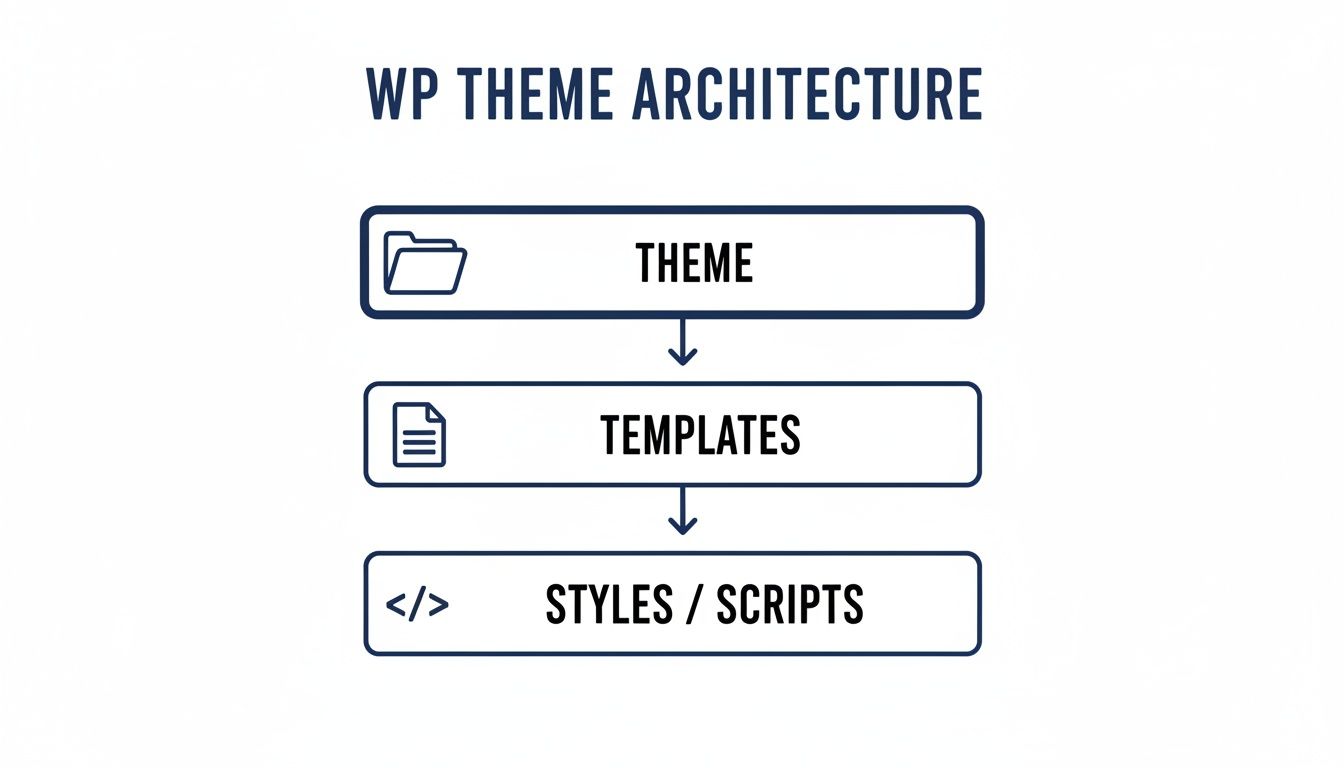
This structure is what brings your migrated content to life, rendering it through the theme templates you’ve built.
Protecting Your SEO Equity with URL Mapping
Now for the part you absolutely cannot get wrong: URL mapping and redirects. Your old static site probably has URLs ending in .html, like example.com/about-us.html. Your new WordPress site will use cleaner permalinks, like example.com/about-us/.
If you just launch the new site, anyone trying to visit the old URL will get a 404 “Not Found” error. For search engines, this is a dead end, and your rankings will plummet.
To avoid this SEO catastrophe, you have to set up a permanent (301) redirect for every single old URL, pointing it to its new location. This tells search engines the page has moved for good and that all its ranking power should be transferred to the new URL.
You have two main ways to handle this:
- Via
.htaccess: If you’re comfortable with server configuration, you can writeRedirect 301rules directly into your site’s.htaccessfile. It’s lightning-fast but completely unforgiving if you make a typo. - Using a Plugin: The safer bet for most people is a tool like Redirection or the built-in module in SEO plugins like Rank Math. They give you a straightforward interface inside your WordPress dashboard to manage everything.
A missed redirect is a lost ranking signal and a broken user experience. Create a spreadsheet mapping every old URL to its new WordPress counterpart and do not go live until every single one has been redirected.
The demand to convert html to wp is massive, driven by WordPress powering 43.5% of the entire web. A huge plus is that the vast majority—85%—of these sites run on modern, secure versions. When marketing teams get this right, they see immediate SEO benefits by moving to a platform that search engines inherently understand. You can explore the latest statistics on SuperbThemes for more context.
Migrating SEO Metadata
Finally, don’t leave your on-page SEO behind. Your page titles and meta descriptions are crucial and need to be ported over.
An SEO plugin like Yoast SEO or Rank Math is non-negotiable here. Once it’s installed, you’ll need to go through your key pages and manually input the titles and descriptions from your old static site. These plugins give you all the tools you need to manage this data effectively from now on.
It’s also a good time to review your URL strategy. We have a great guide you can read to learn more about the SEO potential of URL structures and how to make them work for you.
Integrating Advanced Features and Final Testing
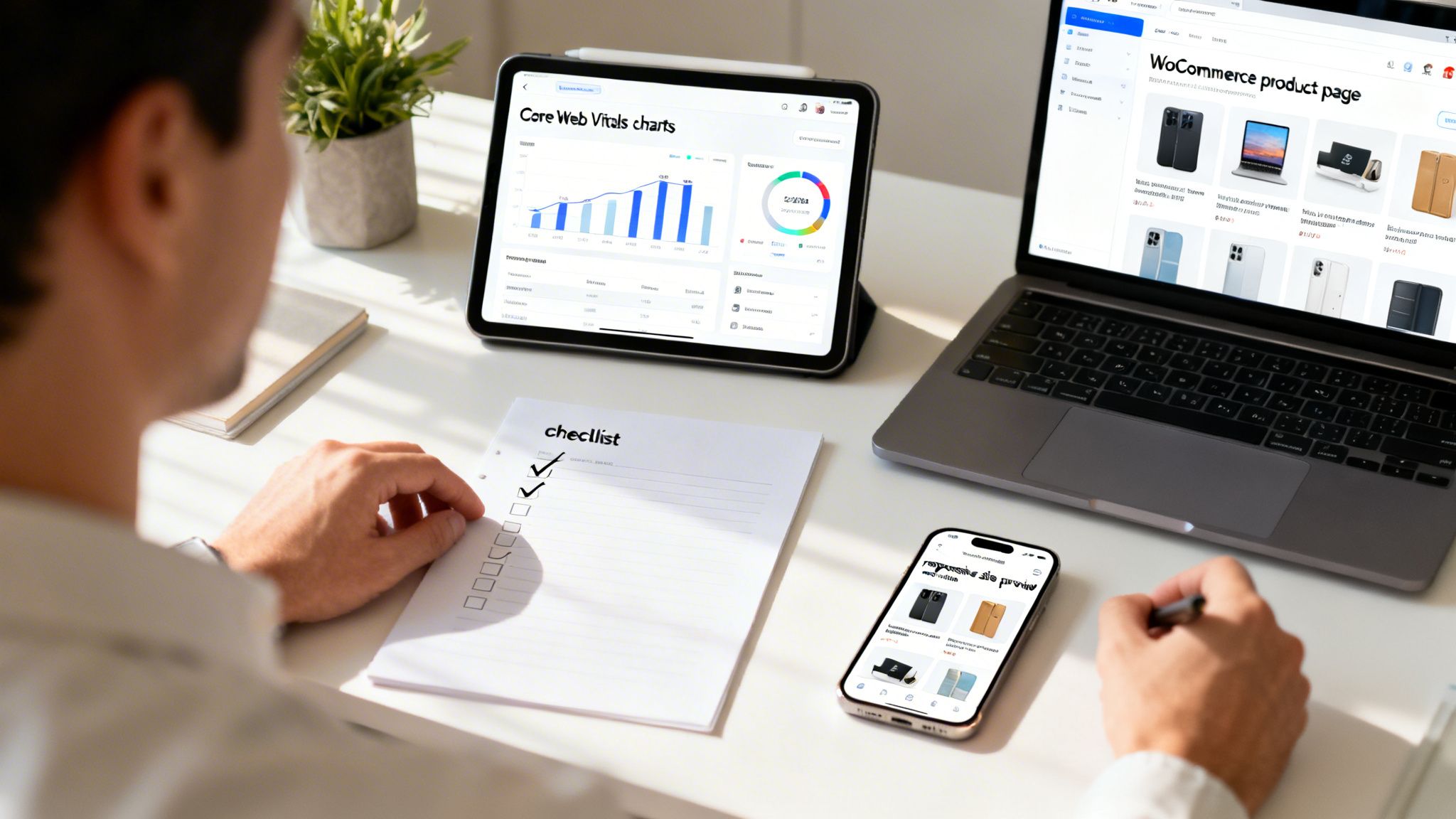
With the basic structure in place and your content migrated, it’s time to move past a simple 1:1 copy. This is the phase where you unlock the features that actually justify moving from static HTML to WordPress in the first place.
Your new site needs to be more than just a digital brochure; it needs to become a real business asset. That means adding powerful capabilities and then stress-testing everything before launch. A successful project to convert html to wp is only finished once it’s been proven to be a major upgrade in performance, stability, and usability.
Adding E-Commerce and Enterprise Features
If your business plan includes selling online, this is the time to integrate WooCommerce. It’s the world’s most popular open-source e-commerce platform and will transform your WordPress site into a proper online store where you can manage products, payments, and shipping from a single dashboard.
For more complex business models, you might need a more advanced architecture.
- WordPress Multisite: This is the perfect solution for managing a network of related sites from a single WordPress installation. Think of a franchise with multiple locations or a publisher with several different online magazines.
- Multilingual Support: To expand your reach internationally, plugins like WPML or Polylang are essential. They let you create and manage translated versions of your pages and posts without the usual headaches.
- Headless WordPress: For high-stakes projects where performance and security are paramount, a headless (or decoupled) architecture is the way to go. It separates the front-end display from the back-end CMS, using the WordPress API to send content to a fast JavaScript framework like React or Vue.
A headless setup isn’t for every project. But for high-traffic applications, mobile apps, or any site where speed is the number one priority, it’s a powerful, future-proof option. It represents the ultimate evolution of what a modern WordPress experience can be.
Each of these adds a layer of complexity, but they also bring a tremendous amount of value. They’re what turn your initial conversion project into a long-term strategic investment.
The Critical Role of Rigorous QA Testing
With all your features in place, the final—and most crucial—step is a thorough quality assurance phase. A beautiful website that breaks on mobile or takes forever to load is a failure, plain and simple.
To make sure your new WordPress site delivers on its promise, flawless website quality assurance testing is non-negotiable. You’re not just hunting for bugs; you’re confirming that the new site is objectively better than the old one in every way that matters.
A Practical Pre-Launch Testing Checklist
Don’t just browse the site and call it a day. You need a systematic audit. Break your testing down into these key areas to ensure nothing gets missed.
Functional and Usability Testing
- Form Submissions: Test every single contact form, newsletter signup, and comment box. Does the data go where it’s supposed to? Do you get a confirmation?
- Link Integrity: Use a tool to crawl the site and find any broken links. A 404 error is a dead end for users and search engines.
- Interactive Elements: Click on every dropdown menu, image slider, and pop-up. Make sure they all function correctly.
- User Roles: If your site has different user types (like Editor, Author, or Subscriber), log in as each one to verify their permissions and restrictions work as intended.
Cross-Device and Browser Compatibility
Your site has to work for everyone, no matter what device or browser they use.
- Major Browsers: Test on the latest versions of Chrome, Firefox, Safari, and Edge.
- Mobile Devices: Check the site on both iOS (Safari) and Android (Chrome) phones. Use your browser’s developer tools for responsive emulation, but always test on real devices too.
- Tablet Views: Don’t forget tablets. Test in both portrait and landscape orientations to catch any layout issues.
Performance and Core Web Vitals
A fast site is non-negotiable for both user experience and SEO. Use tools like Google PageSpeed Insights or GTmetrix to measure your site’s performance against Google’s Core Web Vitals.
- Largest Contentful Paint (LCP): This measures loading performance. A good score is under 2.5 seconds.
- First Input Delay (FID): This measures interactivity. Aim for less than 100 milliseconds.
- Cumulative Layout Shift (CLS): This measures visual stability. A score below 0.1 is what you want.
Passing this final QA gate is the true finish line. It confirms that when you convert html to wp, the result is a faster, more reliable, and more capable platform that will serve your business well for years to come.
When to Hire an Agency for Your Conversion
Going it alone on a convert html to wp project is tempting, but it’s not always the smartest move. Deciding to bring in an agency isn’t about a lack of in-house skill; it’s a calculated business decision to guarantee a predictable outcome and protect your investment.
Knowing where to draw the line can be tough. The gap between a challenging DIY job and a project that’s genuinely over your head isn’t always obvious. The key is to look past the technical checklist and honestly evaluate the business risk if things go sideways.
Red Flags That Signal You Need an Agency
If your migration plan touches any of the following, take it as a strong sign to partner with a professional development team like IMADO. These aren’t just features; they are complex engineering challenges that require deep, specialized experience.
- Custom Plugin Development: Does your site need functionality that you can’t find in an off-the-shelf plugin? You’re stepping into custom development. This demands a solid grasp of WordPress hooks, filters, and APIs to build a solution that is stable, secure, and won’t break with the next update.
- Complex API or ERP Integrations: If your website must talk to a CRM, an ERP system, or other critical business software, you’re building data pipelines. This is a job for senior engineers who understand how to build and maintain these fragile connections reliably.
- High-Traffic eCommerce Requirements: A basic WooCommerce store is one thing. A high-volume operation with thousands of product variations, custom checkout flows, and tricky payment gateway integrations needs a team that lives and breathes performance-optimized e-commerce.
- Enterprise-Level Security and Compliance: When you handle sensitive user data or operate in a regulated field like finance or healthcare, you need more than just a security plugin. An agency can implement the architecture and protocols needed to guard against data breaches and ensure you meet compliance standards.
The Real Cost of a Failed Migration
Viewing an agency as just an “expense” is the wrong frame. It’s risk insurance. A poorly managed migration will almost certainly cost you far more than getting it done right the first time.
A failed conversion project doesn’t just result in a broken website. It can lead to catastrophic SEO losses, lost customer trust, and significant revenue disruption. Partnering with an agency is about guaranteeing engineering excellence and a smooth transition.
Think through the potential fallout. Plummeting search rankings from botched redirects, a slow site that tanks your conversion rates, or a security hole that exposes your customers’ data. The cost of hiring a professional team is often a fraction of the cost of cleaning up that kind of disaster.
An agency brings a structured process—from discovery and scoping to deployment and support—that ensures a predictable, successful outcome for your budget.
Frequently Asked Questions About HTML to WP Conversions
When you’re looking to convert an HTML site to WordPress, a few practical questions almost always come up. We hear them all the time. Here are the straight answers to help you scope your project, avoid common traps, and know what to expect.
How Long Does an HTML to WP Conversion Take?
This completely depends on your site’s size and complexity. There’s no one-size-fits-all answer.
A simple brochure site with 5-10 pages and no complex features might take somewhere between 20-40 hours of solid work. That covers building the theme, moving the content over, and running through basic tests.
But for a larger site—we’re talking hundreds of pages, e-commerce, or custom API integrations—the timeline can easily stretch to 100+ hours. The initial planning and discovery phase is everything here. The more you have in terms of custom post types, third-party connections, and detailed content mapping, the more time you need to budget.
Will I Lose My SEO Rankings After Migrating?
You won’t, but only if the migration is handled meticulously. A sloppy conversion can absolutely tank your SEO. On the other hand, a professional migration can actually boost your rankings over the long haul.
The single most critical piece of the puzzle is a rock-solid 301 redirect strategy. This means mapping every single old HTML URL to its new WordPress counterpart, one by one. This is how you tell search engines where your content moved, preserving all your hard-earned link equity and preventing your traffic from falling off a cliff.
Skipping this step is the most common and expensive mistake you can make during a site migration. A proper SEO migration also includes transferring all your metadata and ensuring the new WordPress site is faster and better structured—signals that search engines love.
Can I Just Copy My HTML and CSS Files Over?
Not directly, no. But those files are the blueprint for your new WordPress theme. The real work is in breaking down your static HTML and CSS and rebuilding them within WordPress’s dynamic framework.
It looks something like this:
- HTML to PHP: Your HTML code gets sliced into reusable PHP template files. Think
header.php,footer.php, and page-specific templates likesingle.php. - CSS and JS: Your stylesheets and JavaScript files have to be loaded the “WordPress way.” This is done through a process called enqueuing, which is managed in your theme’s
functions.phpfile.
This isn’t just about following rules. It’s how you ensure your site loads fast, plays nicely with plugins, and adheres to WordPress development standards.
Ready to guarantee a flawless migration without the technical headaches? IMADO builds fast, scalable, and SEO-ready WordPress platforms. Talk to a senior engineer about your project.
Let’s build something exceptional
Tell us about your project – we’ll help you launch a fast, scalable, SEO-optimized WordPress platform built for growth.