 Ask Chatgpt to summarize Install WordPress Multisite: Pro Setup 2026
 Ask Grok to summarize Install WordPress Multisite: Pro Setup 2026
 Ask Claude to summarize Install WordPress Multisite: Pro Setup 2026
 Ask Perplexity to summarize Install WordPress Multisite: Pro Setup 2026
 Ask Gemini to summarize Install WordPress Multisite: Pro Setup 2026
Most advice on how to install WordPress Multisite starts in the wrong place. It opens wp-config.php, tells you where to paste a constant, and treats the network as a technical upgrade.
That’s backwards.
Multisite is an architectural commitment. It can simplify governance, publishing, and platform maintenance. It can also lock unrelated sites into one operational model, one deployment path, and one failure domain. The install takes minutes. Living with the decision takes years.
Table of Contents
That matters because WordPress itself sits at enormous scale. WordPress powers 43.5% of all websites worldwide, and there were about 1.19 billion websites online as of March 2025, which is why Multisite remains relevant for enterprises running multilingual, multi-domain, or multi-location estates on the dominant CMS (Pantheon’s WordPress statistics roundup). The feature is mature. The bigger question is whether your organization is.
When to Use WordPress Multisite and When to Avoid It
Teams often reach for Multisite when they really need better governance, not shared architecture. Those are different problems.
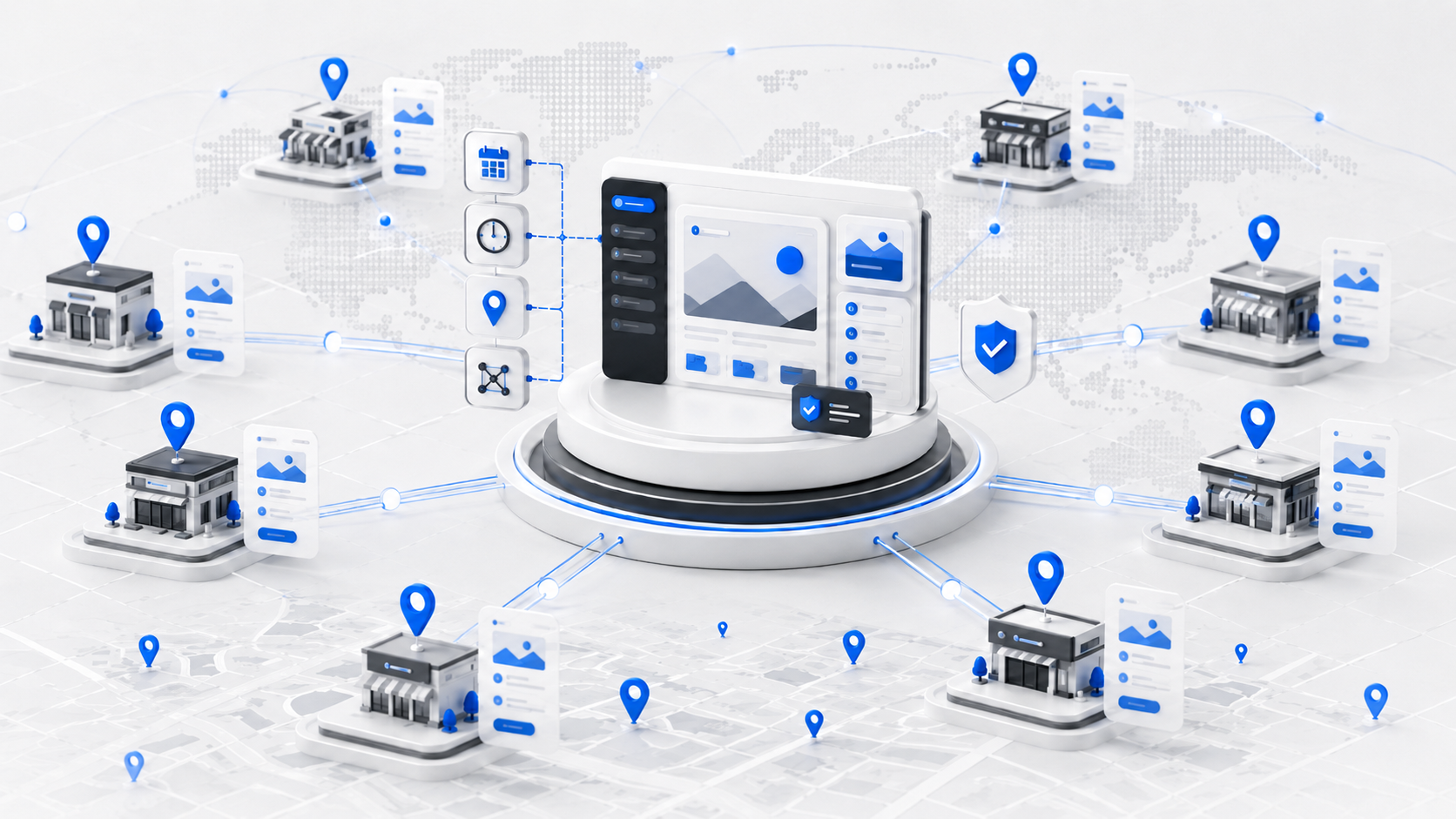
Use Multisite when you need many sites to operate inside one controlled platform. That usually fits franchises, universities, agencies, publisher networks, and corporate groups with repeated site patterns, shared authentication expectations, common design systems, and centralized plugin oversight. WordPress Multisite was built for that kind of scale. One network can host multiple sites from one installation, and some organizations run “hundreds or even thousands” of sites in a single network (Fellowship on WordPress Multisite).
Avoid it when the sites only look similar on a slide deck. If business units need separate release schedules, different plugin stacks, independent hosting decisions, strict legal separation, or the freedom to break from a shared theme system, Multisite becomes friction.
Good fit signals
- Centralized governance matters: One platform team needs to control themes, plugins, and user policy across many sites.
- Site patterns repeat: New sites are variations of an approved blueprint, not bespoke builds.
- Shared operations are a benefit: Security, maintenance, and editorial standards should be enforced centrally.
- Expansion is expected: Teams planning regional launches or creating scalable microsites often benefit from a repeatable network model.
Bad fit signals
- Each site behaves like its own product: Independent roadmaps and custom integrations usually deserve separate installs.
- Plugin autonomy is essential: Multisite reduces freedom by design.
- The organization is politically decentralized: Technical centralization rarely survives governance chaos.
- Data separation is a hard requirement: Separate installs are often cleaner operationally and contractually.
Practical rule: If your team wants shared control more than shared convenience, Multisite may fit. If they want shared convenience but expect local exceptions everywhere, it usually won’t.
For enterprise teams that need senior help weighing that trade-off before building, enterprise WordPress solutions are often more useful than another setup checklist.
The Critical Decision Subdomains vs Subdirectories
The first permanent choice in a Multisite install isn’t the code. It’s the URL structure.
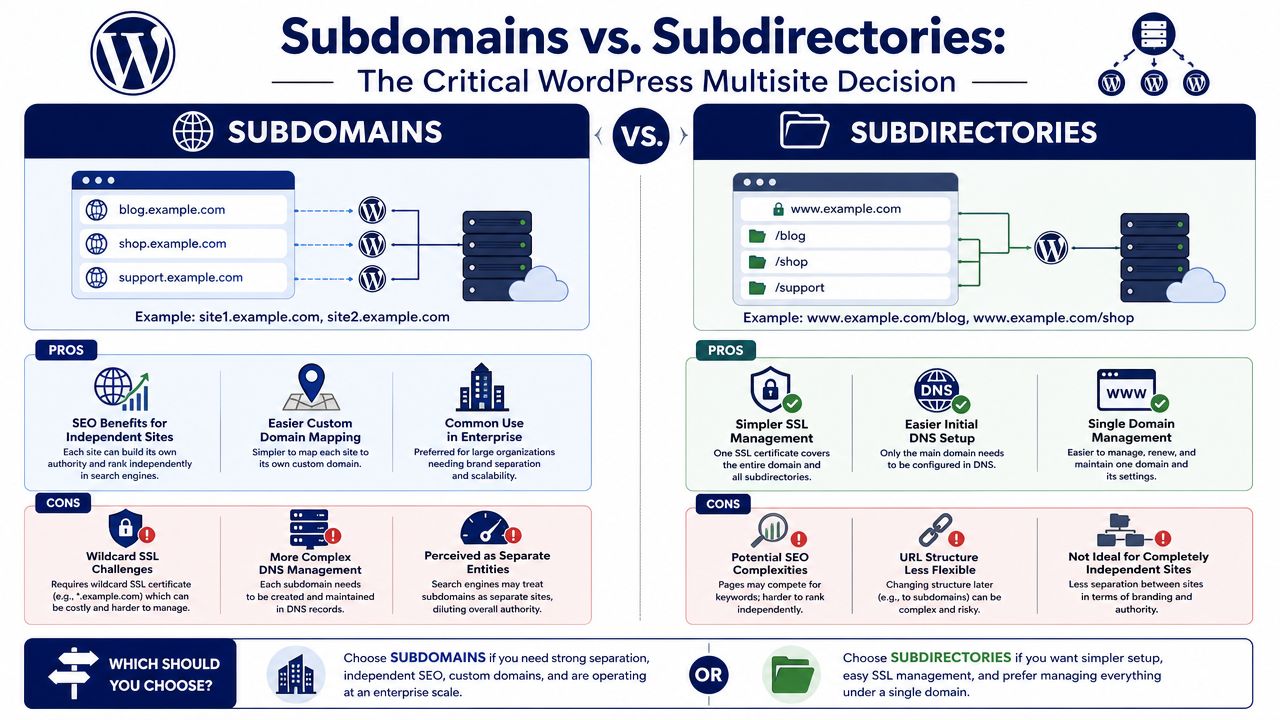
Most tutorials rush past this, even though the decision can create long-term migration pain if you get it wrong. WordPress’s own learning material leaves a gap here. Teams are shown how to enable the network, but not how to judge whether the permanent subdomain or subdirectory choice fits their operating model (WordPress.org Multisite setup lesson).
What changes with each structure
| Structure | Better when | Usually harder when |
|---|---|---|
| Subdomains | Sites need stronger separation, different launch rhythms, or eventual custom domains | DNS, SSL planning, and environment setup |
| Subdirectories | Sites support one parent brand and should feel like sections of a unified property | Future separation, domain changes, and some migration patterns |
Subdirectories keep everything visibly under one root brand. That’s often cleaner for a central marketing team. It also reduces the amount of early DNS coordination and tends to make the first rollout simpler.
Subdomains create clearer boundaries. They’re often the safer call for enterprise networks where each region, department, or business line needs a distinct identity now, even if everything is centrally governed behind the scenes.
SEO and brand implications
This choice is never only technical.
Subdirectories usually make sense when the parent domain is the brand, and every site exists to reinforce that brand. Country sections, business-unit content hubs, or campaign areas can work well in this model if governance is tight and the user journey is unified. Teams thinking through site structure at that level should also review how navigation and URL design affect discoverability in this guide to the SEO potential of URLs in website navigation.
Subdomains make more sense when each site needs to be perceived as somewhat independent. A franchise network, partner program, or regionally autonomous operation often benefits from that separation. It gives you cleaner pathways for domain mapping later and fewer awkward compromises when sites evolve.
Choose subdirectories when the network is one brand with many sections. Choose subdomains when it’s one platform with many identities.
Operational consequences teams underestimate
Subdomains increase infrastructure work. You need to think through wildcard behavior, SSL coverage, and how new sites resolve before editors ever touch the dashboard.
Subdirectories look simpler at launch, but they can become expensive if a site later needs to move onto its own domain or be extracted from the network. That’s the hidden cost most quick-start guides ignore.
A useful test is this: ask whether any site in the next few years might need its own brand, domain, or semi-independent governance. If the answer is yes, subdomains are usually the safer starting point. If the answer is no and the business wants one tightly unified web property, subdirectories often age better.
Preparing Your Hosting and DNS Environment
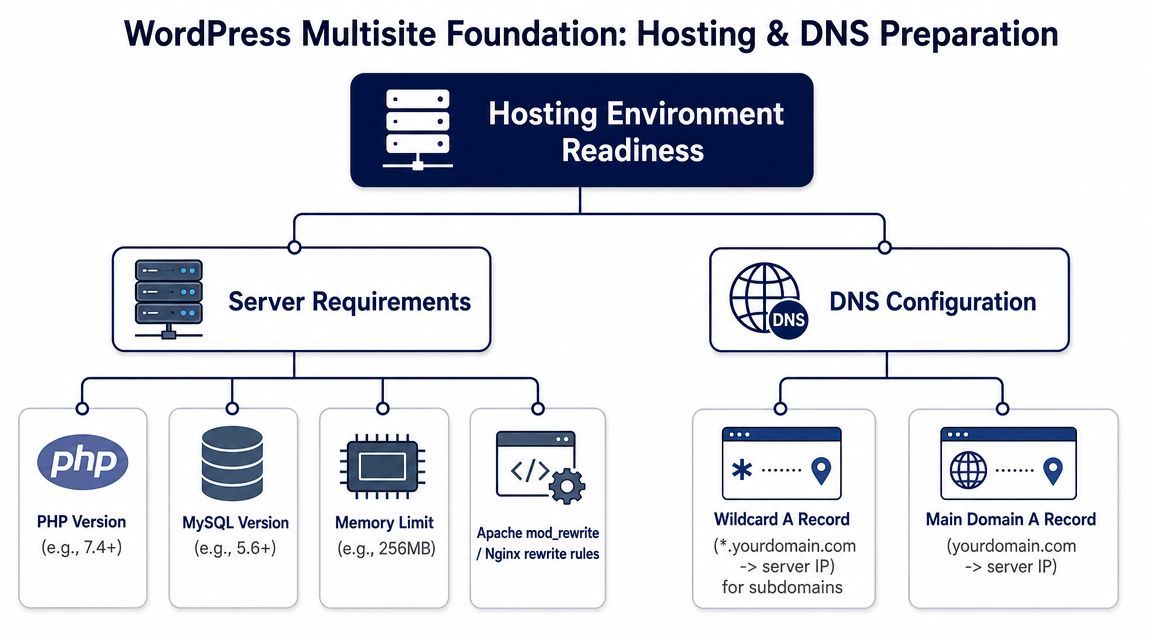
A Multisite rollout fails long before WordPress fails. It fails in DNS, certificate planning, caching assumptions, and weak hosting choices.
If this network is for production, treat the hosting layer as part of the application design. Don’t treat it like plumbing you’ll sort out later.
What production readiness actually means
For a serious network, the environment needs to support repeatable provisioning, controlled deployments, and predictable routing behavior. That means your infrastructure team and your WordPress team should agree on how domains, certificates, redirects, cache layers, and staging environments work before the network is enabled.
Inadequate planning often causes many builds to go off track. Developers can install WordPress Multisite correctly, but if DNS records, certificate coverage, and reverse-proxy behavior were never planned, the first live domain launch turns into a support ticket chain.
Pre-install checklist
- Choose hosting that understands WordPress operationally: Generic shared hosting is the wrong foundation for a network expected to support multiple brands or markets.
- Plan wildcard behavior early: If you’re using subdomains, the infrastructure has to support the way new sites will resolve.
- Define SSL ownership: Decide whether certificates are handled by the host, the platform team, or an external operations team.
- Confirm rewrite compatibility: Apache or Nginx rules need to align with how WordPress will route network sites.
- Separate staging from production expectations: A staging network should mirror domain and cache behavior closely enough to expose launch issues before they reach users.
Staging is not optional
A Multisite staging setup isn’t just for code testing. It’s where you validate the full path from site creation to domain assignment to secure delivery. Without that, your first real launch becomes the test case.
Teams that haven’t formalized this should at least work from a clear staging site process so DNS assumptions, SSL provisioning, and deployment order are tested under controlled conditions.
If your hosting team says “we can sort out domain mapping after install,” pause the project. Post-install infrastructure fixes are where clean Multisite plans start getting messy.
What to decide before touching WordPress
| Area | Decision to lock down |
|---|---|
| Domains | Which sites will use network URLs first, and which will launch on mapped domains |
| Certificates | How SSL is issued, renewed, and validated across the network |
| Caching | Whether cache rules are shared or isolated by site |
| Environments | How staging, pre-production, and production handle mapped domains |
| Support model | Who owns DNS changes, launch windows, and rollback decisions |
A stable Multisite install depends less on the define() line than is often believed. The hard part is making the environment predictable enough that every new site launch follows the same operational pattern.
Enabling and Configuring the WordPress Network
The actual install is straightforward. The sequence matters.
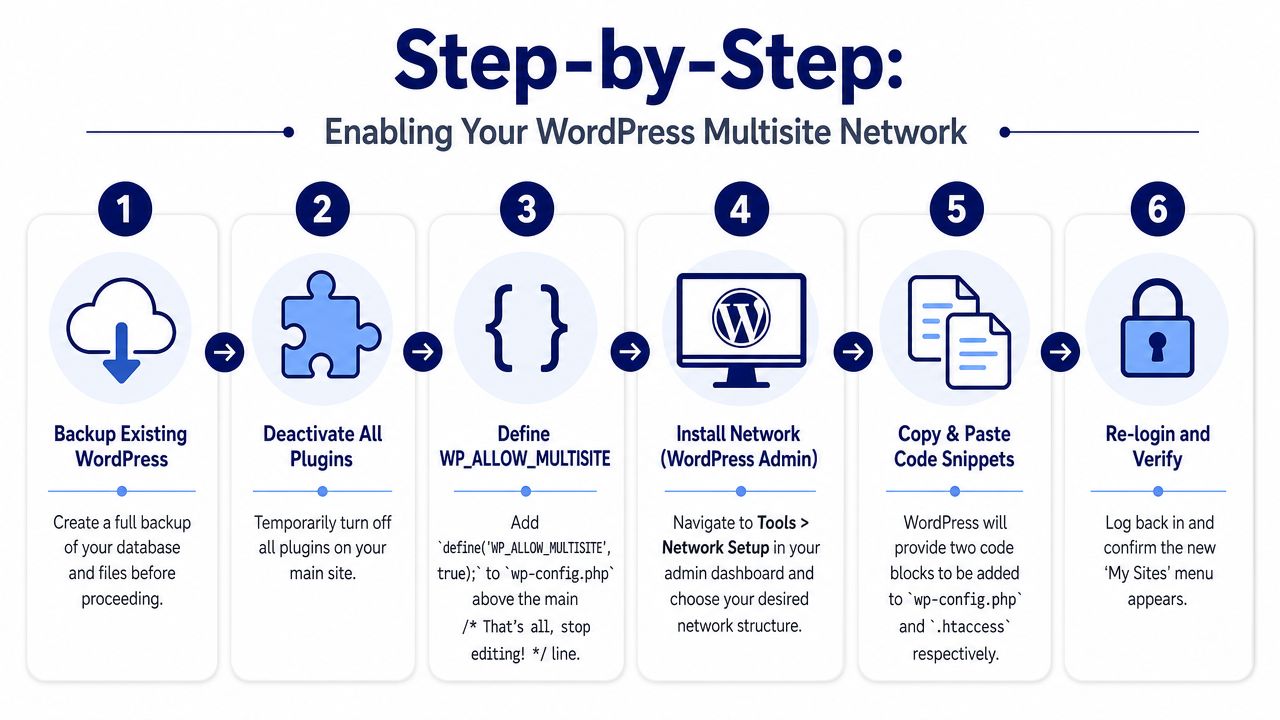
A WordPress Multisite installation is a two-phase process. First, enable the feature by adding define('WP_ALLOW_MULTISITE', true); to wp-config.php. Then use Tools → Network Setup to choose the network structure and generate the final code required for both wp-config.php and .htaccess (MultilingualPress installation guide).
Start with a backup and a clean admin session. Deactivate plugins before enabling the network. That reduces noise during setup and avoids troubleshooting plugin behavior that has nothing to do with Multisite itself.
Phase one enabling the feature
Edit wp-config.php and add:
define('WP_ALLOW_MULTISITE', true);
Place it above the line that says /* That's all, stop editing! */.
That line doesn’t create the network by itself. It exposes the Network Setup screen in the WordPress admin so the application can generate the rest of the configuration based on your chosen structure.
Phase two generating the network configuration
In the admin area, go to Tools → Network Setup.
Choose subdomains or subdirectories, enter the network title and admin details, and let WordPress generate the required snippets. You’ll get one block for wp-config.php and another for .htaccess.
The generated rules are not decorative. They tell WordPress how to recognize network requests, route them correctly, and handle the rewritten URL structure the network depends on.
Here’s the workflow that works reliably:
- Backup first: Files and database.
- Deactivate plugins: Especially anything tied to redirects, security, or page caching.
- Add the Multisite constant: Save
wp-config.php. - Run Network Setup: Choose the URL model you already decided on.
- Paste the generated code carefully: Put each block in the correct file.
- Log in again: WordPress refreshes permissions and exposes the new network interface.
A video walkthrough can help if you want to compare your sequence against a visual setup flow:
Common mistakes during install
- Leaving plugins active: This often creates false alarms during the first login after conversion.
- Pasting code in the wrong place:
wp-config.phpand.htaccessdo different jobs. Don’t mix them. - Ignoring existing rewrite rules: If the site already had custom server behavior, merge carefully instead of overwriting blindly.
- Treating the login refresh as an error: Re-authentication after setup is expected.
What the generated code is doing
The added wp-config.php values tell WordPress that the site is now a network and define how that network should behave. The .htaccess rules handle URL rewriting so requests reach the right site inside the network.
You don’t need to memorize every directive, but you do need to respect the order and the file boundaries. Most failed installs happen because someone copied the right snippet into the wrong place or generated the structure before the infrastructure decision was settled.
Mastering the Network Admin Dashboard
The first day after the install tells you whether the network will stay orderly.
A Super Admin logs in, opens My Sites, and sees a new control plane. That’s the point where Multisite stops being a setup exercise and starts becoming an operating model.
Day one priorities
The first job isn’t building more sites. It’s defining what site admins are allowed to do.
Create the initial site structure. Add one or two representative sites, not twenty. Install only the themes and plugins the network is prepared to support. Decide which plugins are network-activated and which are available for local site activation. If you skip that governance step, editors and client admins will start treating the network like a normal single-site WordPress install, and you’ll spend the next month unwinding avoidable exceptions.
A disciplined first-day sequence looks like this:
- Create foundational sites: Main brand, one regional site, one test site.
- Limit the plugin catalog: Only install what the network has agreed to support.
- Set user roles deliberately: Separate Super Admin powers from site admin powers immediately.
- Review registration settings: Don’t leave open pathways for site or user creation unless that’s intentional.
The dashboard changes how responsibility works
In a standard install, each site admin can feel sovereign. In Multisite, that sovereignty is partial.
The Network Admin owns plugin installation, theme availability, and broad user policy. Site admins manage content, menus, widgets, and local configuration within the permissions they’ve been given. That split is healthy when documented. It’s chaotic when assumed.
A stable Multisite network has fewer freedoms than a loose collection of single sites. That’s a feature, not a flaw.
A practical governance pattern
One useful model is to treat the network like a platform product:
| Role | Owns |
|---|---|
| Super Admin | Core updates, themes, plugin inventory, network settings |
| Site Admin | Content, media, menus, local plugin activation if allowed |
| Platform lead | Standards, launch approvals, release policy |
| Editorial leads | Taxonomies, workflows, content quality |
That structure helps agencies and enterprise teams avoid the most common dashboard mistake. They install Multisite for centralization, then grant permissions that reintroduce fragmentation.
Another day-one habit worth keeping is naming discipline. Site slugs, admin email ownership, environment labels, and domain plans should all follow a pattern. If they don’t, even a technically sound network becomes difficult to audit and support.
Domain Mapping SSL and Launching Live Sites
At this juncture, most install guides stop being useful.
Enabling the network is easy. Launching real sites on real domains without broken redirects, certificate issues, cache confusion, or SEO damage is the work that matters. For agency and enterprise teams, the key challenge isn’t just enabling Multisite. It’s safely operationalizing it across markets and domains, including DNS, SSL, cache isolation, and migration planning (Pagely on WordPress Multisite operations).
Domain mapping is a launch process not a checkbox
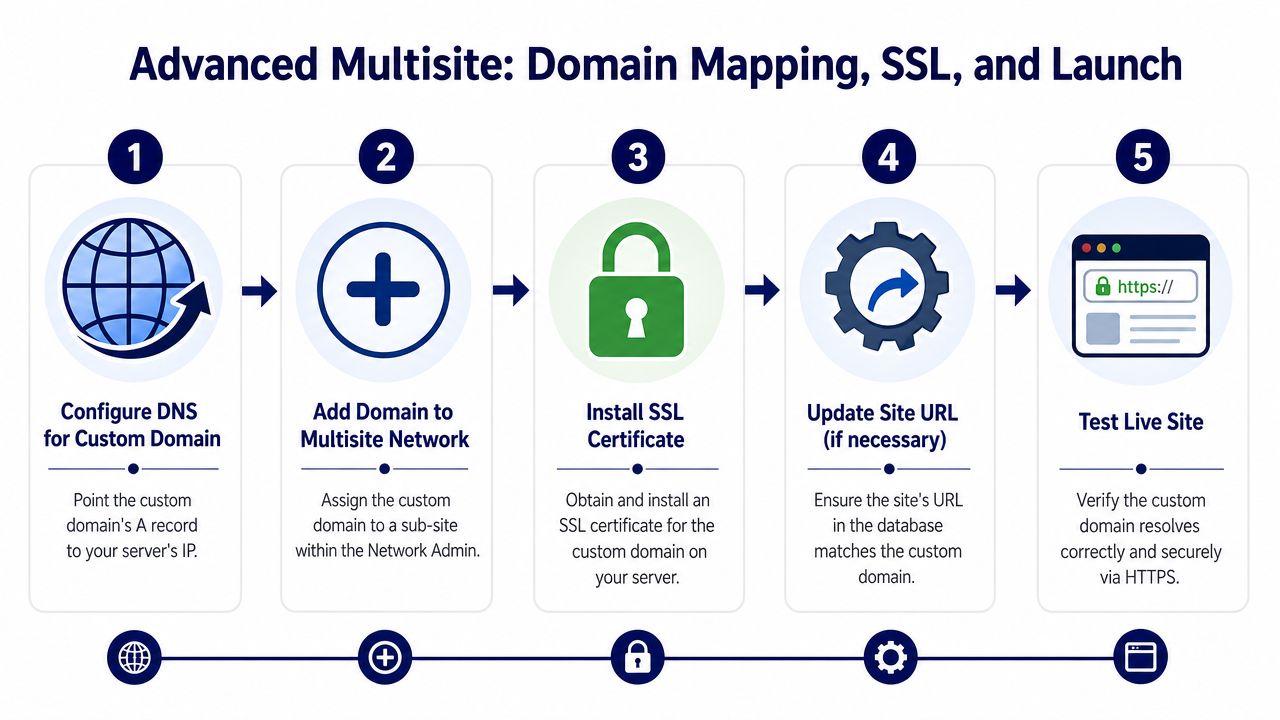
After the network exists, each live site still needs its own domain decisions. In practice, that means the domain has to point to the right environment, the mapped site has to be assigned correctly inside the network, and SSL has to be valid before launch.
That sounds simple until multiple teams are involved. Marketing owns the brand domain. IT owns DNS. The host provisions certificates. The WordPress team updates site settings. If those steps aren’t sequenced, launch day gets ugly fast.
A repeatable launch order
Create the site inside Network Admin
Build the site first with a temporary network URL. Confirm theme, plugins, and content structure before involving the live domain.Prepare the custom domain
The domain should be ready to resolve to the environment where the network is hosted. Don’t schedule content freeze windows until this ownership is clear.Assign the mapped domain to the site
In the network, connect the intended domain to the right site. Double-check you’re not mapping the wrong domain to a similarly named subsite.Provision SSL before public launch
A mapped domain without valid HTTPS isn’t launch-ready. Certificate status should be verified before redirects are switched.Test outside the happy path
Check front end, admin login, media URLs, canonical behavior, form actions, and any hard-coded references that still point to the temporary network URL.
Domain mapping failures rarely come from WordPress itself. They come from teams changing DNS, SSL, and application settings in the wrong order.
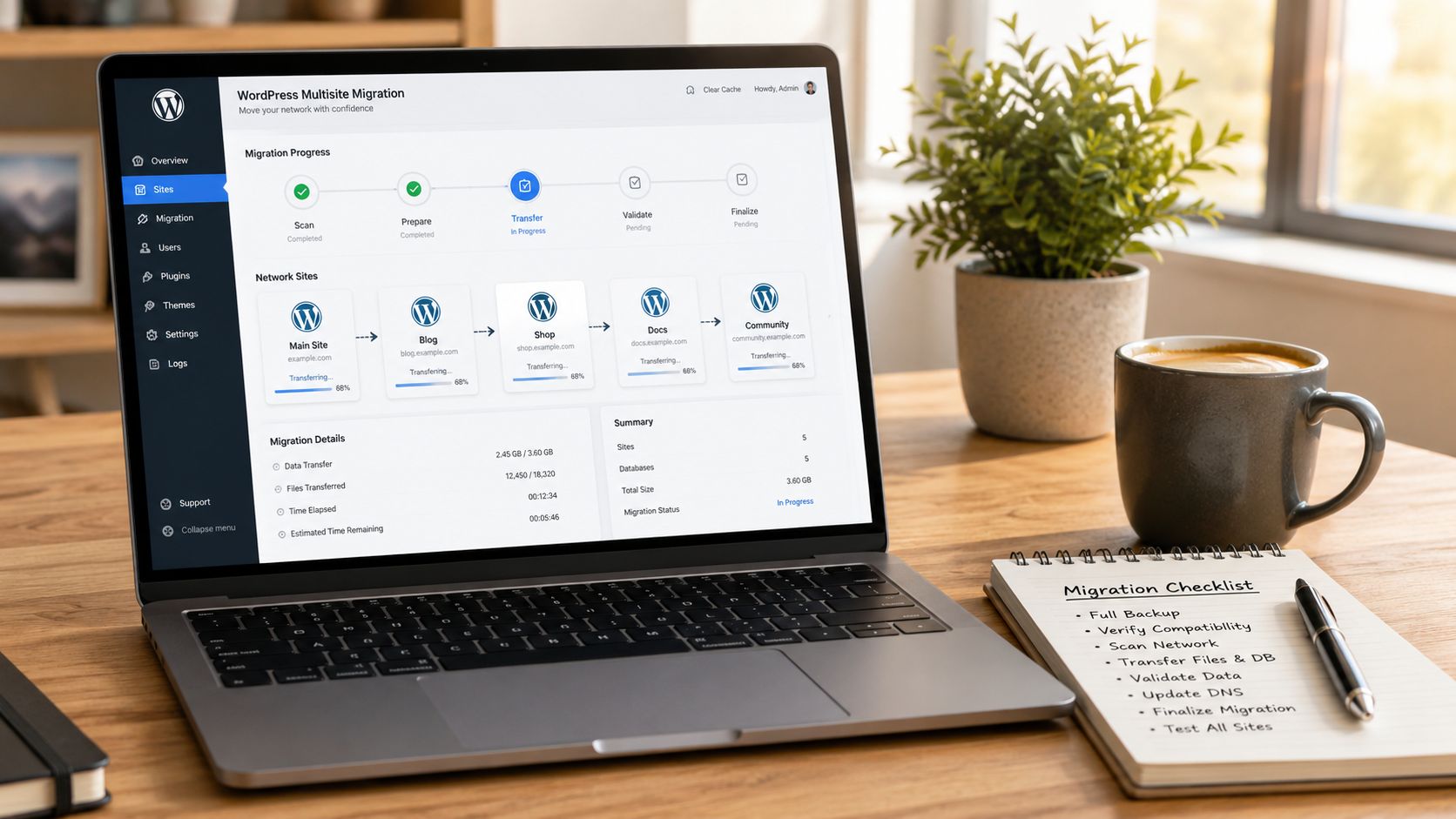
Migrating an existing standalone site into the network
This is the part often underestimated. A standalone site already has a history. It has indexable URLs, redirect behavior, plugin assumptions, hard-coded assets, and a deployment pattern built around being alone.
Before migration, decide whether the site is moving into the network for governance reasons or just convenience. If it’s only convenience, keep it separate. Moving an established site into Multisite introduces URL, domain, and operational dependencies that should be justified.
A practical migration checklist:
- Content and media review: Confirm imports preserve structure and references.
- Plugin audit: Some plugins behave differently in Multisite or need network-level handling.
- Redirect plan: Preserve old paths where they matter.
- Search and replace review: Catch environment URLs, media references, and serialized data issues.
- Rollback definition: Know what “abort and revert” means before switching live traffic.
SSL and cache isolation need explicit ownership
SSL provisioning becomes harder when the network hosts many domains with different launch timelines. Someone has to own certificate issuance, renewal visibility, and validation. If that owner isn’t named, the project manager becomes the certificate coordinator by accident.
Cache isolation matters too. One site’s cache logic shouldn’t create surprising behavior for another site with different cookies, localization rules, or logged-in traffic patterns. If the host or caching layer treats the network too broadly, debugging one market can affect another.
The launch checklist that saves time
| Check | What to verify |
|---|---|
| Domain resolution | The mapped domain reaches the intended environment |
| HTTPS | Certificate is valid and no mixed-content issues appear |
| Admin access | Editors can log in through the correct domain path |
| Redirects | Legacy URLs and preferred canonicals behave as expected |
| Assets | Media, scripts, and forms load from the correct domain |
The cleanest Multisite launches happen when domain mapping is treated as a controlled release process, not as a setting you flip at the end.
Performance Security and Scaling Your Network
The hard part of Multisite starts after installation.
A network changes the operating model for WordPress. Performance issues stop being local. Security decisions stop being site-specific. Every exception you allow for one brand, region, or client creates work for the team responsible for the rest of the network.
Performance failures rarely stay contained
One badly behaved plugin, one expensive query pattern, or one bulk import can degrade admin performance across multiple sites. On a brochure site, that is an annoyance. On a network with active editors, campaign traffic, and scheduled publishing, it becomes an operational incident.
Plan for shared infrastructure from day one. That usually means persistent object caching, careful page cache rules, controlled cron behavior, and query monitoring in staging before anything is network-activated. It also means being honest about plugin economics. A plugin that is acceptable on one standalone site may be too costly when multiplied across dozens of sites and thousands of requests.
A scaling posture that holds up in production usually includes:
- Central plugin approval: Treat every plugin as a platform dependency with support, update, and rollback implications.
- Site-aware cache rules: Respect cookies, login states, language variants, and domain-specific behavior.
- Background job controls: Queue or limit imports, sync tasks, and search indexing so one workload does not starve the rest.
- A narrow theme and block standard: Fewer supported patterns make testing, releases, and incident response faster.
- Database maintenance discipline: Autoloaded options, orphaned tables, and oversized logs become network-wide drag over time.
Security starts with permission design
Multisite security is usually broken by bad governance before it is broken by an advanced attack. Super Admin access is the obvious risk, but loose role design creates just as many problems. Editors get capabilities they should not have. Site admins install workarounds outside policy. Agencies hand over a network without a clear privilege model, and six months later nobody can explain who is allowed to do what.
Set the boundaries early. Limit Super Admin access to the small group that owns platform changes. Decide which themes and plugins are available at all. Review file upload rules, registration behavior, API exposure, and any custom code that crosses site boundaries. Logging matters too. If the network cannot answer who changed a setting, activated a plugin, or created a site, incident response slows down fast.
Security tooling also needs to match the architecture. Rate limiting, malware scanning, WAF rules, and audit logging should be configured with domain mapping and multi-site ownership in mind, not bolted on as if this were one simple installation.
Backups are only useful if recovery matches the network model
Many teams say they have backups when what they really have is a vendor checkbox and no tested restore path.
Multisite forces a harder conversation. Can you restore one site without affecting the others? Can you recover media, tables, and mapped domain settings for a single property after a bad deployment? How long does a full-network restore take, and who approves it when multiple business units share the same stack?
Teams responsible for managing WordPress sites across multiple environments usually find that restore design matters more than backup branding. Write down the recovery paths. Test them. Keep the answer different for a single-site content mistake versus a network-wide failure.
Scaling is as much about restraint as infrastructure
Healthy networks do not grow by saying yes to every exception. They grow by controlling variation.
Use a release process that tests shared components before rollout. Review dormant sites and archive what no longer serves a business function. Track which customizations create long-term support cost. If one site needs unusual plugins, hosting behavior, or editorial workflows, reconsider whether it belongs in the network at all.
The strongest Multisite environments share a few habits:
- Strict change control for network-level settings
- Small, trusted plugin inventory
- Documented ownership for domains, SSL, caching, and DNS
- Clear onboarding and offboarding procedures for sites
- Regular audits for dormant properties, outdated code, and privilege creep
Multisite can support a serious enterprise or agency platform. It can also concentrate risk in one codebase, one database tier, and one governance model. Teams that succeed with it treat the network like a product with standards, owners, and operational discipline.
If you’re deciding whether Multisite is the right architecture, or you need help turning an installed network into a stable operating platform, IMADO supports WordPress builds that require senior engineering around Multisite, multilingual rollout, governance, migration planning, and ongoing maintenance.
Let’s build something exceptional
Tell us about your project – we’ll help you launch a fast, scalable, SEO-optimized WordPress platform built for growth.