 Ask Chatgpt to summarize WordPress CRM Integration: A Guide for Engineering Teams
 Ask Grok to summarize WordPress CRM Integration: A Guide for Engineering Teams
 Ask Claude to summarize WordPress CRM Integration: A Guide for Engineering Teams
 Ask Perplexity to summarize WordPress CRM Integration: A Guide for Engineering Teams
 Ask Gemini to summarize WordPress CRM Integration: A Guide for Engineering Teams
Customer data on a WordPress site rarely lives in one place. Leads enter through Gravity Forms or Contact Form 7. Buyers check out through WooCommerce. Existing customers click through email campaigns managed somewhere else. Support conversations sit in a help desk. Then someone asks for a clean pipeline view, lifecycle automation, or a simple answer to “who is this customer?” and the team realizes it has connected tools, not a connected system.
That’s the context for WordPress CRM integration. The problem usually isn’t “which plugin should we install?” The problem is that WordPress has become the front end for acquisition, commerce, education, and account activity, while the CRM is expected to act as the system of record for people, deals, and follow-up.
Table of Contents
For engineering teams and agencies, the hard part isn’t making one form talk to one CRM. It’s choosing an architecture that still works when the site adds multilingual content, multiple storefronts, LMS events, role-based access, and stricter governance around customer data. That’s where most simple tutorials stop being useful.
Beyond Plugins The Core Strategy of WordPress CRM Integration
A WordPress CRM integration project often begins because of a symptom. Sales sees incomplete lead records. Marketing can’t segment audiences reliably. Operations finds customer data duplicated across plugins. Developers get pulled in after the business has already decided it “just needs a sync.”
That framing is backwards. A solid WordPress CRM integration starts with a data strategy, not a connector.
Start with the operating model
The first architectural question is simple: where should customer data, automation logic, and reporting live? That choice affects almost every downstream decision. As WP Fusion’s WordPress CRM guidance points out, the trade-offs between a WordPress-native CRM and a SaaS CRM connected through a bridge have real implications for data residency, vendor lock-in, and scalability for larger teams or multisite operations.
A self-hosted CRM inside WordPress can make sense when the business wants tight dashboard centralization and direct control inside the WordPress admin. A SaaS CRM plus connector is often the better fit when the CRM needs to serve teams beyond the website, such as sales, support, and RevOps.
The mistake is treating those as interchangeable.
Practical rule: If WordPress is the main application for customer operations, a WordPress-native CRM may fit. If WordPress is one channel in a broader revenue stack, the CRM usually shouldn’t live inside WordPress.
Define what the integration must do
Before choosing tools, force the project into a few explicit outcomes:
- Unify customer records: Decide whether the CRM will own the canonical contact record or whether WordPress keeps some profile attributes locally.
- Trigger operational workflows: Specify which actions matter, such as a new lead, first purchase, account registration, or course enrollment.
- Support segmentation: Determine how tags, lists, deal stages, or custom objects should reflect activity happening on the site.
- Preserve governance: Clarify who can edit mappings, who can see synced data, and what needs audit visibility.
If the business can’t answer those questions, plugin comparisons won’t help.
Treat WordPress as part of a customer data system
WordPress CRM integration has become much more practical because the ecosystem matured beyond basic form syncing. By 2025, integration-focused tools such as Bit Integrations claimed support for 30+ CRMs and 335+ connected platforms in its coverage of WordPress CRM tooling, while WP Fusion positioned itself as a two-way bridge rather than requiring a WordPress-native CRM only, as described in Bit Integrations’ market overview. That shift matters because it reflects a broader architectural change. Teams now expect forms, purchases, email tools, LMS plugins, and business systems to work together.
That’s why the right opening question isn’t “which CRM plugin is best?” It’s “what role does WordPress play in our customer operations stack?”
Choosing Your Integration Architecture
There are three common ways to build WordPress CRM integration. None is universally right. The right one depends on how much control the team needs, how many systems are involved, and who will maintain the integration after launch.
The market itself reflects that broadening approach. HubSpot’s review of WordPress CRM plugins lists options such as HubSpot, WP ERP, Jetpack CRM, FluentCRM, Freshworks CRM, Zoho CRM Lead Magnet, and WP Fusion, and notes that businesses can connect WordPress to CRMs through plugins, custom APIs, or workflow automation in its WordPress CRM plugin guide. That’s a useful signal. Integration is now a mainstream operating layer, not a niche add-on.
Comparison of WordPress CRM Integration Architectures
| Criterion | Dedicated Plugins (e.g., WP Fusion) | Custom API Integration | Middleware / iPaaS (e.g., Zapier) |
|---|---|---|---|
| Initial setup speed | Fastest | Slowest | Moderate |
| Maintenance burden | Low to moderate | High | Moderate |
| Control over business logic | Moderate | Highest | Moderate to high |
| Fit for standard WordPress events | Strong | Strong | Strong |
| Fit for unusual CRM objects or workflows | Limited by plugin capabilities | Strongest | Good if supported by middleware |
| Dependency surface | Plugin vendor plus WordPress stack | Your code plus both APIs | Middleware vendor plus connected apps |
| Best use case | Typical lead, ecommerce, and membership sync | Bespoke requirements or strict governance | Multi-system orchestration across several apps |
Dedicated plugins work when your model is conventional
A dedicated integration plugin is often the lowest-friction option. That’s especially true when the required triggers already exist in WordPress plugins such as WooCommerce, LMS platforms, or form builders.
This category has matured well beyond simple contact creation. Tools in this part of the market now support broad automation patterns, and some position themselves as two-way bridges between WordPress and external CRMs rather than one-way exporters. If your workflow is recognizable, a plugin usually gets you into production faster with less custom code.
Use this model when you need speed, tested connectors, and a manageable admin interface for non-developers.
Custom API integration is justified when the business rules are unusual
Teams should write a direct integration when they need full control over data models, retry handling, conflict rules, and event sequencing. This is common when the CRM has custom objects, strict validation requirements, or unusual territory rules that generic plugins can’t represent cleanly.
A custom build also makes sense when the project requires strong abstraction between WordPress and the CRM. For example, you may want a service layer that normalizes events from multiple sites before they reach the CRM.
If your stakeholders include RevOps or platform teams, this broader view of API integration for RevOps leaders is a useful framing resource because it shifts the discussion from plugin features to systems design.
Middleware helps when WordPress is only one participant
Middleware or iPaaS tools fit projects that need to orchestrate multiple systems. WordPress may send a lead, but the workflow also needs enrichment, routing, Slack alerts, or downstream updates into ERP, email, or support tools.
The trade-off is operational complexity. Middleware can become another critical dependency, with its own failure modes, task history, and governance issues. Still, it’s often the cleanest way to avoid turning WordPress into a brittle integration hub.
For teams that need implementation support at the integration layer, custom API integration solutions are one route when plugin logic alone won’t carry the workload.
A good architecture is the one your team can reason about six months later, under production pressure, without guessing where the data actually moved.
Designing Data Mapping and Sync Logic
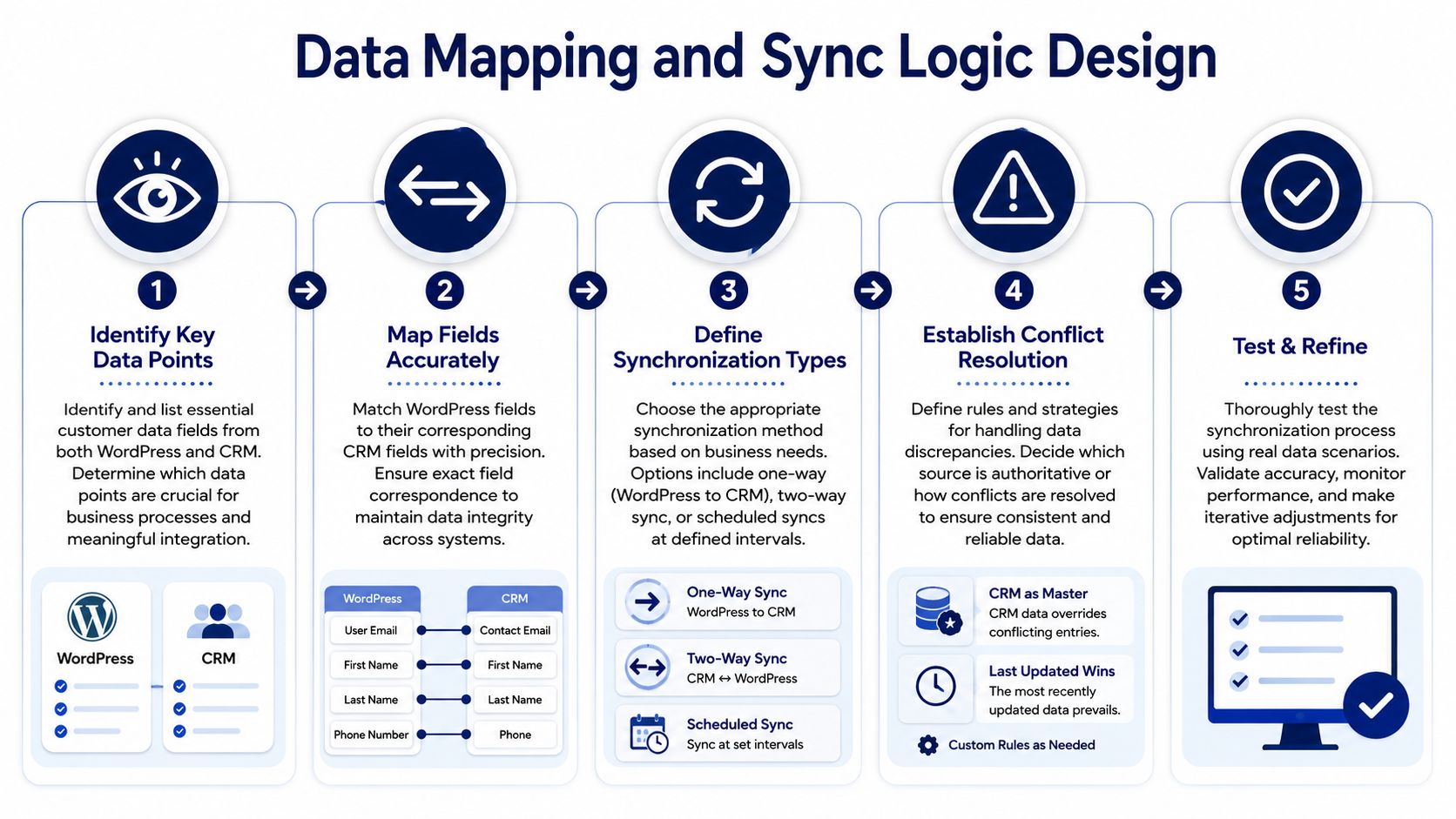
An integration fails insidiously when the field mapping is wrong. The connection may be live, the webhook may fire, and the CRM may show a new contact, but if lifecycle stage, source attribution, locale, consent state, and purchase metadata land in the wrong places, the business ends up automating bad data.
That’s why mapping deserves design work, not just plugin setup.
Map business meaning, not just fields
Start with events and entities. In WordPress, the relevant sources often include form submissions, user registration, WooCommerce orders, subscription updates, file downloads, and custom post interactions. In the CRM, those may correspond to contacts, companies, deals, lists, tags, or custom objects.
A practical pattern for most WordPress CRM integrations is a dedicated plugin that maps WordPress events such as form submissions or checkouts to CRM objects in near real time, which independent guidance recommends because it reduces manual entry and simplifies testing before launch in this WordPress CRM integration overview.
Use a mapping worksheet that answers five questions for every field:
- What is the source of truth?
- What transformation is needed?
- Is this one-way or two-way?
- What triggers an update?
- What happens when values conflict?
Decide sync direction before touching code
Two-way sync sounds attractive, but it creates complexity fast. If the CRM edits a contact while WordPress updates the same profile from a form submission, which system wins? Teams need explicit conflict rules.
Common patterns include:
- CRM as master: Better when sales or customer success owns record quality.
- WordPress as event source: Better when the site captures high-frequency behavioral activity.
- Split authority: Safer when profile fields live in the CRM, but transactional or access-control data originates in WordPress.
Many projects overbuild. Don’t make every field bi-directional unless there’s a real operational need.
Here’s a useful walkthrough to pair with the design work:
Use one concrete event as the design anchor
Take a standard user_register event. A developer can use that event as the trigger, then pass the new user through a transformation layer that normalizes names, checks for an existing CRM record by email, assigns tags based on role or acquisition source, and creates or updates the contact.
That flow should include:
- Deduplication logic: Match on a stable identifier before creating records.
- Transformation rules: Convert WordPress values into CRM-ready formats.
- Error handling: Queue failures and retry instead of dropping events.
- Observability: Log payloads and responses without exposing sensitive data broadly.
“If you can’t explain why each field is syncing, it probably shouldn’t be syncing.”
Handling Complex Scenarios WooCommerce and Multisite
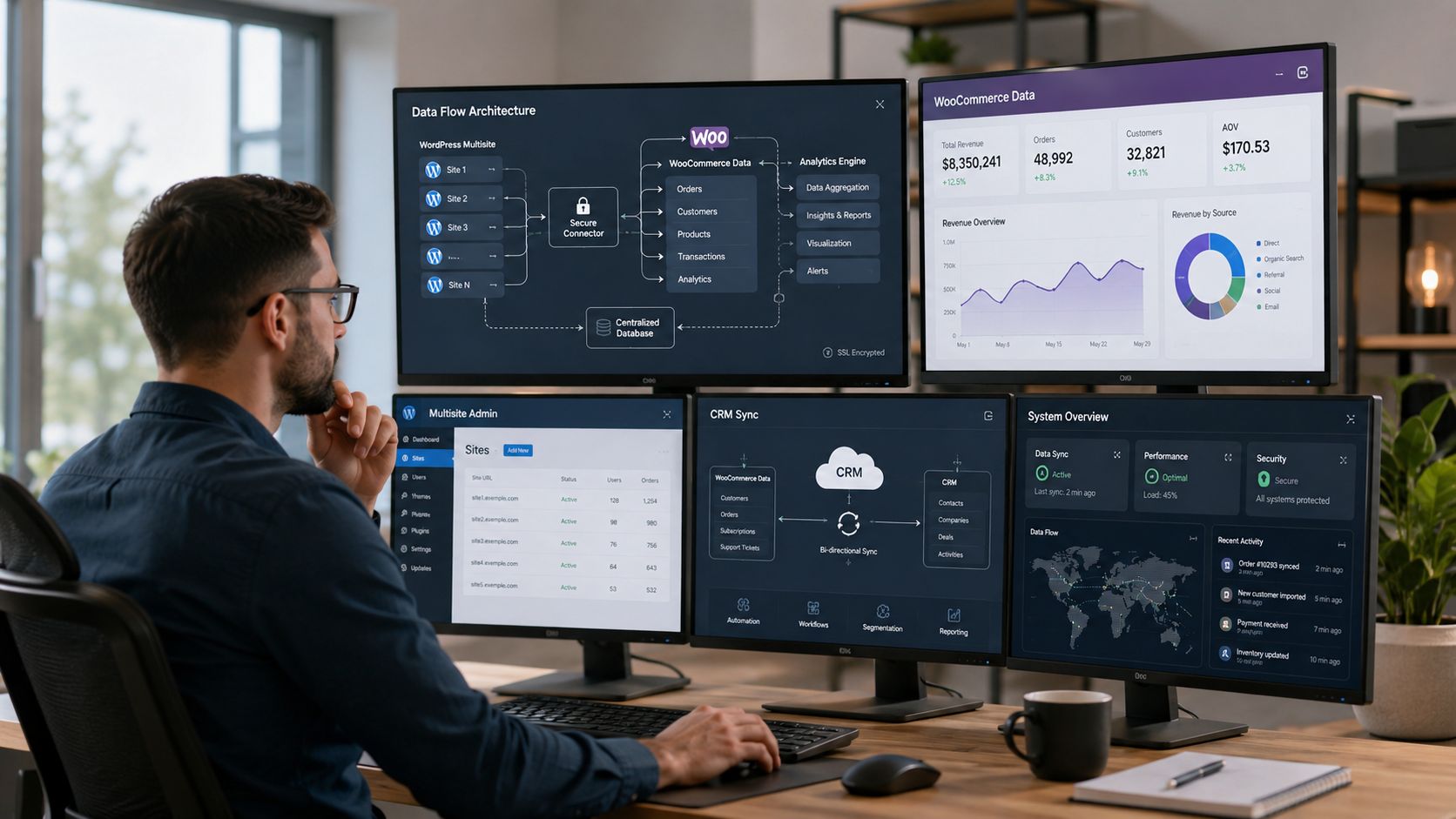
Simple examples usually show one contact form feeding one CRM. Real WordPress stacks are messier. WooCommerce creates transactional data with timing sensitivity. Multisite introduces user scope questions. Multilingual setups create duplicate and localization issues if the integration model is sloppy.
That’s why architecture matters more than plugin count.
WooCommerce needs event discipline
Checkout is not the place for heavy synchronous processing. If your CRM integration performs expensive lookups, creates multiple downstream actions, or applies a chain of automations during order creation, you risk slowing a business-critical flow.
A better pattern is to treat WooCommerce as an event source and split workflows by importance:
- Immediate events: Order placed, payment confirmed, subscription status changed.
- Deferred enrichments: Product categorization tags, cohort assignment, lifetime value rollups, internal notifications.
- Non-critical analytics sync: Reporting attributes that can lag without hurting operations.
In complex commerce setups, duplicate prevention becomes a practical concern. A buyer may use the same email across different stores, languages, or checkout contexts. If the CRM creates a fresh record every time, follow-up logic breaks and attribution gets noisy.
Multisite changes the identity model
Multisite forces a hard question. Is the person one customer with activity across sites, or many site-level records linked to a parent account?
Both models are valid. What matters is choosing one deliberately.
A central-contact approach works better when sites represent brands, locations, or programs inside one organization and the CRM needs a unified person record. A site-scoped approach works better when business units operate independently and need separate pipelines, permissions, or reporting structures.
The operational gaps in complex deployments are often ignored. As Agile CRM’s WordPress CRM discussion notes, many guides don’t address how to avoid duplicate contacts across WooCommerce stores or multilingual sites, how to map custom fields cleanly, or how to preserve performance when automations fire on checkout. That omission matters because modern WordPress stacks need integration architecture, not just configuration.
Multilingual and multi-location logic needs standards
If WPML or Polylang is in the stack, language and region should not be an afterthought. Decide early whether locale is:
- a CRM property,
- a segmentation tag,
- a routing rule,
- or all three.
Do the same for multi-location setups. A branch selector on a form may determine lead ownership in the CRM. A product available in one region may require different automation than the same product elsewhere. Without a shared mapping standard, teams end up with scattered custom fields and inconsistent reporting.
For organizations with regional programs or distributed operations, implementation patterns used in WordPress builds for nonprofits often overlap with these governance concerns because both require structured permissions, localized content handling, and centralized oversight.
Architect’s note: Every complex WordPress CRM integration needs a deduplication policy, a locale policy, and a site ownership policy. If one is missing, production data will drift.
Ensuring Security Performance and Reliability
A CRM integration handles customer data. That alone means the build has to be treated as production infrastructure, not as a marketing convenience feature. Security, performance, and operational reliability should be designed in from the first sprint.
Secure the connection surface
Start with credential handling. API keys, access tokens, and webhook secrets shouldn’t be hard-coded, copied across environments casually, or exposed to too many administrators. Use the strongest authentication method the CRM supports, and prefer scoped access over broad account-wide permissions.
Role-based access inside WordPress matters too. The person editing a landing page doesn’t need permission to change CRM field mappings or outbound automation settings.
Teams that want a higher-confidence release process should also consider external validation. A focused review such as secure your web apps with pentesting is useful when the integration touches forms, authenticated areas, or sensitive customer flows.
Protect site performance
CRM calls can become hidden latency generators. A slow API response during checkout, registration, or form submission can hurt the user experience if the request is handled synchronously.
Safer patterns include:
- Queue outbound jobs: Process CRM syncs asynchronously where possible.
- Retry with control: Failed jobs should retry predictably, not hammer the remote API.
- Limit payload size: Don’t send every possible field if only a subset is operationally useful.
- Separate transactional and reporting syncs: Keep business-critical actions lightweight.
If the team doesn’t have a safe place to test those patterns, fix that before launch. A controlled WordPress staging site workflow is a practical requirement for validating sync logic, credentials, plugin updates, and edge cases without touching live customer data.
Roll out in stages
A practical WordPress-to-CRM setup is easiest to manage when staged in five steps: install the plugin, connect lead sources, define a small number of automations, assign permissions, and monitor dashboards. Jetpack CRM’s guidance also recommends starting with just one automation, such as a new lead triggering a welcome email, rather than trying to automate everything at once in its sales automation walkthrough.
That sequence is sound engineering practice, not just product advice.
A phased launch might look like this:
- Pilot one trigger: New lead from one form or one order event.
- Validate field integrity: Confirm values arrive in the expected CRM fields.
- Test failure paths: Simulate API errors, missing fields, and duplicate submissions.
- Add permissions and monitoring: Restrict admin access and expose logs to the right operators.
- Expand gradually: Add more events only after the first workflow is stable.
Reliable integrations are usually boring in production. That’s the outcome you want.
An Agency Checklist for Implementation and Governance
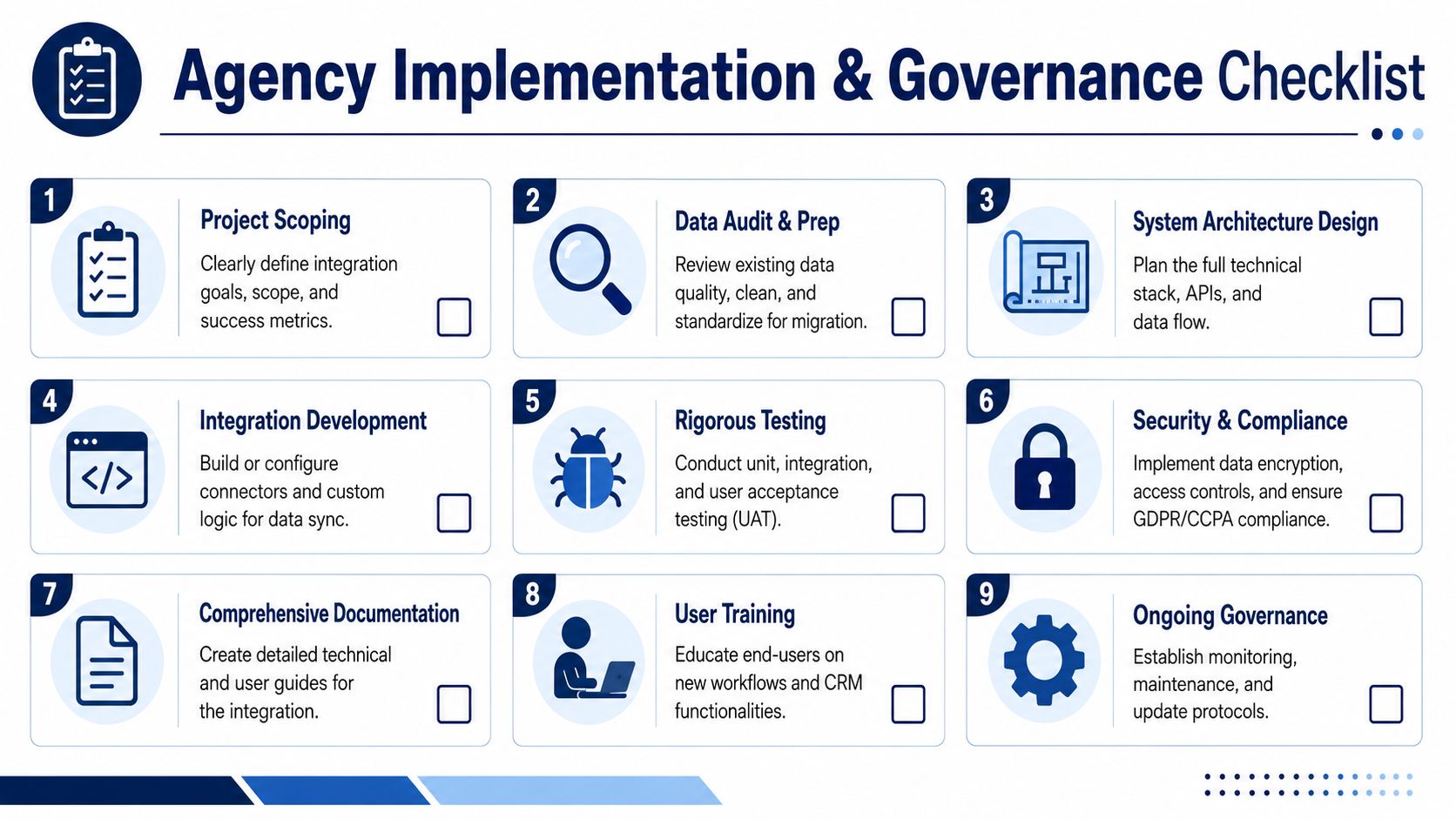
Agencies and in-house teams need a repeatable delivery model for WordPress CRM integration. Otherwise every project becomes a custom debate about forms, tags, and plugin settings, while key issues sit in ownership, governance, and change control.
This checklist works better when it’s treated as part discovery document, part technical gate.
Discovery and design checks
- Confirm the system owner: Identify whether marketing, sales ops, product, or IT owns the CRM model and final data rules.
- Audit data sources: List every WordPress-originated event that might need syncing, including forms, orders, registrations, memberships, and downloads.
- Choose the operating model: Decide whether the CRM lives in WordPress or whether WordPress feeds an external SaaS CRM.
- Define the canonical record: Document what makes a contact unique and how duplicates are resolved.
Delivery and launch checks
- Write a field mapping spec: Don’t rely on plugin screens as documentation.
- Version integration logic: Changes to hooks, payloads, and custom sync code should live in source control, not in memory. A disciplined WordPress version control workflow helps keep integration changes reviewable.
- Test against real scenarios: Include duplicate emails, partial checkouts, failed API calls, and multilingual form submissions.
- Assign operational permissions: Limit who can edit mappings, tokens, and automation rules.
- Set post-launch governance: Define who monitors logs, who approves mapping changes, and how incidents are escalated.
The agencies that deliver these projects well don’t just connect systems. They hand over a model the client can operate without guessing what happens when a field changes or a plugin update alters an event payload.
Frequently Asked Questions
Which CRM is best for WordPress
There isn’t one best CRM for WordPress in the abstract. The better question is which operating model fits your stack.
If the business wants everything centered in the WordPress dashboard, a WordPress-native CRM may be appropriate. If the CRM needs to serve a broader sales or support organization, a SaaS CRM connected to WordPress is usually the stronger choice. The right answer depends on where reporting, automation, and customer ownership need to live.
Should you build the CRM inside WordPress
Sometimes. Not always.
A self-hosted model can work well for organizations that want customer operations closely tied to the site and prefer keeping data inside the WordPress environment. It becomes less attractive when multiple departments, regions, or systems need to use the CRM independently of the website. In those cases, WordPress should usually act as an event source and experience layer, not the center of the customer stack.
Is a plugin enough for WordPress CRM integration
Often, yes. For common needs such as form capture, WooCommerce syncing, basic tagging, and near-real-time updates, a mature connector is usually enough.
A plugin stops being enough when the team needs custom object models, advanced conflict resolution, cross-system orchestration, or stronger control over retries and observability. That’s where custom API work or middleware becomes justified.
How do you choose between one-way and two-way sync
Start from ownership. If one system clearly owns a field, keep the sync one-way. Two-way sync should be reserved for cases where both systems need to update the same record and the team has explicit conflict rules.
In practice, many teams do better with mostly one-way event sync plus selective write-back for a few controlled fields.
What usually breaks first in complex deployments
Three things tend to fail before anything else: duplicate handling, inconsistent field mapping, and performance under high-event moments such as checkout.
That’s why WooCommerce, multilingual sites, and multisite networks need more than basic connector setup. They need identity rules, field standards, and an event model that won’t overload the site when automations fire.
How should an agency scope a WordPress CRM integration project
Scope the project around systems, events, and ownership. Don’t scope it around “install plugin and connect CRM.”
A useful scoping document includes source systems, destination objects, trigger events, sync direction, deduplication policy, permissions, environments, failure handling, and post-launch ownership. If those aren’t defined, the budget and timeline will drift quickly.
If your team is planning a WordPress CRM integration and needs senior engineering support for architecture, custom API work, WooCommerce complexity, or multisite governance, IMADO is one option to evaluate. They work on WordPress builds and integration-heavy projects where the challenge isn’t just connecting tools, but designing a stack that stays maintainable under real operational load.
Let’s build something exceptional
Tell us about your project – we’ll help you launch a fast, scalable, SEO-optimized WordPress platform built for growth.