 Ask Chatgpt to summarize WordPress Multisite Migration: Complete Playbook 2026
 Ask Grok to summarize WordPress Multisite Migration: Complete Playbook 2026
 Ask Claude to summarize WordPress Multisite Migration: Complete Playbook 2026
 Ask Perplexity to summarize WordPress Multisite Migration: Complete Playbook 2026
 Ask Gemini to summarize WordPress Multisite Migration: Complete Playbook 2026
You’re probably in one of two situations right now. Either a multisite network has outgrown the server, governance, or URL structure it started with, or a business stakeholder has decided that one subsite needs to become its own platform without breaking search visibility, editorial workflows, and revenue.
That’s where WordPress multisite migration stops being a routine hosting task and turns into an engineering project. The technical move matters, but the bigger risks usually sit somewhere else: a plugin license that no longer validates after extraction, a multilingual setup that loses canonical tags, a media library that looks fine until editors discover broken assets three days later, or a rollback plan that exists only as a vague promise.
The cleanest migrations I’ve seen all follow the same pattern. They treat the database move as one part of a larger controlled change. They lock scope early, test like investigators, and assume something will fail unless it has been verified. That mindset is what keeps a multisite migration from becoming a late-night incident.
Table of Contents
Pre-Migration Strategy and Risk Assessment
Friday, 8:40 p.m. DNS is about to flip, the database import finished, and someone asks whether the French subsite’s hreflang tags were preserved and which premium plugin licenses will survive the move. If that question comes up on migration night, the planning failed.
A WordPress multisite migration starts with scope control and failure planning. The database and files matter, but high-risk projects usually break on business continuity issues: plugin licensing tied to the old domain or install type, multilingual SEO rules that disappear after extraction, and rollback plans that sound fine until someone has to decide whether to reverse DNS under pressure.
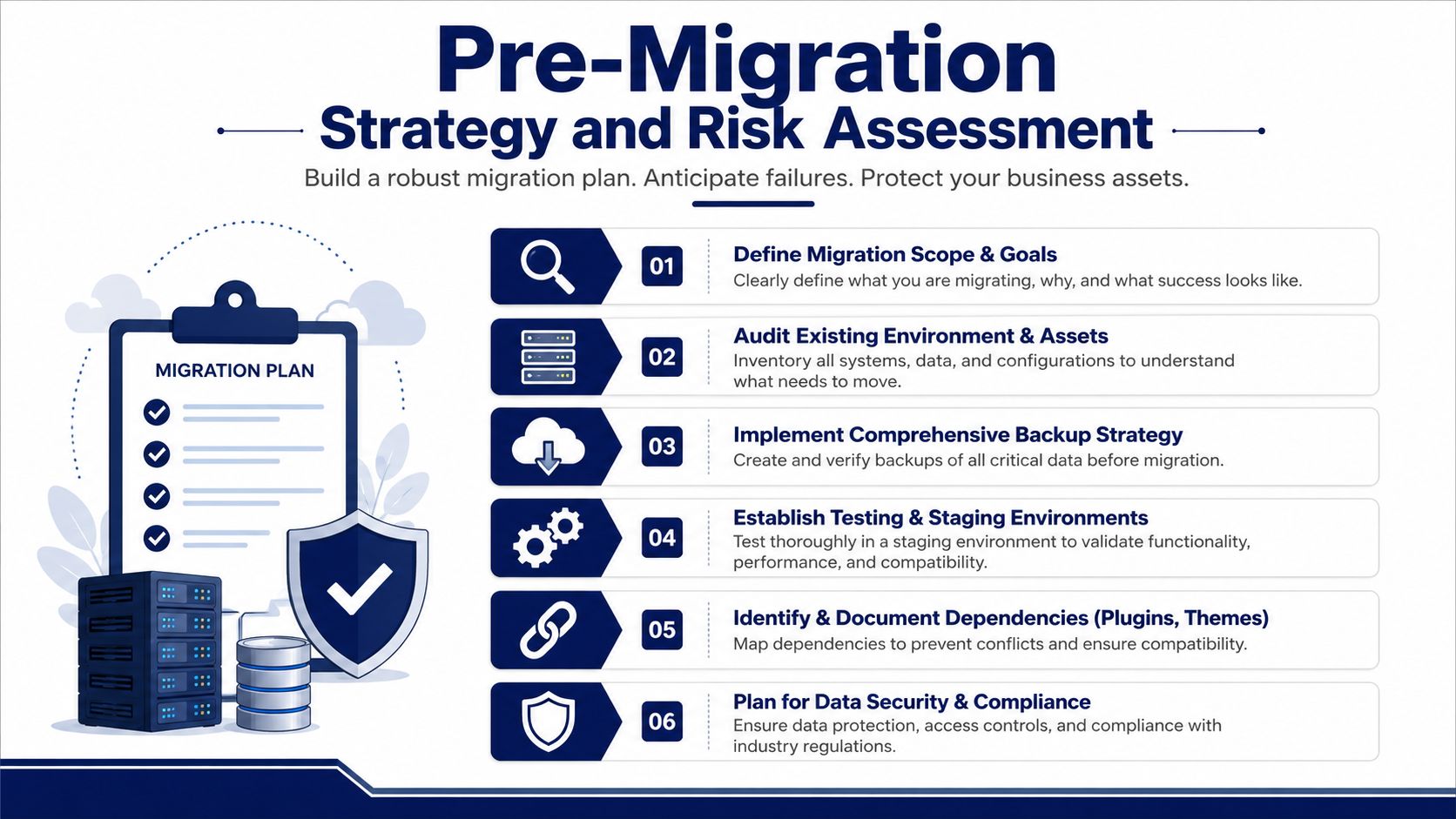
Treat the plan like an incident runbook. Before anyone touches production, it should answer four things:
- What is moving, exactly
- What must stay available
- What triggers rollback
- Who has authority to approve go-live or reverse it
Define the migration scope before you pick tools
“Move the multisite” is not a usable scope. In practice, the request is often messier: split one revenue-generating subsite into standalone WordPress, leave two legacy subsites behind, preserve mapped domains, keep editors working Monday morning, and avoid losing rankings in three languages.
Write down the inventory first.
- Every subsite: current URL, mapped domain, business owner, and downtime tolerance
- Activation model: network-activated plugins vs. site-level plugins
- Custom code: mu-plugins, drop-ins, custom tables, cron jobs, webhooks, and theme overrides
- Shared dependencies: media references, API integrations, SSO, forms, search, and analytics scripts
If nobody can state which subsites can be offline and for how long, the migration is not ready.
This is also the point where teams decide whether to keep the work in-house or bring in a specialist for WordPress migration services. The trade-off is straightforward. Internal teams know the stack. External operators often bring a cleaner runbook, better rollback discipline, and fewer assumptions.
Audit the failure points that hurt after go-live
Database export and import are the easy part. The expensive failures show up later, after the site looks “mostly fine.”
Plugin licensing is a common one. Premium plugins may validate by primary domain, network context, site count, or environment. A subsite extracted from multisite can boot correctly and still lose access to updates, field rendering, translation features, or checkout integrations because the license no longer matches the new install. Check vendor terms before the move, not after.
Multilingual SEO deserves the same level of attention. If the network uses WPML, Polylang, custom hreflang output, market-specific canonicals, or translated slugs, capture the current behavior. That means title tags, canonicals, hreflang tags, XML sitemaps, redirect rules, and locale-based templates. A site can pass visual QA and still lose search equity because the metadata layer changed unnoticed.
Media is another trap. In multisite, editors often paste asset URLs across subsites, use custom fields that reference old upload paths, or rely on plugins that rewrite media handling. Broken thumbnails are annoying. Broken documents, campaign assets, and localized PDFs create support tickets fast.
Build a risk log you can actually use
Keep it short enough that the migration lead will read it during the cutover.
| Risk area | Typical issue | Mitigation |
|---|---|---|
| Editorial operations | Content changes during export create data drift | Set a freeze window and name the approver |
| Plugin licensing | License validation fails after split or domain change | Confirm transfer path with each vendor and stage-test activation |
| Multilingual SEO | Canonicals, hreflang tags, or translated slugs change | Record current output and compare staging against production |
| Media and assets | Upload paths, embedded files, or custom field references break | Crawl high-value pages and verify asset URLs after import |
| Rollback | DNS changes outpace recovery decisions | Define rollback trigger, owner, and time limit before launch |
Set objective rollback triggers
Rollback should not depend on confidence, mood, or who speaks loudest on the call. Set measurable triggers before go-live.
Examples:
- Admin access fails for primary site owners
- Checkout, lead forms, or login flows fail
- Domain mapping routes traffic to the wrong subsite
- Critical multilingual metadata is missing on production pages
- Plugin licensing disables required features
- Error rates spike and cannot be corrected inside the maintenance window
Put the threshold in writing and get sign-off from the migration lead, product owner, and the person controlling DNS. I also recommend writing the exact commands and actions for rollback, not just the decision rule. In real incidents, clarity beats optimism.
For example, if rollback includes restoring the old database and forcing DNS back, write down the sequence:
# Example rollback checks
wp site list
wp plugin list --network
wp search-replace 'https://new.example.com' 'https://old.example.com' --network --dry-run
Use dry runs during planning to confirm that the team has the access it thinks it has. On migration night, missing WP-CLI permissions or the wrong SSH key wastes the time you needed for recovery.
Good multisite migrations are controlled changes. The teams that get through them cleanly decide scope early, document hidden dependencies, test license and SEO behavior before cutover, and define rollback like they expect to use it.
Preparing Your Environments and DNS
Most failed migrations begin with a mismatch between the old environment and the new one. Not a dramatic mismatch. A quiet one. A PHP extension missing on the destination, a filesystem permission issue in uploads, a rewrite rule gap, or DNS changes left until the final hour.
The new environment should be boring. That’s the goal. If the destination behaves differently from the source in ways you haven’t accounted for, the migration will surface those differences as broken sessions, media issues, or plugin failures.
Build the destination to match the source
Start with a clean WordPress install on the destination and prepare it for multisite before importing anything. If you’re moving into a fresh network, create the same structural pattern you already use. Don’t change from subdirectories to subdomains during the same migration unless there’s a compelling reason and a separate testing track.
At this stage, confirm:
- PHP compatibility: Match supported versions required by the current theme and plugin stack.
- Database access: Test CLI access, import permissions, and table creation behavior.
- Filesystem ownership: Make sure WordPress can write to the right directories without permission hacks.
- Shell access: Confirm SSH and WP-CLI access before migration day.
- Mail and external services: Prepare whatever the network needs for forms, transactional flows, or webhooks.
For teams moving infrastructure as part of a host change, this is the point where a practical guide to migrating a WordPress website to a new host becomes relevant, because the host move and the multisite move often overlap operationally even when the data path differs.
Prepare DNS for both launch and retreat
DNS planning doesn’t get enough attention in most migration guides. It should. You want the final cutover to be fast, but you also want retreat to be fast if production validation fails.
The key habit is lowering TTLs well ahead of the migration window. That gives you a cleaner cutover and a realistic rollback option. If you leave DNS prep too late, you can still migrate, but your recovery window gets harder to control.
Use this pre-cutover checklist:
- Lower TTLs early: Do it well before launch, not during launch.
- Document mapped domains: Especially for multisite networks with brand, locale, or client-specific domains.
- Confirm SSL coverage: Subdomains and mapped domains need to resolve cleanly after cutover.
- Pre-stage verification hosts: Use non-public validation methods to test routing before changing production traffic.
Don’t skip a clean install
A lot of teams want to copy the whole old install first and “clean it up later.” That usually drags old assumptions into the new environment. A fresh destination install gives you a known baseline and makes failures easier to isolate.
If the move includes converting a standalone site into a subsite, or creating a network on the destination first, your environment prep also needs to account for the multisite constants and site structure that the imported data will expect. That’s where migration projects either stay controlled or start accumulating one-off fixes.
The Complete Backup and Database Migration
At this stage, one bad command can take down every site in the network. In multisite, users, roles, site tables, network settings, and a lot of plugin data are tied together. A sloppy import does not fail neatly. It creates partial breakage that editors find days later.
There are two workable paths. Use a migration plugin built for multisite, or run the move with WP-CLI and own every step yourself. I use both. The right choice depends on the size of the network, the change window, and how much operational discipline the team can maintain at 2 a.m.
Choose the migration method based on risk, not preference
A plugin is often safer when the project has a short maintenance window, a junior handoff team, or a network with a lot of subsites and mapped domains. All-in-One WP Migration remains a common choice because it packages the network in a way that reduces table-level mistakes and handles WordPress-aware search and replace during import. That protection matters in multisite because serialized values sit inside options, widgets, builder data, and plugin settings across the network.
WP-CLI is the better fit when you need scriptable repeatability, selective replacements, environment-specific control, or a migration log you can hand to another engineer during rollback. It is also the better option when enterprise concerns go beyond core data transfer. Plugin licensing can break after a domain or server change. Multilingual plugins often store SEO metadata in custom tables or serialized option sets. If those values are not migrated cleanly, rankings and license activations can drop at the same time.
If the destination is being built from scratch, start from a clean network that matches the structure the imported data expects. This matters even more if you are converting a standalone install into a network or changing subdomain versus subdirectory mode. Use a documented WordPress multisite installation setup process before import so the database is landing in a network that has the right constants and table assumptions.
WP-CLI workflow for teams that need control
Start with a full export. Not a partial dump. Not “just the active site tables.” The whole network.
wp db export network-backup.sql --all-tables
Before changing URLs, run a dry run and inspect the output:
wp search-replace 'old-domain.com' 'new-domain.com' --network --precise --recurse-objects --all-tables --dry-run
If the scope looks correct, run the actual replacement:
wp search-replace 'old-domain.com' 'new-domain.com' --network --precise --recurse-objects --all-tables
Those flags are doing real work. --network prevents site-by-site drift. --precise trades speed for accuracy, which is usually the right trade during migration. --recurse-objects protects serialized structures. --all-tables catches plugin and custom tables that teams forget until something business-critical fails.
Serialized data is the landmine. If the tool does not understand WordPress serialization, keep it away from the database.
Essential WP-CLI Search-Replace Commands for Multisite
| Command Flag | Purpose | Example Usage |
|---|---|---|
--network | Runs replacements across the multisite network instead of only one site context | wp search-replace 'old-domain.com' 'new-domain.com' --network |
--precise | Uses a more careful replacement method where accuracy matters more than speed | wp search-replace 'old-domain.com' 'new-domain.com' --network --precise |
--recurse-objects | Safely updates serialized values inside arrays and objects | wp search-replace 'old-domain.com' 'new-domain.com' --network --recurse-objects |
--all-tables | Includes all relevant tables in the replacement operation | wp search-replace 'old-domain.com' 'new-domain.com' --network --all-tables |
--dry-run | Previews what would change without writing changes to the database | wp search-replace 'old-domain.com' 'new-domain.com' --network --dry-run |
Back up the network like you expect to roll it back
A usable backup set includes more than an SQL export sitting in a shared folder. For high-stakes networks, I want four things before anyone touches production:
- Full database dump: Include network tables, user tables, plugin tables, and anything custom.
wp-contentsnapshot: Themes, plugins, mu-plugins, uploads, language files, and custom integration code.- Configuration copies:
wp-config.php, object cache settings, server vhost rules, and any cron or worker config tied to the network. - Recovery notes: Exact restore location, who verified it, what version was captured, and how long restore is expected to take.
This is also the point to export anything that may not survive a normal file and database move cleanly. Premium plugin license keys are a common example. Some vendors bind activations to domains, IPs, or machine fingerprints. Deactivate where appropriate, document current activations, and confirm reissue terms before cutover. If the network runs multilingual SEO plugins, verify where hreflang data, translated slugs, redirect rules, and SEO metadata are stored. Losing that data does not always show up as a PHP error. It shows up as traffic loss a week later.
Recurring database mistakes in multisite projects
The same failures show up over and over:
- Running raw SQL replace against serialized content
- Exporting only visible site tables and missing network or plugin tables
- Importing into a destination with the wrong multisite mode or table prefix assumptions
- Forgetting plugin license reactivation steps until critical features stop working
- Updating primary domains without checking multilingual SEO fields, canonical tags, or hreflang references
The fix is not complicated, but it does require discipline. Export the full network. Record every command. Test replacements with --dry-run. Keep a copy of the pre-migration database untouched. On enterprise migrations, command history, SQL artifacts, and license inventories are part of business continuity, not extra paperwork.
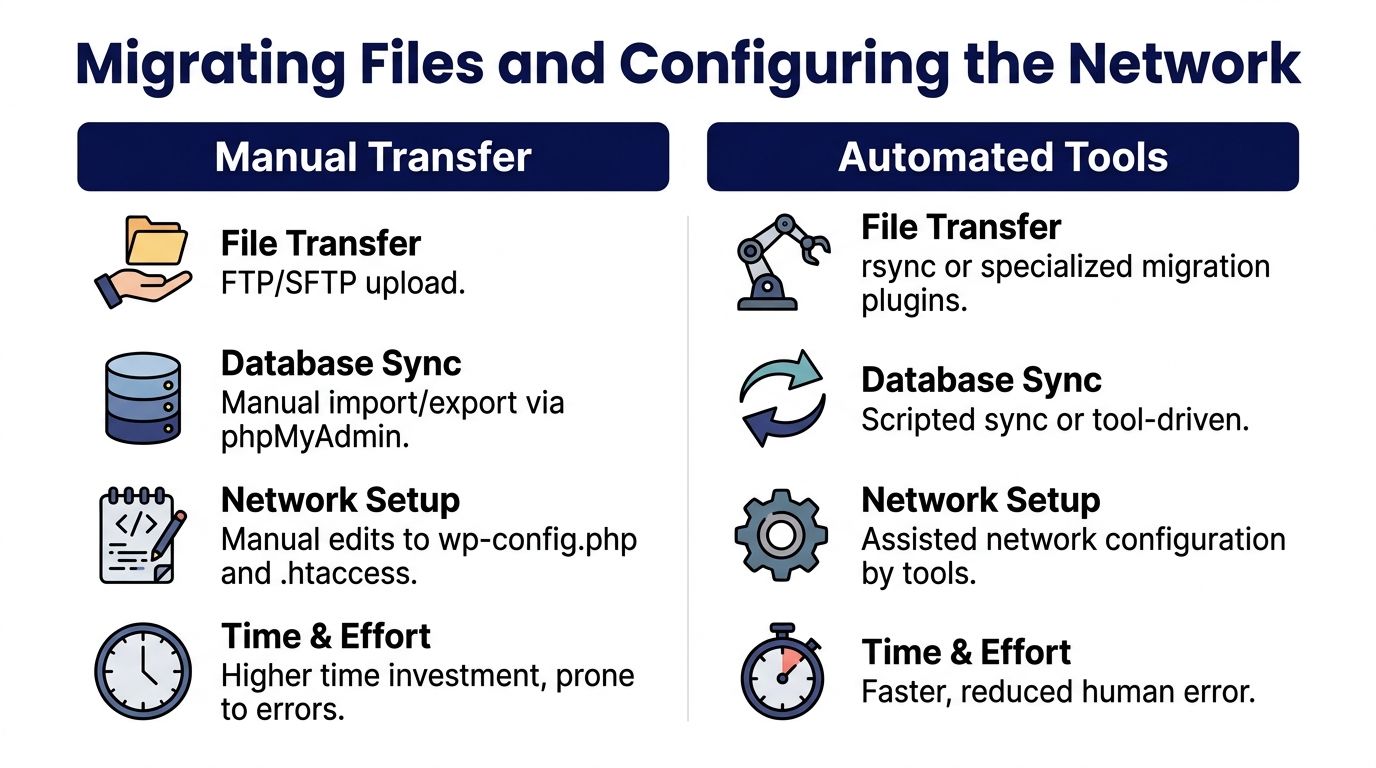
Migrating Files and Configuring the Network
Friday night cutovers fail here more than anywhere else. The database imports cleanly, the homepage renders, everyone relaxes, and then editors discover missing media, licensed plugins fall back to restricted mode, or a mapped regional site starts serving the wrong assets. In a multisite migration, the filesystem and network config decide whether go-live is stable or just looks stable for the first ten minutes.
The highest-risk directory is usually wp-content/uploads. It is large, messy, and full of business-critical files that no one notices until a campaign landing page, translated PDF, or product image disappears.
Move files with integrity first, speed second
For large networks, rsync is the default choice because it preserves structure, can resume cleanly, and gives you a transfer method you can run more than once before cutover. That matters. A single big-bang copy is slower to validate and harder to trust.
A standard pattern looks like this:
rsync -avz --progress /path/to/source/wp-content/ /path/to/destination/wp-content/
For enterprise networks, I split the transfer into phases. Copy themes, plugins, and mu-plugins first. Copy uploads separately. Then run a final sync close to cutover to catch only the changed files:
rsync -avz --delete /path/to/source/wp-content/uploads/ /path/to/destination/wp-content/uploads/
The --delete flag is useful, but only when you are certain the destination is disposable or already verified. Use it carelessly and you can erase assets that were staged manually on the target.
Avoid long FTP sessions for this work. They are slow, they hide partial failures, and they create ugly audit trails when someone asks which files made it across. For large uploads directories, progressively copying with rsync is a practical way to preserve file integrity while keeping the transfer repeatable.
Permissions deserve a separate check. If ownership or file modes drift during the move, image generation, cache writes, and plugin updates can fail after launch. Validate them explicitly:
find /path/to/destination/wp-content -type d -exec chmod 755 {} ;
find /path/to/destination/wp-content -type f -exec chmod 644 {} ;
chown -R www-data:www-data /path/to/destination/wp-content
Configure multisite correctly in wp-config.php
The destination has to match the network model you are migrating. A small typo in wp-config.php can present as login loops, broken cookies, or subsites resolving to the main site.
If multisite is being enabled on the destination, add:
define('WP_ALLOW_MULTISITE', true);
That constant belongs immediately before the /* That's all, stop editing! Happy publishing. */ line. After you complete network setup, WordPress generates the rest of the multisite constants and rewrite rules based on subdomain or subdirectory mode. Keep those generated values exact. Hand-editing them without a reason is how working networks become inconsistent ones.
If you need a reference for the installation side while validating architecture choices, this guide to installing WordPress multisite is useful before you lock in the destination config.
Two settings deserve extra scrutiny during migration: domain structure and path assumptions. If the source network used subdirectories and the destination is being rebuilt as subdomains, plugin settings, redirect logic, and multilingual SEO paths may no longer line up with stored expectations. The homepage can still load while hreflang references, canonicals, and locale-specific media URLs break.
Updraft’s guide on converting WordPress to multisite is also a helpful reminder that WP_ALLOW_MULTISITE is only the entry point. In single-site-to-subsite projects, plugin state and restore targeting matter. Restoring into the wrong site context can overwrite the wrong tables or leave the subsite configured like a standalone install.
Choose structure based on operations, not preference
Subdomains and subdirectories are both valid. The right choice depends on how the business operates.
- Subdomains fit better when each site is treated as a separate brand, country, or legal entity with its own DNS, SSL, and marketing workflows.
- Subdirectories fit better when the network behaves like one publishing platform with shared authority and tightly related content.
- Mapped domains increase operational risk because each mapped property adds SSL, DNS, redirect, cache, and rollback considerations.
This is also where plugin licensing conflicts surface. Some premium plugins are licensed per domain, per environment, or per active site. A network that worked on the source server can suddenly show disabled features on mapped domains after migration. Check license dashboards before launch, especially for SEO, forms, translation, and page builder plugins. Those failures do not always throw a visible error. They show up as missing schema output, blocked updates, or admin notices that only network admins see.
Here’s a useful walkthrough before you finalize those settings:
Don’t miss the code that lives outside the theme
Multisite failures often come from code that was never in the active theme to begin with.
Check all of the following:
- Must-use plugins
- Drop-ins
- Custom cron scripts
- Environment-specific includes
- Server rewrite dependencies
Also verify object cache drop-ins, sunrise configuration if domain mapping depends on it, and any deployment-time symlinks. Those pieces often support authentication, redirects, page caching, image handling, and multilingual routing. If one is missing, the network may look functional while key business paths fail under load or on secondary domains.
Treat the filesystem move like a production deployment. Inventory it, sync it in stages, and verify the parts that affect revenue, SEO, and rollback first.
Post-Migration Testing and Domain Mapping
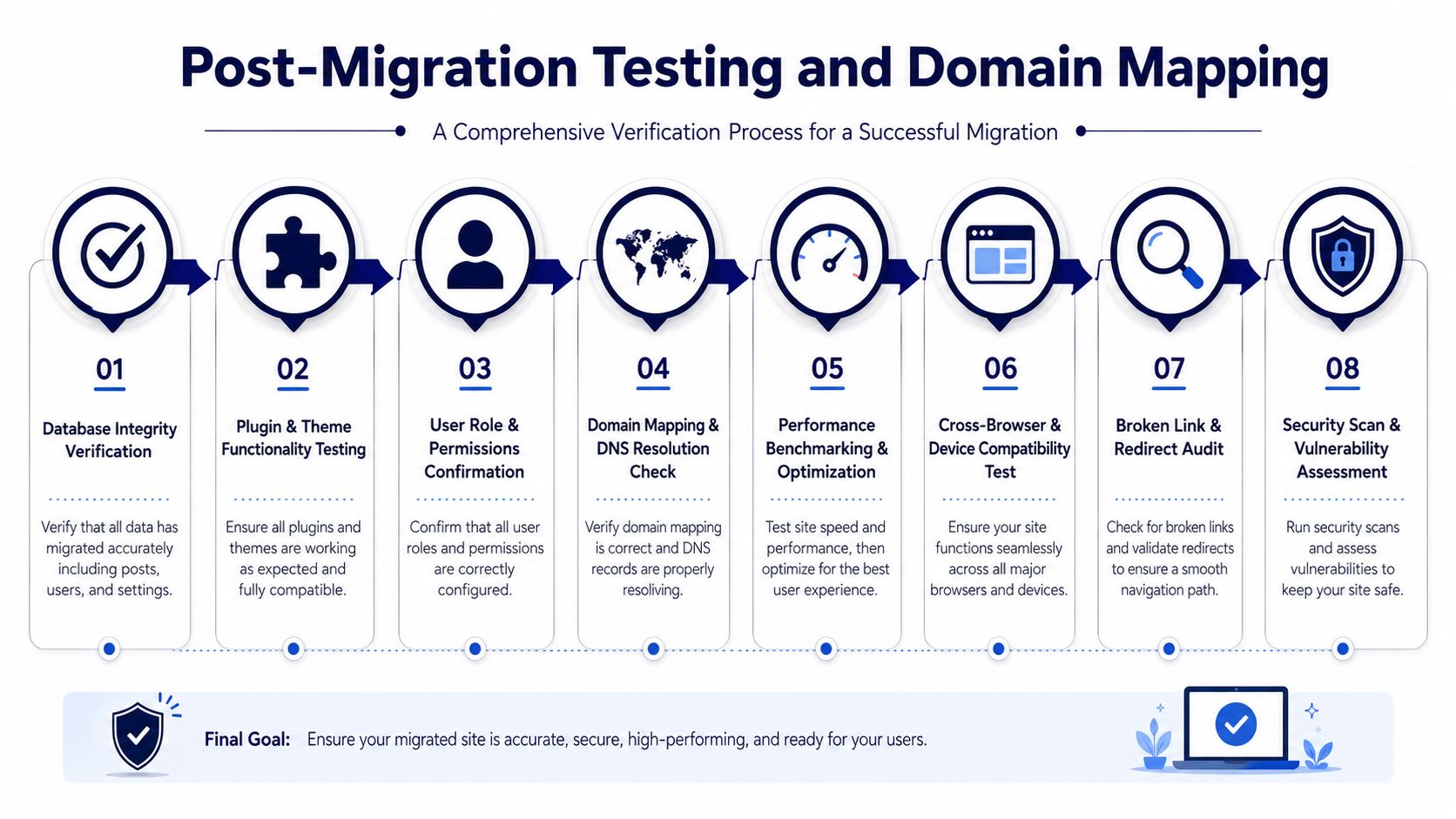
The migration is not done when the homepage loads. That’s the opening move of testing, not the conclusion. A multisite network can look healthy at a glance while hiding broken user roles, invalid media paths, malformed redirects, or one mapped domain that routes to the wrong site.
The fastest way to catch this is to treat post-migration validation like forensic work. You’re not proving the site loads. You’re trying to prove nothing critical is missing.
Start with the most failure-prone systems
Delicious Brains reports that improper handling of media file paths is a common pitfall in multisite migrations, occurring in approximately 35% of manual migration attempts, while automated migrations with pre-checks can reach 92% success, and manual migrations without pre-checks fail at a rate of 28% in its discussion of splitting a WordPress multisite and migrating a subsite.
That data lines up with what teams see in production. Media breaks first because it depends on path structure, permissions, and URL correctness all at once.
Begin with:
- Media libraries: Open old posts, not only new ones. Check featured images, galleries, inline images, and downloadable files.
- Admin access: Verify Network Admin, subsite admin, and role-specific logins.
- Critical forms and transactions: Test form submissions, search, carts, gated content, and email-triggered actions.
- Plugin output: Inspect anything that writes custom URLs, embeds scripts, or stores data in custom tables.
The homepage is the least useful test page in a multisite migration. Deep content reveals the real damage.
Run a structured verification sweep
A good post-migration sweep moves from network-level checks to subsite-level checks. Don’t jump around.
Network-level checks
- Site registry: Confirm every expected subsite exists and routes correctly.
- Shared users: Test a user who belongs to multiple sites and verify their permissions on each one.
- Network plugins: Confirm network-activated plugins still function as intended.
- Theme availability: Make sure enabled themes are visible where they should be.
Subsite-level checks
- Front end rendering: Inspect homepage, key landing pages, post archives, and forms.
- Editor experience: Open block editor, media uploader, reusable patterns, and custom fields.
- URL behavior: Check permalinks, pagination, and redirects.
- Localized content: Review language-specific content and navigation if the network is multilingual.
A simple testing ledger helps teams stay honest:
| Test area | What to verify | Failure signal |
|---|---|---|
| Media | Images, PDFs, galleries, thumbnails | 404s, blank placeholders, path mismatch |
| Users | Login, permissions, admin actions | Role drift, denied access, missing menus |
| Plugins | Functional output and saved settings | License prompts, broken widgets, missing data |
| Domains | Correct routing per subsite | Wrong site served, SSL issues, redirect loops |
Map domains only after the network passes validation
Domain mapping should be one of the final steps, not an early guess. Once the imported network is stable on the destination, point each mapped property deliberately and validate the response site by site.
For SEO-sensitive networks, domain mapping also intersects with search structure. If a multilingual subsite or regional domain changes behavior after the move, you need to inspect canonicals, alternate tags, and crawl paths. That’s especially relevant for teams responsible for WordPress multisite SEO, where technical routing and search signals are tightly linked.
Re-save and recheck, but don’t trust that alone
Yes, re-saving permalinks often helps after import. No, it is not a full fix. It won’t restore missing uploads, resolve plugin license issues, or recover role mappings gone wrong.
A mature testing pass ends only when real users can do their work on the new network. Until then, the migration is still provisional.
Rollback Plans and Go-Live Optimization
At 2:07 a.m., the DNS cutover is live, login still works, and the homepage looks fine. Ten minutes later, paid traffic starts hitting the wrong regional site, a premium plugin drops into trial mode on two subsites, and canonicals point back to the old domain. That is the part of a WordPress multisite migration that standard checklists undersell. The transfer can succeed and the launch can still fail.
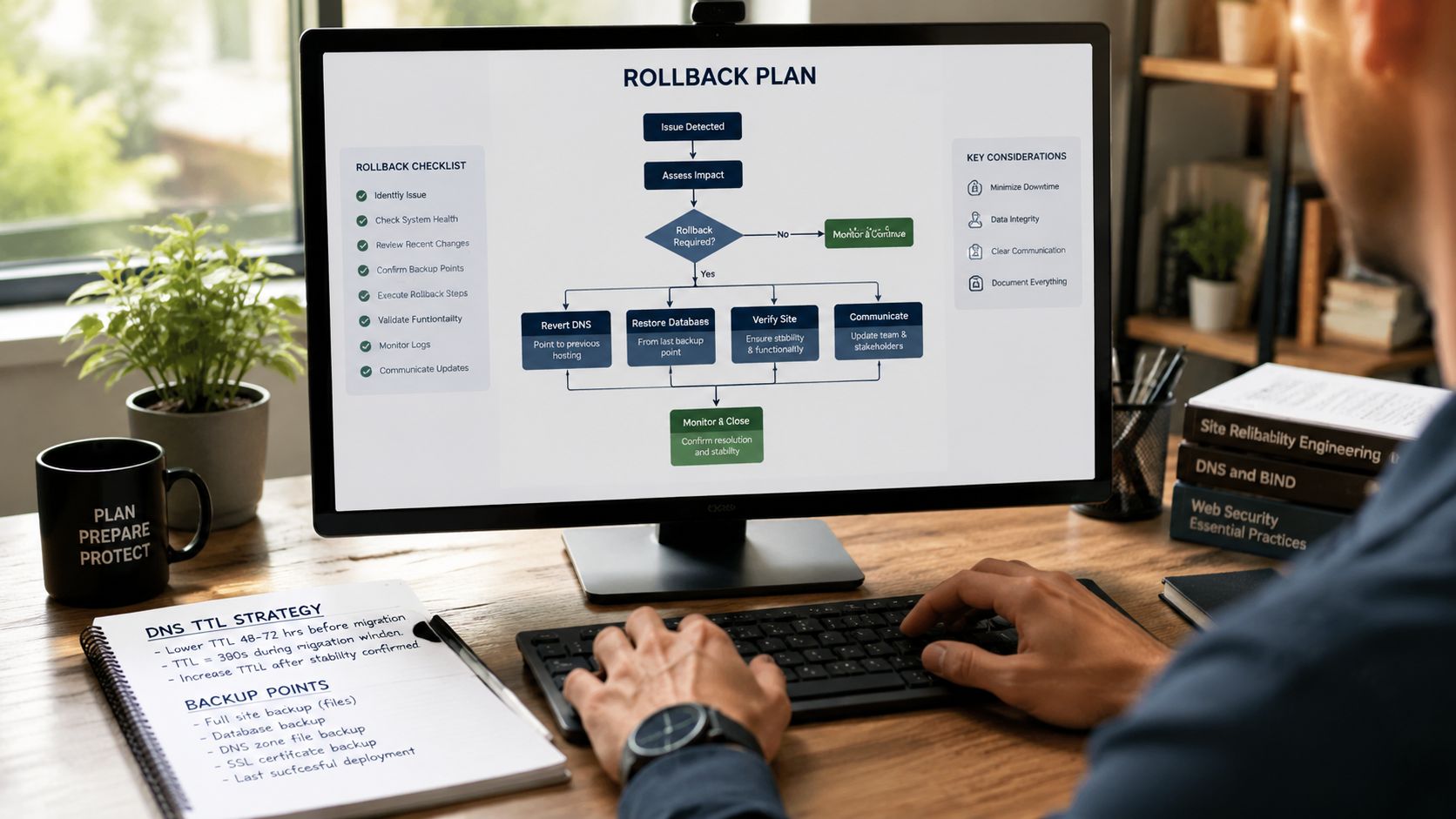
Rollback needs to be an operating procedure, not a vague promise to “restore the backup.” In agency work, the difference is simple. A real rollback plan names the exact restore point, the command path, who can approve the reversal, who changes DNS, and what conditions trigger the call. Without that, teams lose 30 to 60 minutes debating while users and crawlers keep hitting a broken stack.
Write the plan so the on-call engineer can run it half-asleep. Keep it short and specific:
- Release identifier tied to the final database dump and file snapshot
- Restore commands for database and uploads
- DNS reversal owner and registrar or CDN access path
- Plugin license recovery notes for anything that binds to domain, IP, or environment
- Business trigger for rollback, such as checkout failure, admin lockout, or cross-domain routing errors
- Post-rollback validation for the few functions that matter first
For example, if the destination database is already loaded and you need to revert fast, the runbook should include the exact commands, not a reference to “the backup in S3”:
wp db import /backups/prod-prelaunch.sql
rsync -av /backups/uploads/ wp-content/uploads/
wp cache flush
If object cache or Redis is in play, add that command too. If your edge layer handles redirects, note whether rollback includes disabling page rules or origin overrides. I have seen technically correct database restores fail because Cloudflare, Route 53, or a load balancer kept serving the new origin.
DNS is usually the slowest part of a reversal, which is why go-live optimization starts before launch night. Short TTLs help, but they do not guarantee instant correction. Some resolvers ignore them. Some clients sit behind aggressive caching. Plan for a mixed-traffic period where part of the audience sees the old stack and part sees the new one.
That reality changes how you launch. Freeze content before cutover. Queue orders or editorial changes if the business can tolerate it. If it cannot, you need a reconciliation plan for comments, forms, commerce data, and user registrations created during the overlap window.
Multilingual SEO needs its own rollback threshold. In practice, this is one of the easiest places to miss business risk because the page renders normally. The hidden failures are in canonicals, hreflang pairs, regional redirects, translated slugs, XML sitemaps, and market switchers. In our experience, migrated multisite properties often lose some of those signals during extraction or domain remapping, especially when SEO plugins store settings at a different scope than the team expected.
Check those items immediately after cutover:
- Canonical tags on top templates and key landing pages
- Hreflang pairs for every language or market variant
- Localized URL structures such as
/de/or country subdomains - Sitemaps generated by the active SEO plugin on the destination
- Redirect behavior from legacy regional URLs
- Indexing controls so staging noindex rules did not follow the launch
Plugin licensing deserves the same level of attention. Enterprise teams get caught here because the plugin worked inside the old network, then fails on the extracted site or new domain. The failure mode is rarely dramatic. It is often a missing field group, disabled form delivery, a blocked update channel, or a banner that turns into broken output after cache expiry. If a plugin vendor ties the license to the original network, keep manual activation steps in the launch runbook and decide whether that condition is a rollback trigger or a known post-launch task.
Go-live optimization comes after stability checks, not before. Flush cache layers. Warm the pages that matter. Review PHP logs, web server logs, redirect chains, cron events, and transactional email. Then test the commercial paths under real conditions: logged-in sessions, multilingual switching, form submissions, search, checkout, and any third-party callbacks.
Use WP-CLI for the cleanup that should be repeatable:
wp cache flush
wp rewrite flush --hard
wp cron event run --due-now
wp search-replace 'https://staging.example.com' 'https://example.com' --network --skip-columns=guid
That last command is powerful and dangerous. On multisite, run it only after you confirm the target domains, mapped hosts, and serialized data scope. A bad network-wide replacement is how you create a second outage while trying to fix the first.
A strong launch is boring in the best way. Users keep working. Search signals stay intact. Licensed plugins keep validating. And if one of those breaks hard enough to threaten revenue or operations, rollback happens fast because the team already chose the trigger, the owner, and the exact commands.
Advanced Scenarios and Critical FAQs
Friday at 5:30 p.m., the database import is done, uploads are in place, and the subsite loads. Then translations disappear from hreflang tags, a form plugin drops into trial mode, and the SEO team notices canonicals now point at the old network domain. That is the part standard multisite migration guides usually miss.
The expensive failures in WordPress multisite migration happen after the files and tables move. Plugin licensing can break when a subsite leaves a network. Multilingual plugins can keep rendering pages while losing language relationships or metadata. A rollback plan that looked fine on paper can fall apart if license reactivation, DNS timing, or third party callbacks were never tested.
Plugin licensing is an operational risk, not a cleanup task
Support forum discussions on WordPress.org multisite migration repeatedly point to plugin breakage as a common post-migration problem, often tied to licensing, missing multisite add-ons, or network-specific settings. Treat that as a pre-launch workstream, not a post-launch surprise.
A premium plugin may behave correctly inside a network and fail the moment a site becomes standalone. I see this most often with domain-bound licenses, plugins that store state in wp_sitemeta instead of per-site options, and vendors that sell multisite support as a separate entitlement.
Check these points before you approve the cutover:
- Does the plugin support both multisite and standalone installs
- Is the current license valid for the destination domain
- Does activation data live in network options, site options, custom tables, or an external API
- Can the plugin be reactivated by CLI or only through wp-admin
- If the license fails, does the site lose features, lose updates, or stop rendering critical content
If the vendor cannot answer those questions clearly, plan for manual remediation and decide whether plugin failure is a launch blocker.
You can inspect option scope quickly with WP-CLI:
wp option get active_plugins
wp site option get active_sitewide_plugins
wp db query "SELECT meta_key FROM wp_sitemeta ORDER BY meta_key;"
On extracted subsites, compare plugin-specific tables too. Some plugins store licenses, language mappings, or queue state outside normal options.
Multilingual SEO breaks quietly
A multilingual subsite can look fine to editors and still lose search equity after migration. The common failures are wrong canonicals, missing hreflang tags, broken translated URL slugs, and language switchers that point to old hosts. That is why multilingual validation belongs in the launch checklist, not just general QA.
For WPML, Polylang, or custom multilingual setups, verify all of the following on the migrated site:
- Canonical tags resolve to the correct live domain
- Hreflang tags reference the right language variants
- Translated pages still map to each other
- XML sitemaps include every language and the correct hostnames
- Redirect rules preserve old language paths and query parameters where needed
Do not rely on a homepage check. Test deep URLs, paginated archives, and the pages that generate revenue.
Three critical FAQs
Can you migrate a single site into an existing multisite network?
Yes, but create the destination subsite first and restore into the correct blog ID context. If you import data against the wrong site ID, uploads paths, user roles, and plugin settings can attach to the wrong tables. Check the target before import with:
wp site list
wp db tables | grep _2_
Replace _2_ with the actual blog ID you expect to use.
Can you split a subsite into its own standalone WordPress install?
Yes. The transfer itself is usually straightforward. The risk sits in everything surrounding it: media path rewrites, scheduled jobs, licensed plugins, and SEO signals that were previously managed at network level. In real projects, the split is where business continuity gets tested.
What about users and permissions?
Users are global in multisite. Roles are not. After migration, confirm capabilities on the destination site, especially for editors, shop managers, and any SSO-integrated accounts. If the original network shared users across properties, verify whether those users should exist on the extracted site at all.
The FAQ nobody asks early enough
What is the fastest safe rollback if the migrated site is live and revenue paths start failing?
Use a rollback that restores the last known-good database, points traffic back to the old environment, and includes any vendor steps needed to revalidate licenses or re-enable multilingual services. If your rollback depends on people figuring things out during an outage, it is not a rollback plan.
Keep a written sequence with named owners, DNS TTL assumptions, and exact restore commands. For example:
wp db import prelaunch-backup.sql
wp search-replace 'https://new.example.com' 'https://old.example.com' --skip-columns=guid
wp cache flush
Run that only in the environment you intend to restore. On multisite, a careless search-replace can widen the outage.
The hard part of a multisite migration is preserving business behavior under pressure. Data transfer is only one layer. Licensing, multilingual SEO, and rollback discipline are what keep the move from turning into a revenue incident.
If your team needs senior hands for a high-risk multisite move, IMADO is the kind of engineering partner worth bringing in early. They handle the parts that usually get underestimated, including multilingual architecture, multisite complexity, performance, and launch discipline, without turning the project into a generic “site transfer.”
Let’s build something exceptional
Tell us about your project – we’ll help you launch a fast, scalable, SEO-optimized WordPress platform built for growth.