 Ask Chatgpt to summarize Heatmap for WordPress: A Performance-First Guide (2026)
 Ask Grok to summarize Heatmap for WordPress: A Performance-First Guide (2026)
 Ask Claude to summarize Heatmap for WordPress: A Performance-First Guide (2026)
 Ask Perplexity to summarize Heatmap for WordPress: A Performance-First Guide (2026)
 Ask Gemini to summarize Heatmap for WordPress: A Performance-First Guide (2026)

Most advice about adding a heatmap for wordpress is too casual. Install a plugin, paste an ID, and start watching clicks. That approach works on a brochure site. It is reckless on a busy WooCommerce store, a multilingual publishing platform, or a performance-tuned enterprise build.
A heatmap script is not just another marketing extra. It is third-party JavaScript collecting behavioral data on pages where speed, privacy, and rendering stability directly affect revenue. If you add it carelessly, you can distort analytics, break consent rules, and slow down the pages you are trying to improve.
The safer way is to treat heatmaps like any other production dependency. Choose the right integration method. Limit what gets tracked. Respect cache behavior. Segment data correctly. Validate that the script helps more than it costs.
Table of Contents
Beyond the Hype: The True Cost of a WordPress Heatmap
The popular claim is that heatmaps are low-risk because setup is easy. That is the wrong metric.
Easy installation says nothing about whether the script delays rendering, conflicts with optimization plugins, records pages it should never touch, or adds noise to your analytics. On high-traffic WordPress sites, those are the true costs.
The gap in most guides is performance. The VWO overview of WordPress heatmap plugins openly reflects how little concrete benchmarking exists around script weight, Core Web Vitals impact, and overhead on busy stores. That absence matters. If a site is already tuned for fast templates, object caching, optimized media, and strict script loading, a poorly deployed heatmap can undo careful engineering.
Where teams get burned
Three mistakes show up often in production builds:
- Tracking every page by default: Teams install a plugin and let it run across account pages, carts, checkouts, and admin-adjacent flows.
- Ignoring rendering order: A script loaded too early can compete with critical assets.
- Treating privacy as an afterthought: Consent, masking, and regional handling get pushed to “later,” which is exactly when legal and analytics problems surface.
On a WooCommerce site, this gets expensive fast. Checkout is the worst place to add avoidable friction. On a multisite network, the problem multiplies because each subsite may have different audiences, legal requirements, and content structures.
A heatmap is useful only when the business gains better decisions than the site loses in speed, stability, or compliance.
Heatmaps are still worth it
The answer is not to avoid heatmaps. It is to deploy them selectively.
Use them where user intent is ambiguous, where redesign decisions need evidence, or where conversion paths have visible friction. Skip them where first-party analytics, event tracking, or direct usability review already answer the question.
If privacy is a serious concern, align implementation with your consent workflow and regional policy controls from the start. This is especially important for teams managing WordPress and cookie compliance across multiple jurisdictions, which is why practical guidance on WordPress and GDPR belongs in the implementation plan, not as a post-launch fix.
Choosing Your Heatmap Integration Architecture
The wrong integration method creates long-term operational drag. The right one keeps the site maintainable.
A heatmap for wordpress usually lands in one of three architectures: plugin-based, tag manager deployment, or a more controlled server-side or proxy-led setup. Each can work. Each fails differently.
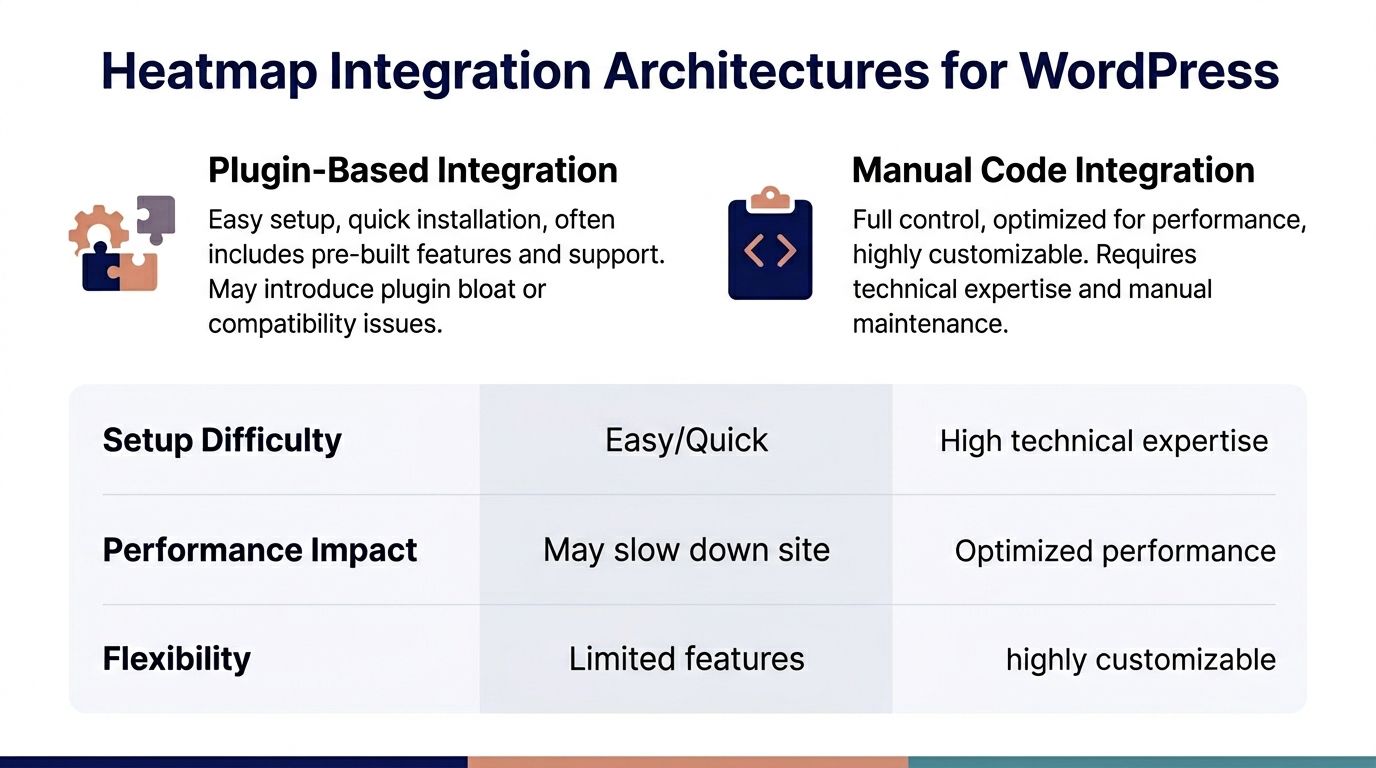
Plugin-based integration
This route is common for many teams. Install the vendor’s plugin, authenticate, choose basic settings, and publish.
It is fast, and on simple sites that speed matters. Vendor plugins often make consent hooks, account linking, and script updates easier than manual code snippets. For teams without engineering support, that convenience is the entire appeal.
The trade-off is control. Some plugins add admin UI, dashboard widgets, notices, or helper logic you do not need. Others inject scripts broadly and hide the load order behind abstractions that are harder to tune than a small custom snippet.
Plugin-based setup is usually best when:
- The site is low-complexity: Marketing sites, lead-gen builds, smaller editorial installs.
- The vendor plugin is lean: Minimal frontend logic, no surprise extras.
- The team needs low maintenance: Marketers can own setup without requesting a deploy.
Tag manager deployment
Google Tag Manager gives you more flexibility than a plugin, especially when consent and targeting rules are already managed in GTM.
This approach is useful when analytics governance already runs through a container. You can fire the heatmap only on selected templates, suppress it in certain regions, and avoid loading it on cart, checkout, or account pages. That level of rule control is often enough for mid-size WordPress sites.
The downside is operational complexity. GTM can become a script junk drawer if ownership is weak. Heatmap triggers mixed with ads, analytics, chat, and experiments can turn debugging into archaeology. On WordPress, that matters because script conflicts rarely announce themselves cleanly.
Server-side or proxy-led deployment
Enterprise teams should consider a more controlled setup when performance budgets are strict and privacy requirements are tighter.
A server-side or proxy-led pattern does not eliminate the client-side script entirely, but it can improve governance around delivery, consent orchestration, and environment control. It also gives engineering teams a clearer path for scoping where the script runs and how related data flows are handled.
This architecture is usually justified when:
- The site handles sensitive user journeys.
- Multiple regions or brands require different consent logic.
- Frontend performance budgets are already under pressure.
- The organization needs auditable control over third-party behavior.
Comparison table
| Method | Performance Impact | Ease of Setup | Ideal For |
|---|---|---|---|
| Plugin | Moderate and vendor-dependent | High | Small to mid-size WordPress sites |
| Google Tag Manager | Moderate, but more controllable | Medium | Teams already managing tags and consent centrally |
| Server-side or proxy-led | Potentially better controlled in mature setups | Low | Enterprise, multilingual, multisite, high-governance builds |
What usually works best in practice
For many builds, the critical choice is not plugin versus manual code. It is convenience versus control.
A lean plugin is fine when the tracking footprint stays narrow and the site is not under intense performance pressure. GTM is better when tracking rules must vary by template, geography, or consent state. A more custom architecture becomes attractive when third-party scripts must be tightly governed.
A good rule is to ask one question first: who will maintain this in six months? If the answer is “marketing, inside a tag manager,” then GTM is often the sane compromise. If the answer is “engineering, inside a controlled deployment pipeline,” avoid plugin sprawl and keep the integration explicit.
For teams that document visual regression and rendered states alongside analytics work, it can also help to look at adjacent tooling patterns such as integrating a Screenshot Website API. Not because screenshots replace heatmaps, but because they support the same operational discipline: capture evidence, control scope, and make frontend changes observable.
The best integration method is the one your team can debug quickly under pressure. Elegant architecture that nobody can maintain is still a bad choice.
Configuring Top Heatmap Tools on WordPress
Two tools come up repeatedly in serious WordPress projects: Microsoft Clarity and Hotjar. They solve different problems well, and both can be configured safely if you do the work before activation.

Microsoft Clarity setup
Clarity is compelling because it is a free heatmap tool with click maps, scroll tracking, session recordings, and behavior signals like Quickbacks for mistaken button clicks and excessive scrolling data, as summarized by WPBeginner’s Clarity overview. For many teams, that makes it the easiest starting point.
The implementation discipline matters more than the installation steps:
- Connect it through the official plugin or controlled script injection: Do not duplicate the script in GTM and the plugin at the same time.
- Restrict templates early: Exclude checkout, account, profile, and any page handling sensitive data.
- Tie loading to consent state: If your consent platform blocks analytics before approval, the heatmap must honor that rule too.
- Mask aggressively: Form inputs, search fields, personal account data, and order details should never be casually exposed to session replay tools.
Clarity is a strong fit when you need broad visibility fast and cost is a constraint. It is less ideal when your legal team requires fine-grained regional controls that exceed the defaults of a basic plugin setup.
Hotjar setup
Hotjar remains one of the most widely adopted options. It powers over 1.1 million websites globally, and its WordPress plugin offers no-code setup, a free plan with up to 35 daily sessions and 30 days of data retention, while paid Growth plans start at $49/month, support 7,000 monthly sessions, and extend retention to 13 months according to IsItWP’s Hotjar summary.
That scale does not mean you should track everything. It means the defaults are tempting, and defaults are where teams make avoidable mistakes.
Configuration choices that matter
With Hotjar, focus on scope and script behavior:
- Track selected pages, not the entire site: Start with product pages, landing pages, key editorial templates, or a single funnel segment.
- Use zone-based heatmaps where available: They are more useful than broad visual overlays when you need to isolate navigation, pricing cards, or CTA groups.
- Separate environments: Never pollute production analysis with staging or QA traffic.
- Review plugin conflicts: Optimization plugins, consent managers, and some security layers can change how or when the script executes.
One more practical point. Avoid using heatmaps as your only source of truth for form abandonment or checkout friction. Pair them with server-side events, funnel analytics, and error logging. A click cluster alone does not tell you whether users were interested, confused, or blocked.
A short visual walkthrough can help if your team is onboarding non-developers into the process:
Safe deployment checklist
Before you mark the integration done, confirm these points:
- Consent-aware loading: The script should not fire before the approved category is accepted.
- Sensitive-page exclusions: Cart, checkout, account, and user-management templates should be reviewed individually.
- Single insertion point: One tool, one script path. Duplicate installation is common.
- QA on mobile and desktop: Tracking that works on one layout can behave differently on another.
- Debug mode off in production: Temporary diagnostics should not linger.
Defending Your Core Web Vitals and Cache
A heatmap script should behave like a guest with rules. If it starts rearranging the house, remove or constrain it.
Performance protection starts after installation, not before. Plenty of teams validate that the script appears. Fewer validate whether it changes render order, interacts badly with lazy-loaded assets, or creates cache oddities across page variants.

Script loading rules
On a tuned WordPress stack, the simplest protection is careful load timing.
Use these principles:
- Prefer deferred or delayed execution where compatible: A heatmap is rarely critical to first paint.
- Keep it out of the critical rendering path: Do not let behavior analytics compete with fonts, CSS, primary JS bundles, or essential commerce logic.
- Suppress it on fragile flows: Checkout, account edits, search results, and interactive app-like views need extra caution.
- Test with real cache settings enabled: Debugging on an uncached environment gives false confidence.
If you use WP Rocket, LiteSpeed Cache, or similar tools, review script delay and combination settings carefully. Automatic optimization can break trackers, but disabling every optimization globally is the wrong fix. The better approach is targeted exclusions or delayed execution rules specific to the heatmap vendor.
Cache behavior and personalization
Heatmaps and caching can interfere with each other when pages vary by user state, currency, language, or cart contents.
That does not mean the tools are incompatible. It means you need clear boundaries. Static landing pages are usually straightforward. Personalized sections are not. If a page changes by login state or dynamic fragments, confirm that the tracker still records the correct frontend state and does not inject stale assumptions into analysis.
Teams troubleshooting broad slowness after adding analytics should also audit the full stack, not just the heatmap script. In many cases the tracker exposes existing weakness in theme assets, blocking plugins, or unoptimized third-party bundles. A practical reference for the wider diagnosis is this guide on why a WordPress website is slow to load.
If a heatmap only works when you disable your performance stack, the implementation is wrong.
Responsive layouts can distort what you think you see
Heatmaps on responsive sites have a technical accuracy problem. Pixel-based coordinate systems do not translate cleanly across viewport sizes, which creates the “splotch to element mapping” issue described in FullStory’s explanation of web heatmap limitations. A hot area on the visualization may not map neatly to the same block, button, or module across devices.
This matters a lot on modern WordPress builds using Gutenberg, custom blocks, and heavily responsive layouts.
How to reduce misleading readings
Use a layered approach:
| Protection tactic | Why it matters |
|---|---|
| Segment mobile and desktop separately | Responsive layouts change interaction targets |
| Pair heatmaps with element-level analytics | You need button IDs, field names, or component references |
| Review real sessions before redesigning | Visual intensity can signal frustration, not intent |
| Test on template families | One page pattern can behave differently from another |
When teams skip this, they redesign based on a visual cloud rather than a verifiable interaction. That is expensive rework. Heatmaps become far more reliable when they are treated as directional evidence, not literal truth.
Advanced Heatmaps for WooCommerce and Multisite
Standard setup breaks down quickly on stores and networks.
A generic plugin activation might be enough for a single-language brochure site. It is not enough for a WooCommerce checkout, a franchise multisite, or a multilingual platform where the same CTA exists in several languages and layouts.
WooCommerce without contaminating checkout
Commerce teams usually want heatmaps for product pages, category grids, carts, and checkout. Those are not equally safe to track.
Product and category pages are the lowest-risk starting point. You can study image-gallery interaction, variation selection friction, ignored tabs, shipping-information placement, and mobile CTA visibility without exposing sensitive order data.
Checkout requires stricter boundaries:
- Mask every field that can expose personal or payment-adjacent information
- Exclude payment steps if your legal or security requirements are strict
- Prefer event analytics for hard conversion tracking
- Use session review sparingly and with clear access controls
On many stores, the smartest use of a heatmap for wordpress is not “watch checkout.” It is “understand why users arrive at checkout unprepared.” Product-page confusion often creates checkout abandonment later.
For stores that need deeper WooCommerce engineering around speed and conversion flow, this overview of WordPress ecommerce stores is a useful companion to the analytics side of the work.
Multilingual and multisite segmentation
Here, many heatmap tools feel underpowered.
Capturly notes an important gap: teams regularly ask how to analyze /en/ and /fr/ separately, and standard plugins often do not aggregate or segment multisite and multilingual behavior cleanly. The same source also notes that 40% of enterprise WordPress queries involve i18n, which helps explain why this issue keeps surfacing in larger implementations (Capturly on WordPress heatmap segmentation).
When content, navigation, and CTA wording vary by locale, a merged heatmap is often misleading. A translated button may underperform because of wording, layout, or content hierarchy, but mixed-language analysis hides that.
Practical segmentation patterns
For multilingual or networked WordPress setups, these patterns work better than a flat install:
- Path-based segmentation: Separate locale directories such as
/en/and/fr/into distinct views or properties when the tool allows it. - Subsite isolation: In multisite, assign tracking at the subsite level if audiences and goals differ.
- Template tagging: Add data attributes or event metadata so custom blocks can be identified across language variants.
- Consent by region: Regional privacy rules may require different default behavior per market.
A multilingual heatmap is only useful when the data stays aligned with the language, template, and consent context the visitor experienced.
Privacy is architecture, not just policy
On enterprise WordPress, privacy decisions belong in implementation details:
- Decide where the script may run.
- Define what fields and selectors are masked.
- Control who can review recordings.
- Align retention, access, and regional rules with internal policy.
The hard part is not turning a tool on. The hard part is making sure it behaves differently where it should.
Reading Heatmaps to Drive UX and Conversions
The easiest mistake is treating a heatmap like proof. It is not proof. It is a clue.
Teams often jump from “this area is hot” to “move the CTA there.” That shortcut ignores context. Users may be clicking because they are interested, confused, or stuck. The interpretation matters more than the color.
Wait for enough data
Heatmap reliability depends on sample size. Best practice is to collect at least 100-300 sessions per device type before trusting the pattern, and on a typical site that collection period can take 2-4 weeks, according to UserFeedback’s guidance on creating website heatmaps for WordPress.
That threshold changes how a team should work. You should not redesign a mobile landing page because a handful of visitors ignored the CTA. You should wait until a pattern repeats with enough volume to be credible.
What patterns usually deserve action
Look for recurring behaviors that connect to a business hypothesis:
- Rage clicks: Users keep clicking something that looks interactive but is not.
- False bottoms: People stop scrolling before key content, pricing details, or forms.
- Banner blindness: A prominent block attracts little attention despite its position.
- Navigation hesitation: Users bounce between menu items instead of moving toward the next step.
Not every issue needs a redesign. Sometimes the fix is smaller. Better button copy. Clearer affordance. Less visual clutter. Reordered content. Fewer fields.
Pair visuals with harder evidence
Heatmaps get stronger when combined with event data, session review, and form analytics.
If the hot area is a form section, validate whether the form itself is the problem. Field count, field labels, validation patterns, and mobile usability often explain more than the heatmap alone. Teams comparing options for conversion-focused lead capture can use resources like this review of the best form builders for WordPress to evaluate whether the friction is in the form tool rather than the page layout.
A practical reading workflow
| Step | Question |
|---|---|
| Observe | Where are users clicking, stopping, or hesitating? |
| Segment | Does the pattern hold on mobile and desktop separately? |
| Validate | Do recordings or events support the same conclusion? |
| Hypothesize | What specific change would remove friction? |
| Test | Did the change improve the intended behavior? |
A heatmap becomes valuable when it leads to a narrow, testable hypothesis. “Users do not understand this shipping explainer” is useful. “The middle of the page is cold” is not.
Troubleshooting and Frequently Asked Questions
Why is my heatmap not recording visits?
Start with the obvious failures first. Duplicate script insertion, blocked consent state, aggressive optimization settings, and page-level exclusions cause most non-recording issues.
Check one insertion path only. Then confirm the script fires after consent and on the intended template.
Why do the clicks look wrong on mobile?
This is often a viewport interpretation issue, not a tracking failure. Responsive layouts move elements, collapse blocks, and change tap targets. Review mobile-only reports and compare them with actual session recordings.
Should I track the checkout?
Usually not by default. Track surrounding steps first. If checkout analysis is necessary, apply strict masking, role-based access, and selective exclusions for sensitive steps.
Can I install multiple heatmap tools?
You can, but you usually should not. Stacking tools increases script weight, complicates consent handling, and muddies attribution. Pick one primary platform and complement it with event analytics.
Why does the data look thin on an important page?
Volume may be the issue, or segmentation may be too broad. Split by device, path, or traffic source. On multilingual sites, make sure one language is not masking another.
My cache plugin seems to break the tracker. What now?
Do not disable caching globally. Exclude or delay the specific script, then retest. Cache plugins often need narrow configuration changes, not broad rollbacks.
Are session recordings enough to guide redesigns?
No. They are useful evidence, but they are anecdotal until repeated patterns appear across enough traffic. Use them to explain a pattern, not to establish one by themselves.
What should I review every month?
A lean recurring audit works well:
- Consent behavior: Confirm the script still respects approval states.
- Tracked templates: Remove pages that no longer need recording.
- Sensitive fields: Verify masking after plugin, theme, or checkout updates.
- Performance checks: Compare key templates before and after new tracking rules.
- Data usefulness: If nobody is acting on the insights, narrow the scope.
If your team needs senior WordPress engineers to implement heatmaps without harming speed, privacy, or conversion-critical flows, IMADO can help. They build and maintain high-performance WordPress platforms for agencies, in-house teams, WooCommerce brands, and multisite organizations that need analytics discipline without sacrificing Core Web Vitals.
Let’s build something exceptional
Tell us about your project – we’ll help you launch a fast, scalable, SEO-optimized WordPress platform built for growth.