 Ask Chatgpt to summarize How To Improve WordPress Site Speed: 2026 Guide
 Ask Grok to summarize How To Improve WordPress Site Speed: 2026 Guide
 Ask Claude to summarize How To Improve WordPress Site Speed: 2026 Guide
 Ask Perplexity to summarize How To Improve WordPress Site Speed: 2026 Guide
 Ask Gemini to summarize How To Improve WordPress Site Speed: 2026 Guide

A lot of WordPress sites reach the same frustrating point. Traffic is growing, the design looks polished, content is publishing on schedule, and yet the site feels slow in exactly the places that matter. The homepage hesitates. Product pages drag. Mobile performance reports look rough. Marketing wants better conversion rates, and the dev team is already juggling plugin updates, integrations, and feature requests.
The mistake I see most often is treating performance like a bag of random tricks. Someone installs two optimization plugins, turns on every toggle, and hopes the score improves. That usually creates new conflicts without fixing the underlying bottleneck.
If you want to know how to improve wordpress site speed, use the same framework a senior engineering team would use on a client audit. Diagnose first. Apply the highest-impact quick wins second. Then decide whether the problem is architectural and needs a stronger hosting stack, cleaner code, or a better caching strategy.
Table of Contents
Why Your WordPress Site Speed Truly Matters
A familiar pattern shows up in performance audits. Traffic is healthy, ad spend is working, rankings are decent, and the site still underperforms because key pages feel slow at the moment a visitor is ready to act. On WordPress sites, that usually means slower lead form submissions, weaker product page engagement, lower checkout completion, or fewer pages viewed per session.
Speed affects how the business is experienced.
Users do not separate server response, JavaScript execution, image delivery, and layout stability into technical categories. They judge the result. If the main content appears late, buttons respond slowly, or the page shifts under a tap, trust drops fast. That is why Core Web Vitals matter. They give teams a shared way to connect frontend behavior to outcomes the business already cares about, such as conversion rate, search visibility, and engagement quality.
Chasing a perfect score is rarely the right goal. Improving the experience on revenue-driving templates is. In practice, that means treating speed work as product and revenue work, not as a cosmetic cleanup task for the dev backlog.
Speed affects revenue, acquisition, and trust at the same time
A slow site creates friction at expensive points in the funnel. Paid traffic costs more when landing pages hesitate. SEO content performs worse when visitors bounce before the page settles. Ecommerce revenue slips when product galleries lag or checkout feels unresponsive.
The brand impact is just as real. A site does not need to be visibly broken to feel unreliable. Small delays and unstable layouts are enough to make a business look less organized than it is.
For that reason, performance decisions should be prioritized the same way teams prioritize checkout fixes, form UX, or mobile usability. If the site supports sales, lead generation, support, or publishing, speed belongs in that same business conversation.
A structured approach beats plugin roulette
The highest returns usually come from sequence, not from stacking more tools. Start with diagnosis. Then fix the issues that affect important page types fastest. After that, address deeper architectural constraints such as hosting, code weight, and caching behavior.
Before making changes, it helps to review a broader WordPress Website Speed Optimization resource so the common problem areas are clear. Then map those categories to your own site. A media-heavy marketing site, a WooCommerce store, and a publisher with ad scripts can all post poor scores for very different reasons.
A useful performance audit answers three questions:
- Where is slowness hurting the business: Focus on templates tied to leads, sales, or high-value search traffic.
- What is causing it: Separate frontend issues from server and database constraints.
- Which fixes carry the best return with the least risk: Prioritize changes that improve user experience without creating plugin conflicts or maintenance debt.
Measure First Diagnose Your Bottlenecks
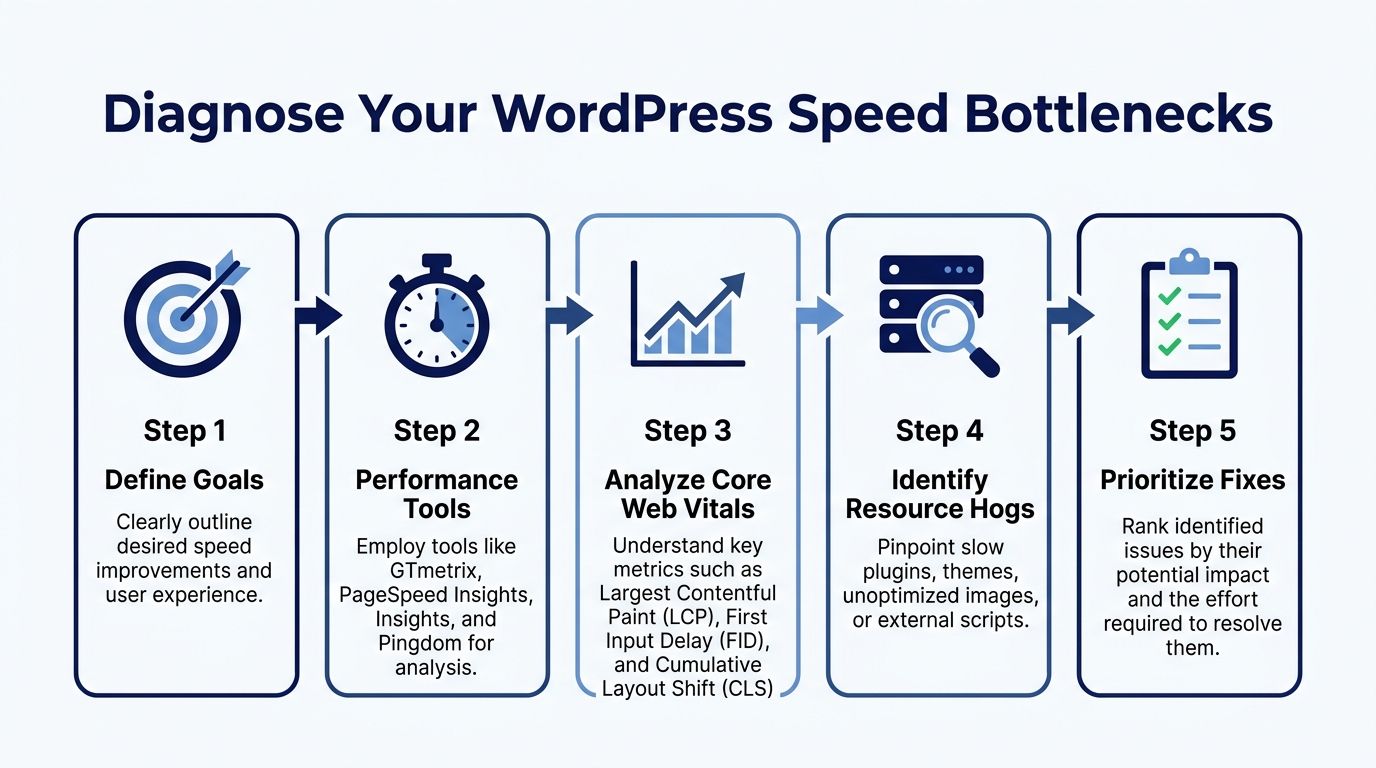
A site can feel slow for very different reasons. On one WordPress build, the problem is a 4 MB hero image. On another, it is uncached PHP work, third-party scripts, or a theme that ships far too much JavaScript. Until you identify the bottleneck, every fix is a guess, and guessed fixes are how sites end up with plugin bloat and little measurable gain.
Start with two views of the same page. Use Lighthouse or PageSpeed Insights to check user-facing performance signals such as loading, interactivity, and layout stability. Then use WebPageTest or GTmetrix to inspect the request waterfall, server response behavior, and which assets block rendering.
Read the report like an engineer, not a score chaser
The headline score is only a summary. The useful part is the pattern underneath it.
Look at these three metrics first:
| Metric | What it means in practice | Common WordPress causes |
|---|---|---|
| LCP | How quickly the main content becomes visible | oversized hero images, slow server response, render-blocking CSS |
| INP | How responsive the page feels when someone clicks or taps | heavy JavaScript, third-party widgets, bloated page builders |
| CLS | Whether content shifts while loading | missing image dimensions, sliders, injected banners, font swaps |
Use the standard thresholds as a pass or fail check. LCP under 2.5 seconds, INP under 200 milliseconds, and CLS under 0.1 usually indicate that the page feels fast enough, stable enough, and responsive enough for real visitors. If one metric is out of range, focus on that failure mode first instead of trying to raise every score at once.
That priority matters. A page with good compression but poor INP still feels frustrating. A page with a high Lighthouse score but unstable layout still looks sloppy.
Test the page types that affect revenue
Do not limit testing to the homepage. In audits, the homepage is often the least representative template on the site because it gets the most attention and the most caching.
Audit a mix like this:
- Homepage for first impression and global asset load.
- Top landing page for campaign traffic and lead capture.
- Core service or product template because template-level issues usually repeat across many URLs.
- Blog or archive page if search traffic matters.
- Checkout, cart, or account area if the site runs WooCommerce.
Teams often uncover the underlying problem. The marketing homepage may test reasonably well, while product pages struggle under image payloads, filters, reviews, and recommendation widgets. A publisher may look fine on article pages but fall apart on ad-heavy category archives. A service business may discover that one conversion page is slowed down by chat, scheduling, map, and form scripts all competing for the main thread.
Map symptoms to likely causes
Once you test several important templates, repeated patterns become easier to spot:
- High LCP with heavy image payloads: The main visual is too large, compressed poorly, or loaded too late.
- Poor INP with long main-thread tasks: JavaScript is doing too much before the browser can respond to input.
- High CLS on mobile: Images, banners, embeds, or fonts are loading without reserved space.
- Slow TTFB and long backend processing: Hosting, database queries, cache misses, or expensive dynamic rendering are likely involved.
If three high-value pages show the same issue, treat it as a system problem, not an isolated page problem.
For image-heavy templates, I often review lazy loading behavior and above-the-fold media delivery before touching anything else. This WordPress lazy loading optimization guide is a useful reference for that specific issue. For a broader workflow on testing and prioritizing page load problems, this practical guide on how to improve page load speed aligns well with the same diagnose-first approach.
The goal here is not to collect reports. It is to build a short list of causes ranked by business impact, implementation risk, and expected gain. That is how performance work stays focused. Diagnose first, fix the highest-return issues next, then deal with the deeper architectural constraints that keep the site slow.
Implement High-Impact Quick Wins for Immediate Gains
Most WordPress speed projects have an obvious 80/20. It’s usually caching, image optimization, and asset loading discipline. Not because those are trendy recommendations, but because they attack the biggest delays users feel first.
Here is where I usually start on production audits.
Get caching right before you chase micro-optimizations
Caching changes the economics of every page request. Instead of rebuilding the page through PHP and database queries every time, WordPress can serve a static version when appropriate.
Implementing caching can reduce server load by 80-90% and improve load times from several seconds to under one second. Object caching with Redis or Memcached can further cut database query times by 50-70% on dynamic sites (CloudPanel on WordPress site speed).
That makes page caching the first serious lever to pull.
A practical setup often looks like this:
- Page cache: WP Rocket, LiteSpeed Cache, W3 Total Cache, or server-level Varnish.
- Browser cache: Long expiry for static assets so repeat visits are cheaper.
- Object cache: Redis or Memcached for database-heavy sites.
- Exclusions: Cart, checkout, account, logged-in sessions, and any page that must stay dynamic.
What doesn’t work is enabling aggressive cache settings without understanding the site. WooCommerce stores, membership sites, and multilingual setups can break if dynamic content is cached carelessly.
Cache the pages that should be static. Protect the flows that must stay dynamic.
Fix images where users feel them most
Most WordPress sites don’t have an image problem everywhere. They have it in specific places: the hero, the product gallery, blog thumbnails, background banners, and mobile variants that are far too large for the viewport.
Use a simple decision filter:
- Compress and convert large JPEG or PNG assets to WebP or AVIF where supported.
- Resize to actual display dimensions instead of uploading oversized originals.
- Use responsive srcset behavior so mobile users don’t download desktop-sized images.
- Lazy load below-the-fold media but preload the LCP image.
If you want a good supplemental walkthrough, this practical guide on how to improve page load speed covers many of the same fundamentals from a broader site-performance angle.
For WordPress-specific image behavior, lazy loading is one of the safest wins when applied thoughtfully. This WordPress lazy loading masterclass is useful if you want implementation detail without getting lost in edge cases.
Reduce frontend friction, not just file size
Minifying CSS and JavaScript helps, but the bigger issue is often when those assets execute. A small script loaded in the wrong place can still delay rendering or interaction.
Focus on these changes:
- Generate or inline critical CSS so above-the-fold content appears faster.
- Defer non-essential JavaScript including sliders, widgets, and secondary UI features.
- Delay third-party scripts when they aren’t required for the first render.
- Host fonts carefully and reduce font variants so typography doesn’t hold up layout.
The goal isn’t to remove every script. It’s to ensure the first meaningful view arrives quickly, and the page responds promptly once a user interacts.
A quick visual explainer can help when you’re planning those trade-offs:
What to expect from quick wins
On a typical audit, these changes create the first visible jump in performance because they reduce both backend work and frontend payload. If your stack is otherwise healthy, they may be enough. If they don’t move the needle far enough, that usually means the underlying limit is deeper in the hosting stack, theme architecture, or plugin load.
Upgrade Your Foundation Server and Architecture
A fast theme on weak infrastructure still feels slow. Once the obvious frontend issues are under control, the next question is whether the server stack is setting a hard limit on performance.
That starts with hosting quality, PHP execution, and content delivery. Shared hosting can be acceptable for light sites, but business-critical WordPress installs usually outgrow it quickly. WooCommerce, multilingual builds, API-connected platforms, and multisite networks all put more pressure on the stack than brochure sites do.

Know what your hosting is actually doing
A hosting plan isn’t fast because the sales page says it is. It’s fast if it handles uncached requests efficiently, supports modern PHP, has enough resources for peak traffic, and doesn’t create noisy-neighbor issues.
Use this decision lens:
| Hosting setup | Where it fits | Typical limitation |
|---|---|---|
| Cheap shared hosting | small, low-traffic sites | inconsistent backend performance |
| Managed WordPress hosting | marketing sites, content sites, growing stores | less flexibility for custom stacks |
| VPS or cloud instance | custom builds, integrations, scaling traffic | requires stronger operational discipline |
If the site still has a weak Time to First Byte after basic optimization, infrastructure deserves scrutiny before more plugin tuning.
CDN and edge delivery matter for distributed audiences
If your users are spread across regions, the physical distance between browser and server becomes part of the problem. A CDN helps by serving static assets from edge locations closer to the visitor.
Integrating a CDN can reduce latency by 30-50% for global users and offload up to 80% of static asset requests from your origin server. Combined with next-gen image formats like WebP/AVIF, this can lead to a 50-70% reduction in total page payload (AIOSEO website speed optimization).
That doesn’t mean every site needs a complex enterprise CDN setup. But if you serve national or international traffic, a CDN is usually one of the clearest infrastructure upgrades available.
A few practical notes:
- Use a CDN for static assets first. Images, CSS, JS, and fonts benefit immediately.
- Pair it with smart cache headers. Otherwise the edge won’t help as much as it should.
- Test after rollout. Some plugins, rewrite rules, and image layers don’t behave cleanly on day one.
Modern stack decisions remove hidden drag
A lot of slow sites are running on infrastructure that was never revisited after launch. That includes old PHP versions, underpowered database resources, or hosts that don’t align with the site’s current traffic and functionality.
If you’re considering a move, this guide on migrating a WordPress website to a new host is a useful operational reference. A migration done for performance reasons should preserve caching strategy, media handling, and environment parity. Otherwise, you risk moving the site without fixing the bottleneck.
For teams with more control over infrastructure, support for modern protocols and efficient server-level caching also matters. Those upgrades aren’t flashy, but they raise the performance ceiling for everything else.
Conduct an Audit of Code and Database Health
When people ask how to improve wordpress site speed, they often assume the answer is adding something. Another plugin. Another optimization layer. Another CDN rule. In mature WordPress environments, the answer is often the opposite. Remove the waste first.
Most slow sites accumulate technical debt gradually. A page builder gets heavier over time. A plugin remains active after its feature is no longer used. A theme template loads assets everywhere because no one ever narrowed scope. The database stores years of revisions, transients, and orphaned data that nobody reviews.

Audit plugins by cost, not by count
The number of plugins alone isn’t the issue. A site can run many lightweight, well-built plugins and stay fast. It can also run a small set of poorly written ones and struggle badly.
Use Query Monitor and your waterfall reports to answer questions like:
- Which plugin triggers slow database queries?
- Which scripts load on every page, even when not needed?
- Which admin tools, analytics widgets, chat tools, or form plugins are adding frontend weight?
- Which theme functions are generating unnecessary server work?
A useful mindset shift is to audit by cost per feature. If a plugin adds one visible feature but loads assets globally, makes repeated queries, and complicates caching, it may not deserve its place in the stack.
Every plugin should justify its runtime cost, not just its feature list.
Clean the database and tighten query behavior
Database hygiene matters more on older sites than teams usually expect. WordPress stores useful data, but it also stores clutter. Over time that clutter can slow queries and make backend work more expensive.
By cleaning the database and ensuring efficient queries, it’s possible to reduce TTFB to under 200ms, a benchmark for enterprise-grade performance. Properly configured caching on top of this can reduce server load by 80-90% (ITXITPro on WordPress speed improvements).
That usually means reviewing:
- Post revisions that have grown far beyond editorial value.
- Expired transients left behind by plugins.
- Spam comments and orphaned metadata that add noise.
- Autoloaded options that are loaded on every request.
- Custom queries in themes or plugins that aren’t selective enough.
A formal technical website audit can help when the issue isn’t obvious from the frontend. On larger WordPress builds, the slowest problems often sit below the visual layer.
Challenge the theme and frontend architecture
If your theme relies heavily on page builder layers, duplicated CSS, animation libraries, and broad asset loading, optimization eventually hits diminishing returns. At that point, a lighter custom theme, selective block strategy, or more modular frontend architecture may outperform endless tuning.
Headless WordPress can also be valid for the right use case, especially when the frontend experience demands tighter control than a traditional theme allows. But it isn’t a shortcut. It trades one set of problems for another, and it only makes sense when the business need justifies the additional complexity.
Create a Continuous Performance Culture
A fast site at launch can still become a slow site six months later. New plugins arrive. Marketing adds tracking scripts. editors upload oversized media. Product teams request features that weren’t in the original performance budget. That’s why speed needs ownership, not just a one-time sprint.
For WooCommerce, this matters even more because the most valuable pages are also the hardest to cache. Cart, checkout, account pages, and personalized pricing logic all reduce the margin for sloppy engineering. Keep those flows lean. Limit unnecessary scripts. Exclude dynamic commerce pages from full-page cache, but optimize everything around them aggressively.
Put a simple operating rhythm in place
The teams that keep WordPress fast usually do a few basic things consistently:
- Monitor key templates monthly: Check homepage, top landing page, product or service template, and checkout-related flows.
- Review regressions after releases: New functionality should trigger a quick performance check, not just a visual QA pass.
- Watch Core Web Vitals over time: Use tools like Lighthouse, WebPageTest, SpeedVitals, or real-user monitoring where available.
- Test on staging first: Caching rules, script delay settings, and database cleanup should never be trial-and-error on production.
Performance regressions usually enter through normal business activity, not dramatic technical failures.
Use a rollout checklist before pushing changes live
A lightweight checklist prevents most self-inflicted problems:
| Check | Why it matters |
|---|---|
| Confirm backups and staging parity | lets you test aggressively without risking production |
| Benchmark before changes | proves whether the fix actually helped |
| Deploy one major optimization category at a time | makes conflicts easier to isolate |
| Verify dynamic pages after caching changes | catches stale cart, account, or form issues |
| Retest after release | validates real outcome, not assumed outcome |
One option for teams that need hands-on engineering support is IMADO, which provides WordPress performance work such as audits, caching strategy, CDN setup, image optimization, lazy loading, and JavaScript or CSS optimization. For in-house teams and agencies alike, the important part is having a repeatable process and someone accountable for keeping the site fast as it evolves.
Treat performance like a product requirement. If a feature isn’t worth its speed cost, challenge it. If a plugin creates drag sitewide, replace it. If infrastructure is the bottleneck, fix the foundation instead of polishing symptoms.
If your WordPress site has already gone past basic plugin tweaks and still feels slow, IMADO can help with the engineering side of the problem. Their team handles performance audits, architecture review, WooCommerce optimization, migrations, and ongoing maintenance for brands that need a faster, more stable WordPress stack without guessing at fixes.
Let’s build something exceptional
Tell us about your project – we’ll help you launch a fast, scalable, SEO-optimized WordPress platform built for growth.