 Ask Chatgpt to summarize WooCommerce Database Optimization: Boost Store Speed
 Ask Grok to summarize WooCommerce Database Optimization: Boost Store Speed
 Ask Claude to summarize WooCommerce Database Optimization: Boost Store Speed
 Ask Perplexity to summarize WooCommerce Database Optimization: Boost Store Speed
 Ask Gemini to summarize WooCommerce Database Optimization: Boost Store Speed

A WooCommerce store rarely gets slow all at once. It degrades in stages.
First, the admin takes longer to load orders. Then product edits feel sticky. Cart and checkout stay mostly usable, but category pages start showing higher TTFB. Someone installs a cleanup plugin, clicks a few “optimize” buttons, and hopes the database will sort itself out. Sometimes nothing improves. Sometimes something breaks.
That’s the wrong model for WooCommerce database optimization.
A fast fix starts with identifying which part of the database is hurting you. On many stores, the main problem isn’t old revisions. It’s autoloaded junk in wp_options. On order-heavy stores, it’s often the legacy order schema and not “database bloat” in the generic sense. On some builds, the issue is a small number of slow unindexed queries created by a plugin or custom code.
The practical path is simple. Diagnose first. Change one thing at a time. Measure again. If your WordPress admin already feels delayed, start with this guide to a slow WordPress admin, then work through the database methodically.
Table of Contents
Your Store Is Slowing Down Now What
Most stores launch with a database small enough that bad habits stay hidden. WooCommerce can tolerate extra metadata, sloppy options, and overactive plugins for a while. Growth exposes the cost.
The mistake I see most often is treating the database like a garage that just needs a cleanup day. That mindset produces blind deletion. It doesn’t produce a stable store. If you remove the wrong sessions, carts can fail. If you optimize giant tables at the wrong time, the site can lock up. If you skip diagnosis, you can spend hours cleaning revisions while the actual bottleneck sits in wp_options or in the legacy order schema.
WooCommerce database optimization works when you follow a sequence:
- Measure the pain point. Is the slowness in admin order screens, frontend page generation, or both?
- Locate the pressure point. Check autoloaded options, large tables, and slow queries before deleting anything.
- Apply the matching fix. Autoload bloat needs a different response than order-table bloat.
- Retest after each change. One change, one measurement, one conclusion.
Practical rule: Don’t start with a cleanup plugin. Start with a query count, table size review, and an autoload audit.
That discipline saves time. More significantly, it prevents the kind of “optimization” that leaves you with a smaller database and a broken checkout.
Diagnosing Bloat Before You Operate
You need a diagnosis before you touch production data. Without one, WooCommerce database optimization becomes guesswork disguised as maintenance.
Start with three lenses. Runtime queries, table growth, and option loading. If all three point at the same area, you’ve found your first real target.

Check what WordPress is querying
Install Query Monitor on a staging copy first. Then visit the pages that feel slow. Use admin order lists, product edit screens, cart, checkout, and one heavy category page.
What matters isn’t only the total query count. It’s which component is responsible for the slowest queries. Query Monitor’s “Queries by Component” view is usually where the pattern becomes obvious. One plugin often dominates.
Use a repeatable workflow:
- Flush caches before testing so you’re not measuring stale object cache behavior.
- Open the same page several times and compare whether the problem is consistent or spikes only on certain requests.
- Group by component to isolate a plugin, theme function, or WooCommerce extension.
- Deactivate suspects on staging and reload the same page.
If you need a broader process for technical review, use a proper website audit workflow and include query inspection as one of the core checks.
A visual walkthrough can help if your team hasn’t used these tools before.
Inspect table growth directly
Then switch from runtime behavior to database shape. Open phpMyAdmin, Adminer, or your host’s database panel and sort tables by size.
You’re looking for outliers, not “large tables” in the abstract. On WooCommerce sites, the usual suspects are:
| Table | What large size often means |
|---|---|
wp_options | autoloaded settings, transients, plugin residue |
wp_postmeta | legacy order metadata, product metadata sprawl |
wp_posts | revisions, legacy order storage, content churn |
| WooCommerce session tables or logs | abandoned sessions, logging left too verbose |
If wp_options is unexpectedly heavy, don’t jump to table optimization yet. That often points to autoload bloat. If wp_postmeta is huge on an order-heavy store, the more important question is whether the store is still using the legacy order schema.
Use SQL to produce a problem statement
At this point, stop speaking in vague terms like “the database is bloated.” Write a short problem statement based on evidence.
A useful one sounds like this:
- Frontend issue caused by oversized autoloaded options in
wp_options - Admin order slowdown caused by legacy order storage and excessive joins on
wp_postmeta - Localized plugin issue caused by a specific extension issuing slow queries on product pages
Don’t clean what you haven’t measured. Most bad database work starts with the sentence “it probably won’t hurt.”
Once you can state the problem precisely, the right fix becomes much clearer.
Taming Transients and The Autoload Menace
For many stores, the fastest meaningful win is in wp_options, not in wp_posts.
Autoloaded data is loaded on every request when autoload = 'yes'. That means unnecessary options can slow the entire site, including pages that don’t need those values. Independent performance analysis documented autoloaded data ranging from 3.8MB to over 15MB, with an average of 5.5MB for standard WooCommerce installs using 20+ plugins. When autoloaded data exceeds 5MB, TTFB rises by 200 to 400 milliseconds and overall page load time increases by 15 to 25%, according to Wisdmlabs’ summary of performance engineer findings.
Measure autoload size first
A practical benchmark is to keep total autoloaded data under 800 KB. You can check the current size with:
SELECT SUM(LENGTH(option_value))
FROM wp_options
WHERE autoload = 'yes';
Experts recommend that threshold, and they note that reducing autoload size below it can cut average page load time by 0.4 to 0.6 seconds, as explained in SpinupWP’s autoloaded data guide.
If your result is well above that, you’ve found a likely bottleneck.
Find the largest offenders
Don’t disable autoload blindly. Pull the worst rows first:
SELECT option_name, LENGTH(option_value) AS size
FROM wp_options
WHERE autoload = 'yes'
ORDER BY LENGTH(option_value) DESC
LIMIT 20;
This query gives you the top offenders. Review each one manually. Common bad actors include stale plugin settings, expired transients that weren’t cleaned correctly, and plugin-generated blobs that have no reason to load on every request.
Then selectively disable autoload where it’s safe:
UPDATE wp_options
SET autoload = 'no'
WHERE option_name = 'large_option_name';
That change is surgical. It’s also reversible. That’s why it’s better than pushing a generic cleanup button.
Field note: The fastest database fix is often not deleting data. It’s stopping WordPress from loading the wrong data on every request.
Clear transients carefully
Transients aren’t always the enemy. Expired transients are. WooCommerce and plugins use them for temporary caching and state management, so remove expired junk, not active state data you haven’t inspected.
With WP-CLI, expired transient cleanup is straightforward:
wp transient delete --expired
You can also review suspicious option rows before deciding whether to delete them or just disable autoload.
For stores with many plugins, this is also a plugin-governance problem. Some extensions flood wp_options with oversized settings or transients and never clean up after themselves. That’s where disciplined WordPress plugin load optimization pays off. The database and plugin layer are tied together more tightly than is generally recognized.
What not to do
Avoid generic database cleaners that flatten everything into “junk.” One of the common pitfalls in high-traffic WooCommerce environments is deleting the wrong transient or session data and damaging cart state. The safer method is to inspect large autoload rows, disable what’s not needed globally, and only then remove stale entries.
If your store is still slow after bringing autoload under control, the next suspect usually isn’t “more cleanup.” It’s historical data or order architecture.
Safely Cleaning Historical Data Bloat
Historical data expands progressively. Revisions pile up. WooCommerce logs linger. Sessions outlive the shopper who created them. None of that means you should start deleting whole categories of data from production.
Aggressive cleanup is where teams break stores. The risk isn’t theoretical. Removing active session data can disrupt carts and checkout state. Generic cleanup tools can also remove records you still need for support, reporting, or extension compatibility. Use a staging site before you turn any cleanup routine into a habit.
Clean what is old, not what is merely present
A safe cleanup policy starts with age and purpose.
Use these categories:
- Post revisions are usually safe to trim when they’re old and excessive.
- WooCommerce sessions should be cleaned based on expiration, not by deleting everything.
- Logs and temporary tables can often be pruned if you’ve confirmed they’re not part of an active troubleshooting workflow.
- Order data should almost never be mass-deleted unless finance, support, and reporting owners all agree.
For revisions, WP-CLI keeps things simple:
wp post delete $(wp post list --post_type='revision' --format=ids) --force
That’s effective, but it’s still blunt. On a content-heavy site, I prefer running it in staging first and checking whether any editorial workflow depends on historical revisions.
To reduce future growth, add a revision limit in wp-config.php:
define('WP_POST_REVISIONS', 5);
Treat sessions as live commerce data
WooCommerce sessions are not equivalent to trash. They can represent real carts in progress.
A safer principle is simple. Delete only sessions that are clearly stale. If you’re using SQL for session cleanup, target old records only. Don’t purge the entire session store because someone said “sessions bloat the database.”
Stores don’t lose revenue because they had old rows. They lose revenue because someone deleted rows that were still doing work.
The same applies to logs. A full log table may be annoying, but a missing forensic trail during a payment or fulfillment issue is worse.
Archive before deleting when data has business value
Old order-related records create a different kind of decision. Deleting them may improve size, but it also removes support history and reporting continuity. If a merchant needs long-term order history but not fast access to all of it in the live app, archiving is usually the better move.
Here’s the practical trade-off:
| Approach | Best for | Main risk |
|---|---|---|
| Delete | data with no business value | irreversible loss |
| Archive | old records still needed occasionally | extra implementation work |
| Keep live | active reporting and support workflows | larger working set |
That’s why I treat historical cleanup as maintenance, not as emergency optimization. The biggest wins usually come from fixing what the application loads and queries now. Historical pruning matters, but only when it’s done with rules and review.
The HPOS Revolution for Modern Order Storage
If your store handles a meaningful order volume and still uses the legacy order schema, that’s the first structural issue I’d question.
Before High-Performance Order Storage (HPOS), WooCommerce stored orders in the WordPress posts table and order metadata in postmeta. That design worked early on, but it aged badly as stores scaled. The result was huge postmeta tables, serialized metadata sprawl, and expensive joins for simple order operations.
A historical benchmark from Jorijn’s WooCommerce database optimization analysis describes postmeta tables growing to 10GB to 50GB on high-volume stores with 100,000+ orders, with simple admin queries taking 2 to 5 seconds. That’s the old architecture failing exactly where growing stores need it to hold.
Why HPOS changes the game
HPOS moves order data into dedicated tables such as wc_orders, wc_order_addresses, wc_order_meta, and wc_order_operations. That separation matters because orders are not blog posts, and querying them as if they were was always a compromise.
The practical upside is large. According to WooCommerce’s HPOS roadmap announcement, migrating a store with 200,000 orders can reduce database size by 40 to 60% and improve order-related query speeds by up to 10x, with average admin response times dropping from 3.5 seconds to under 0.3 seconds.
Another operational point matters just as much. Failing to enable HPOS results in a 30 to 40% increase in database queries for order retrieval during peak traffic, based on the verified implementation guidance you provided. On order-heavy stores, that query overhead compounds fast.
How to enable HPOS safely
The path is straightforward, but compatibility matters.
In WooCommerce, go to:
WooCommerce > Settings > Advanced > Features
Enable:
- High performance order storage (new)
- Keep the posts and orders tables in sync
That sync option is important during migration. It gives you a safer transition path while extensions and internal workflows are validated against the new schema.
Use this checklist before switching fully:
- Audit extension compatibility. Payment, fulfillment, ERP, reporting, and custom order-management plugins need attention first.
- Test order creation and refunds on staging. Don’t assume “compatible” means every custom workflow still behaves correctly.
- Validate admin screens. Order search, filters, exports, and custom statuses should all be exercised.
- Watch query behavior during migration. The point isn’t just that migration completes. The point is that the workload shifts to the right tables.
Migration rule: HPOS is not a cleanup task. It’s an architectural correction.
When HPOS matters more than cleanup
Beginner guides often overfocus on revisions and orphaned rows. That advice isn’t wrong. It’s just not where the biggest bottleneck lives on order-heavy stores.
One of the underserved realities of WooCommerce database optimization is that HPOS can reduce query counts by up to 70% for order-heavy stores, according to the benchmark summary in this WooCommerce HPOS discussion. That’s why old-school “clean your database” advice has diminishing returns if the order layer still depends on wp_posts and wp_postmeta.
For modern WooCommerce, HPOS is the structural baseline. Cleanup comes after architecture.
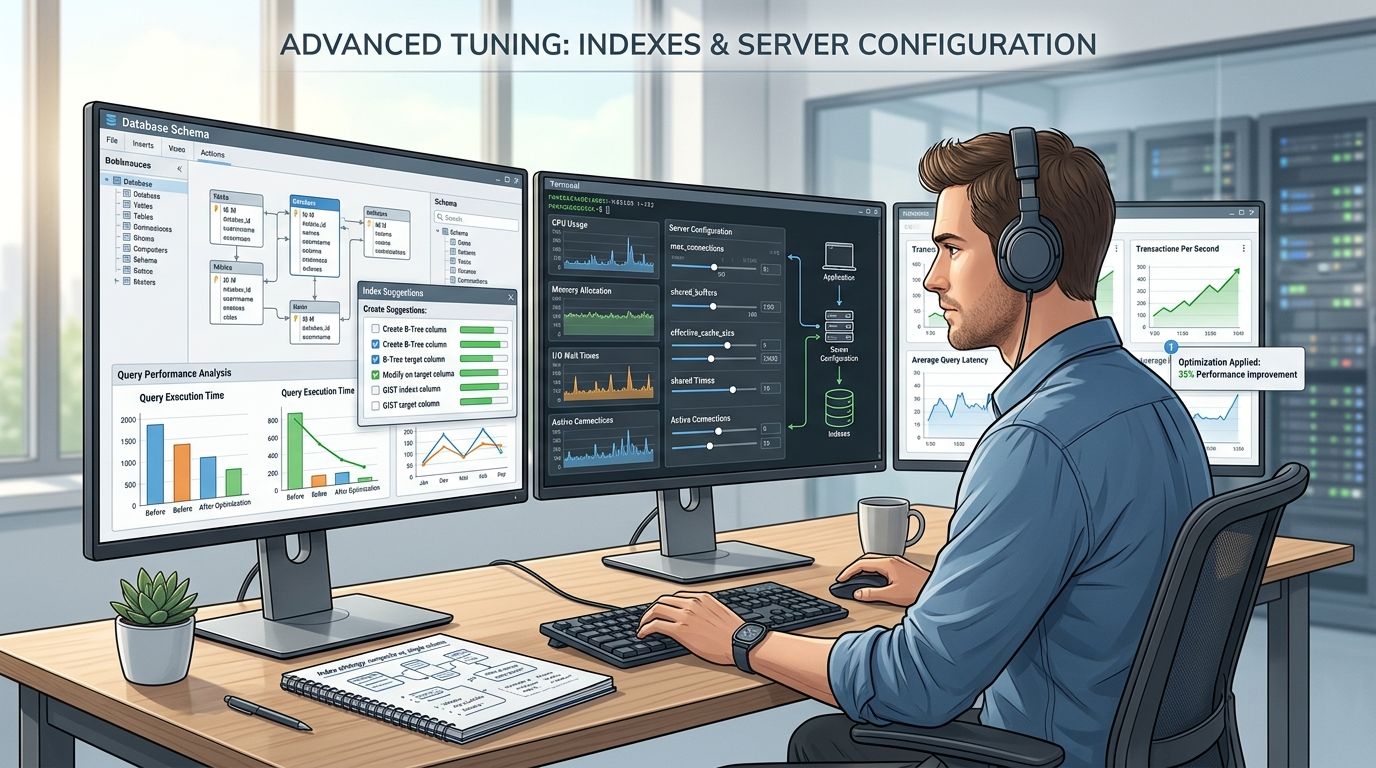
Advanced Tuning with Indexes and Server Config
Once the obvious bloat is handled, the remaining delays usually come from query shape and server behavior.
Many teams often reach for OPTIMIZE TABLE. On large WooCommerce databases, that’s often the wrong instinct. The more useful questions are: which query is slow, why is MySQL scanning too much data, and does the table have the right engine and index for that workload?
Find the actual slow query
Use Query Monitor for page-level clues and your host’s slow query log for sustained evidence. You’re looking for repeated patterns, not one weird request.
Typical signs include:
- Frequent full-table scans on metadata-heavy lookups
- Order queries filtered by multiple columns without a composite index
- Plugin queries that join several tables on every admin request
If the query pattern is stable and important, indexing can make more difference than another round of cleanup.
Use the right engine and indexes
A key implementation detail in modern WooCommerce optimization is using InnoDB with proper indexing. Combined with HPOS, converting tables to InnoDB and adding composite indexes on order_id and status can reduce query execution time by up to 50%, based on the verified implementation data in your brief.
A representative SQL pattern looks like this:
ALTER TABLE wp_wc_orders
ADD INDEX idx_order_id_status (order_id, status);
Use your real table and column names, and confirm the query pattern before adding anything. Indexes are not free. They increase write overhead and storage use. The right index helps. The wrong one just adds maintenance cost.
Don’t run heavy maintenance at the wrong time
Production judgment matters. Running OPTIMIZE TABLE on very large tables during peak traffic can lock the table and cause a 100% service outage, according to the verified technical guidance you provided. That risk is real enough that I treat OPTIMIZE TABLE as a scheduled maintenance decision, not a default “speed up the DB” command.
The safer alternatives are:
| Action | Good use case | Risk level |
|---|---|---|
| Add targeted indexes | repeated slow lookups | moderate |
| Convert to InnoDB | old table engine issues | moderate |
| Scheduled maintenance window | structural table work | lower if planned |
OPTIMIZE TABLE on giant live tables | almost never during business hours | high |
The same guidance notes an expert alternative of using pg_repack or scheduling maintenance in off-peak windows. The broader lesson matters more than the specific tool choice. Heavy table maintenance belongs in a controlled window.
If you can’t explain which query an index is fixing, don’t add the index yet.
Know when server tuning is worth it
At this stage, some stores are no longer suffering from WordPress-level waste. They’re constrained by database memory, concurrency, or host-level configuration. That’s when buffer sizing, slow query analysis, and DBA-style tuning become worth the effort.
If you’re already on HPOS, autoload is under control, and the remaining slowness shows up under concurrency, stop pretending another plugin will solve it. Bring in someone who can read the workload properly.
Automating Maintenance for Long-Term Health
A cleaned database won’t stay clean on its own. Plugins change. content grows. Orders keep coming. The right answer is a maintenance routine that’s boring, safe, and automatic.
The goal isn’t to “optimize the database every week.” The goal is to stop known junk from accumulating and to catch regressions before customers feel them.
Build a small maintenance script
WP-CLI is enough for routine housekeeping. Keep the script focused on low-risk tasks you’ve already validated in staging.
A practical starting point:
#!/bin/bash

# Delete expired transients
wp transient delete --expired

# Remove post revisions
wp post delete $(wp post list --post_type='revision' --format=ids) --force

# Report autoload size
wp db query "SELECT SUM(LENGTH(option_value)) AS autoload_size FROM wp_options WHERE autoload='yes';"
That script doesn’t try to be clever. Good. Maintenance scripts shouldn’t contain risky logic unless someone on the team can support it confidently.
Run it on a schedule that matches site activity. For some stores, weekly is enough. For heavier editorial or plugin churn, a tighter routine can make sense. The point is consistency.
Automate checks, not just cleanup
Deleting expired transients is helpful. Catching a plugin that suddenly dumps oversized autoloaded options is better.
Track these signals over time:
- Autoload growth in
wp_options - Table size outliers such as
wp_options,wp_postmeta, or HPOS order tables - Slow-query recurrence after plugin updates
- Admin complaints about order screens, exports, or product edits slowing down
A simple review template works well:
| Check | What you want to see |
|---|---|
| Autoload total | stable and controlled |
| Largest autoload rows | no surprise plugin blobs |
| Order screen performance | no noticeable admin drift |
| Slow query log | no repeated regressions |
| Table size trend | growth explained by actual business activity |
Make maintenance part of release discipline
The database usually gets slower because teams change the application around it. New plugins. New integrations. New reporting widgets. New custom fields. That means database health belongs in release review, not in a rescue mission months later.
A practical release habit looks like this:
- Test plugin updates on staging and inspect Query Monitor on critical pages.
- Review new options and settings behavior after installing anything substantial.
- Check order-related compatibility whenever WooCommerce extensions touch the checkout or admin order flow.
- Retire unused plugins fully, including their stored options when safe.
A common failing for many stores is that they maintain code versions but neglect database hygiene.
Good WooCommerce database optimization is mostly about preventing bad data behavior from becoming normal.
Keep the workflow realistic
Don’t automate destructive cleanup you haven’t personally verified. Don’t schedule heavy maintenance in peak hours. Don’t let one plugin own critical database cleanup unless you trust exactly what it deletes and why.
The stores that stay fast aren’t the ones with the most tools. They’re the ones with a repeatable workflow, clear ownership, and a bias toward diagnosis before action.
If your team needs senior help untangling WooCommerce performance issues, IMADO is a strong fit. They build and maintain fast WordPress and WooCommerce platforms, handle complex plugin and integration work, and bring the kind of engineering discipline that database-heavy stores need when quick fixes have stopped working.
Let’s build something exceptional
Tell us about your project – we’ll help you launch a fast, scalable, SEO-optimized WordPress platform built for growth.